My Windows PC started reporting file system errors after an unexpected shutdown, and now one drive is slow to open and sometimes shows missing folders. I’m looking for reliable disk repair software or tools to fix file system errors without making data loss worse. What should I try before replacing the drive?
I’d be a little skeptical of any list calling something the “best hard drive repair software.” That phrase gets used for a bunch of different problems, and the right tool depends on what actually went wrong.
The important thing is to figure out what kind of issue you’re dealing with first. If files were deleted, the drive was formatted, or it suddenly shows up as RAW, think data recovery before repair. If the partition is missing or Windows shows the disk as unallocated, that’s more of a partition repair situation. If the drive is slow, freezing, or showing bad sectors, check its health before you start poking at it. And if it’s clicking, grinding, dropping out, or disconnecting, stop using it as much as you can and focus on getting the data off.
For tools, this is the lineup I’d look at:
1. Disk Drill
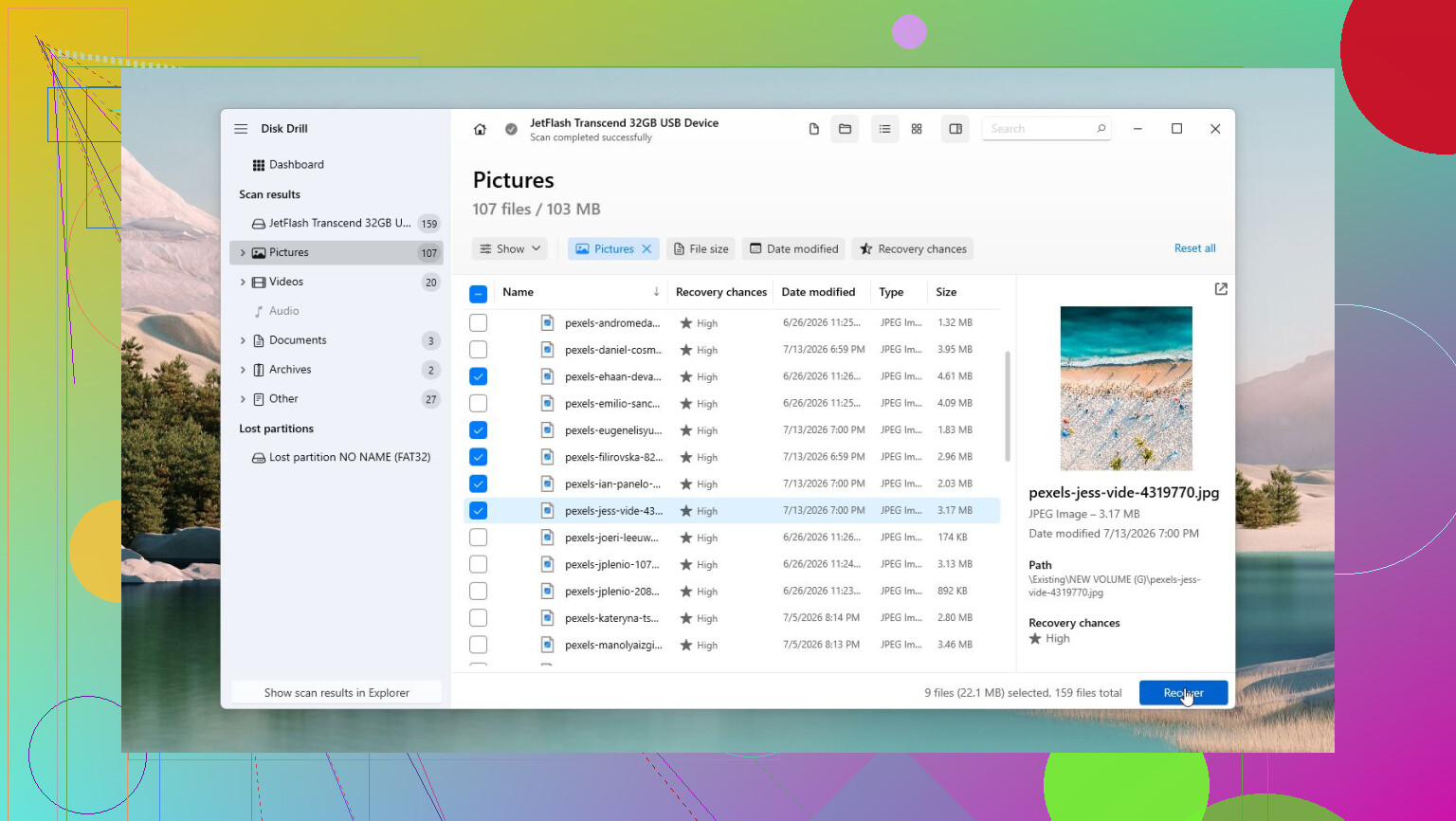
This is usually the first one I’d reach for when the goal is getting files back. It’s meant for deleted files, formatted drives, RAW partitions, damaged file systems, and external hard drives that Windows refuses to open. It also has S.M.A.R.T. monitoring and can make a byte-to-byte image of the drive, which is a much safer way to work if the disk might be failing.
2. SeaTools
Good free option for checking whether the drive itself is failing. It can run quick and extended tests, so it’s useful when you’re not sure if the issue is Windows, the file system, or the hardware.
3. TestDisk
This is one of the better free tools for fixing partition tables and boot sector problems. If a partition vanished or the drive suddenly appears as unallocated, TestDisk is worth looking at. Just know that it’s not very beginner-friendly since it uses a text-based interface.
4. Clonezilla
If the drive still reads but seems unstable, clone it before doing anything else. Clonezilla is good for creating a full copy or image of the disk so you’re not experimenting directly on the failing drive.
5. CrystalDiskInfo
This is useful to keep installed even when nothing is wrong. It shows S.M.A.R.T. data, drive temperature, and health warnings, which can give you a heads-up before the drive starts causing obvious problems.
6. Victoria HDD/SSD
More of an advanced tool, but very useful for surface scans and checking bad sectors. I wouldn’t point a beginner to it first, but it can give you a much clearer picture of what’s happening with the disk.
The main thing is not to spend days running “repair” tools on a drive that’s clearly dying. If it clicks, disappears from Windows or BIOS, freezes during transfers, or keeps gaining bad sectors, back up or recover the data while you still can, then replace the drive. Software can help with file system and partition problems. It can’t fix damaged heads, motors, or platters. If the drive isn’t detected at all or it’s making obvious mechanical noises, it’s better to go straight to a professional data recovery service.
1 Like
Whether the drive is HDD or SSD matters, because “slow to open” on an HDD can mean physical trouble, not just Windows being messy.
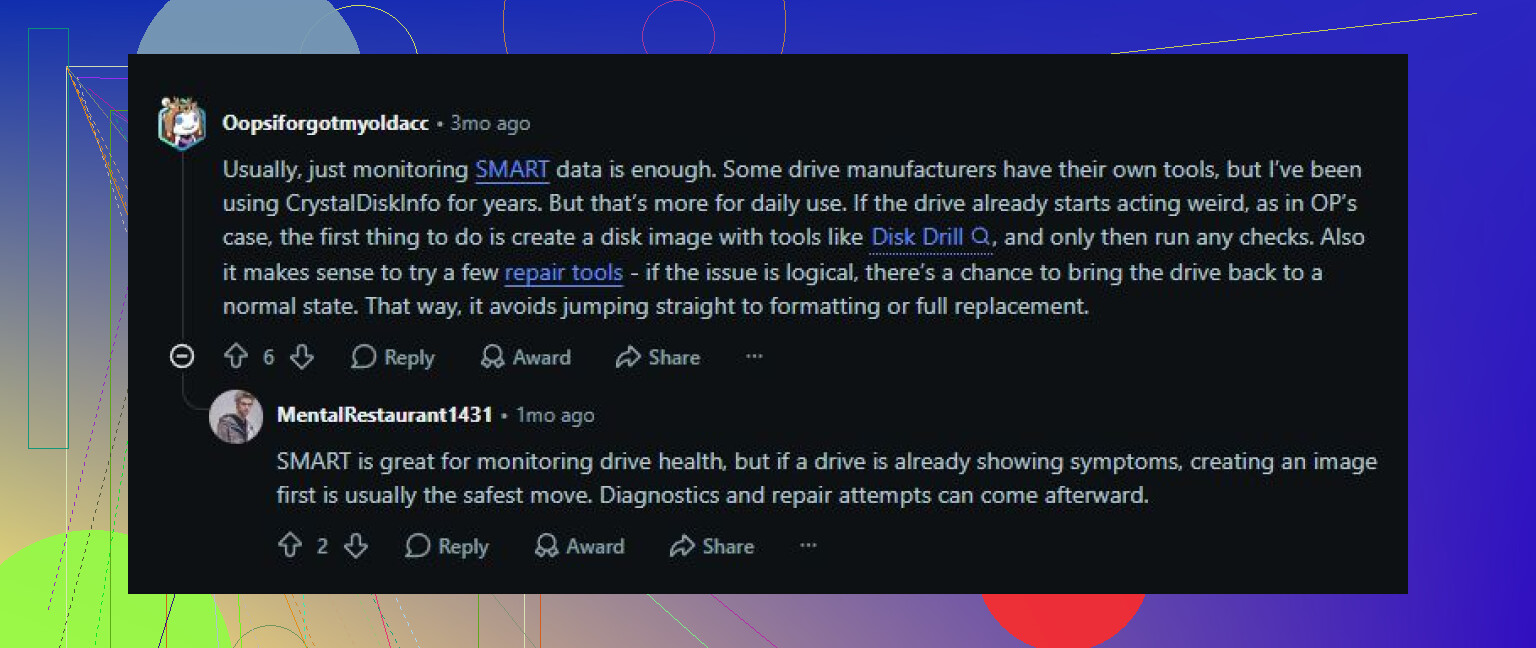
I’d avoid running CHKDSK with repair flags until the important files are copied or imaged, since it can “fix” the file system by cutting damaged directory entries loose. Disk Drill or similar recovery software makes more sense before repair if folders are already disappearing.
A drive that throws one error after a power cut is a different problem from a drive that gets slower every time you browse it. In the first case, Windows may just have an NTFS journal mess to clean up. In the second case, especially with missing folders, I’d treat the disk as suspicious until proven otherwise. That’s where I agree with @himmelsjager: don’t rush straight into “fix” mode if the files matter.
The cheap route is still worth trying, but in the right order. Copy the important stuff first if the drive stays online long enough. If it doesn’t, image the drive and work from the image. Disk Drill is useful there if you need a more beginner-friendly way to scan for missing folders or make a disk image before touching the file system. If the data is already backed up, then Windows’ own tools are fine: check the drive’s SMART status, run chkdsk without repair first, then only use chkdsk /f if the report points to file system errors. I would not start with chkdsk /r unless you’re ready for it to take ages and stress a weak HDD.
The small thing people forget is to check Event Viewer too. Look under Windows Logs > System for Disk, Ntfs, or storahci warnings around the time the drive hangs. If you see repeated I/O errors, resets, or bad block messages, software repair is mostly a detour. At that point the “best disk repair software” is whatever helps you get the files copied safely, followed by replacing the drive. If the logs are clean and SMART looks normal, then a file system repair is much more reasonable.
Plug the drive into another port or use a different cable before blaming the file system, especially if it’s an external drive. A flaky USB cable/enclosure can look exactly like “missing folders” and slow browsing, and no repair tool, Disk Drill included, will fix that until the connection is stable.