My WD My Passport Ultra suddenly stopped showing up on my computer, and it has important photos and work files I haven’t backed up anywhere else. I’m looking for advice on safe data recovery steps, software, or whether professional recovery is the better option.
I’ve messed with a bunch of WD My Passport drives over the years, and “my files are gone” does not always mean the data is dead. A lot of the time, the drive still works. The mess is in the file system, the partition table, or a delete you did by accident and forgot five minutes later.
First thing I’d do is check whether Windows still sees the drive.
Open Disk Management and find the WD My Passport in the list of disks. I wouldn’t care much about the drive letter yet. What matters first is simple. Does Windows detect the device, and does the listed size look close to what the drive should be?
If the capacity looks right, I take that as a decent sign. Even when Windows shows RAW, Unallocated, or throws up a format prompt, recovery still works pretty often because the hardware is at least talking back. Different story if the drive never shows up, drops connection over and over, or starts clicking, beeping, or doing other weird stuff. At that point I’d suspect hardware trouble before I’d blame the file system.
Once the drive shows up, stop writing anything to it. Seriously. If files were deleted recently, or the partition went bad out of nowhere, new writes can overwrite recoverable data. I’ve seen people lose the last good copy of photos because they kept poking around, copying random stuff, or trying repairs too early. bad move.
Before you run recovery software, check whether the files already exist somewhere else. This gets missed a lot. I’ve seen folders quietly sync to OneDrive, Google Drive, Dropbox, and other cloud accounts with the owner having no clue it happened. Spend two minutes checking those first. You might save yourself a whole evening.
If there’s no backup, I’d go straight to recovery software.
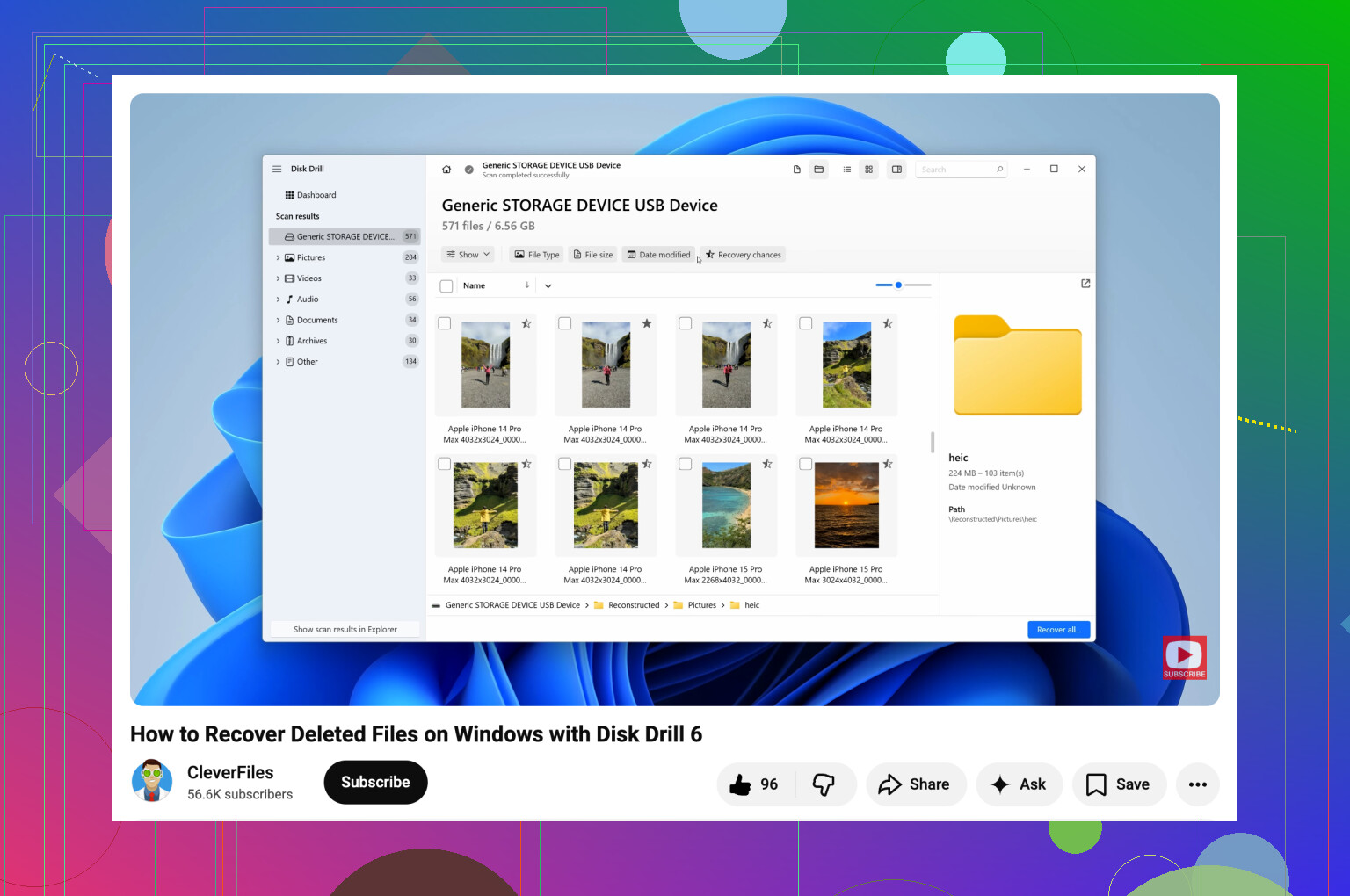
For WD My Passport drives, https://www.disk-drill.com/ is usually one of the first tools I try. It tends to do fine with deleted files, formatted partitions, and RAW volumes. It also supports NTFS and exFAT, which is what these drives usually show up as. The preview feature helps too. If a document, photo, or video opens in preview, your odds are usually decent.
What I usually do:
- Install the recovery app on your computer, not on the WD drive.
- Connect the My Passport and wait for the software to detect it.
- If the drive is unstable, make a byte to byte backup first and scan the image instead of hammering the original drive.
- Run a full scan.
- Go through the results and preview the files you care about.
- Recover the files to a different storage device, never back onto the same WD drive.
After you get your stuff back, I’d set up backups before using the drive like normal again. External drives are fine for storage, but I would not trust one as the only copy of anything important. Use File History, Acronis, cloud sync, whatever fits your setup. The second copy is what saves you later when a drive decides to act dumb again.
1 Like
If the WD My Passport Ultra is totally missing in File Explorer, I’d spend a minute on hardware checks before software. Try a differrent USB cable, a differrent USB port, and a second computer. A lot of these drives fail at the cable or USB bridge level, not the platters. If the activity light is dead, or it connects and drops every few seconds, stop there. Repeated reconnects are bad for recovery.
I agree with @mikeappsreviewer on one big point, do not run CHKDSK first. I disagree a bit on jumping straight into a long scan if the drive is unstable. Better move is to clone it first with something like HDDSuperClone or ddrescue, then scan the clone with Disk Drill or another recovery app. That cuts wear on the original.
Also check Device Manager and WD SES driver status. Some My Passport Ultra units act weird when the USB bridge or enclosure board goes bad. If the bare drive inside is encrypted by the bridge, shucking it can make recovery worse, so don’t open it unless a pro tells you to.
If you want a simple walkthrough, watch easy Windows hard drive recovery guide.
If the drive clicks, beeps, spins down, or gets hot fast, skip software. Use a lab. That’s the point where DIY often makes it worse.
If it were mine, I’d add one thing to what @mikeappsreviewer and @yozora said: check the drive’s SMART health before doing anything heavy. Use something like CrystalDiskInfo if Windows can still see the device at all. If SMART shows tons of reallocated sectors, pending sectors, or read errors, don’t keep rescanning it over and over. That’s where people kinda cook the drive by being “persistent.”
Also, I’m a little less enthusiastic about taking the enclosure apart than some folks on recovery forums. A lot of WD My Passport Ultra models use hardware encryption through the USB bridge, so the bare drive may be unreadable if removed. That suprises ppl all the time.
What I’d do in order:
- Try a different cable first. Not “looks fine” cable, actually different cable.
- Check Disk Management and Device Manager.
- If it appears with correct size, grab SMART data.
- If unstable, clone/image first.
- Then scan the image with recovery software.
For software, Disk Drill is fine for this type of job, especially if the partition/file system is the problem and the drive is still readable. I’d recover to another disk only. If you want a simple read before using it, check this Disk Drill recovery guide and user review.
One more thing people skip: look in Event Viewer under Windows Logs > System and see if you’re getting disk or ntfs errors when plugging it in. That can tell you fast whether this is logical damage or a hardware issue.
If it clicks, vanishes mid-transfer, or gets crazy slow, stop DIY. That’s lab territory, not software territory.
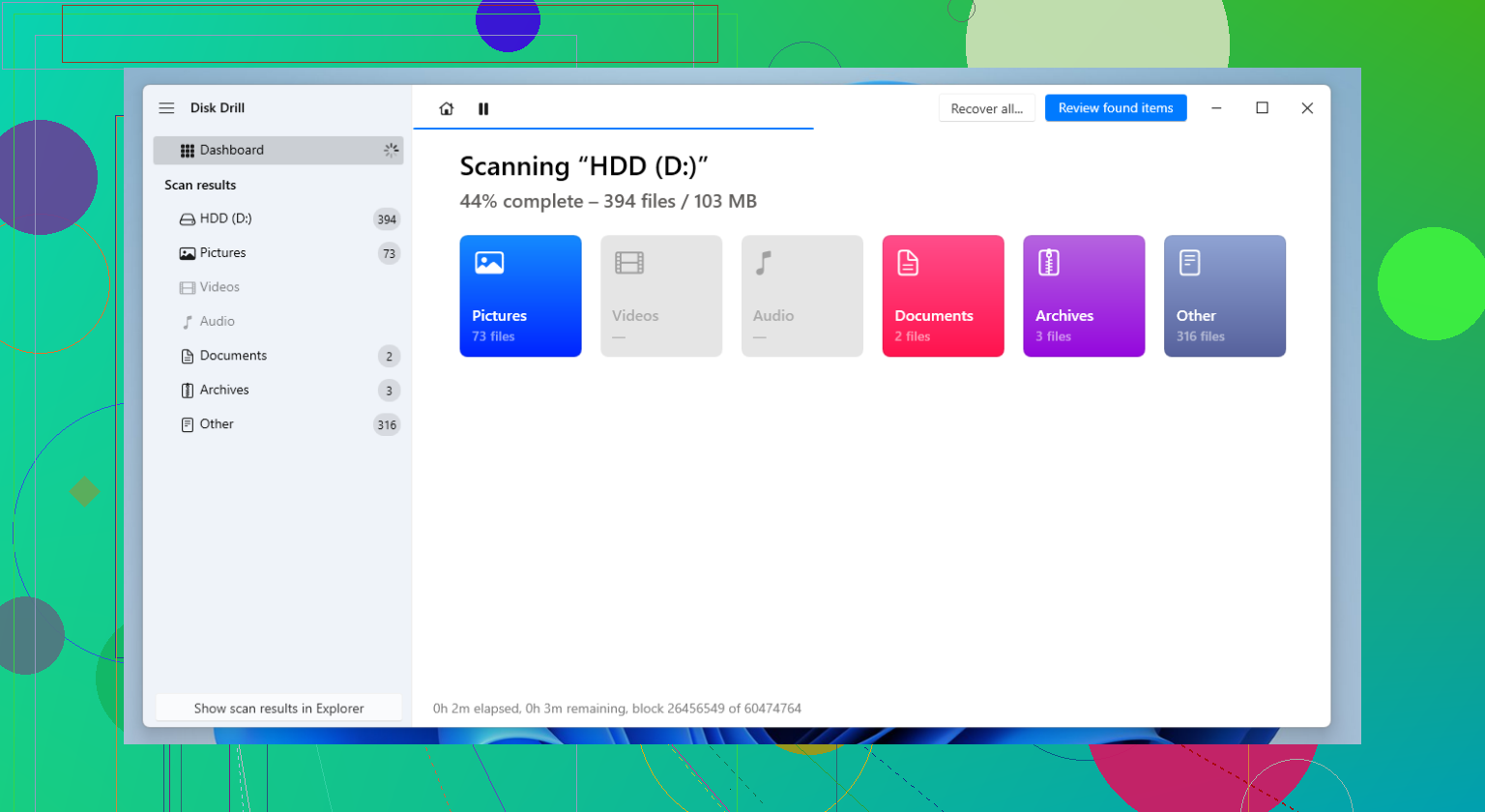
Small disagreement with @yozora and @techchizkid here: if the drive is spinning normally and stays connected for at least a few minutes, I would try a very light file listing first before committing to a full clone. Sometimes these WD units are fine electrically and the issue is just a broken partition mount, so a quick check in a recovery app can tell you whether your data structure is still visible.
What I would not do is:
- initialize it
- format it
- run WD utilities that offer “repair”
- keep unplugging and replugging 20 times
One thing nobody mentioned enough is power. Some front USB ports and cheap hubs underpower portable drives. Plug it directly into a rear motherboard USB port if possible.
About Disk Drill since @mikeappsreviewer brought up recovery apps:
- Pros: easy UI, good preview, decent at finding photos/docs on damaged NTFS or exFAT, can be useful if the drive is detected but unreadable.
- Cons: deep scans can take forever, results can be messy without original folder structure, and it is not the tool I’d trust first if the drive is physically unstable.
So my version is:
- Stable connection test
- Direct USB connection with known-good cable
- See if recovery software can list files quickly
- If yes, recover the most important files first to another disk
- If no, then image/clone and work from that
If it clicks or disappears during reads, I side with @yozora and @techchizkid: stop DIY. That is lab territory.