I’m editing some HD and 4K videos and keep seeing H.264 and H.265 as export options. I know H.265 is supposed to be more efficient, but I’m confused about what that actually means in terms of file size, quality, playback compatibility, and upload speeds. Could someone break down the practical differences and when I should choose one over the other for streaming, YouTube, and archiving?
Both H.264 (AVC) and H.265 (HEVC) are just ways to compress video so files are smaller. H.265 is newer and more efficient, but H.264 is still more compatible.
In everyday use it comes down to this: H.264 plays almost everywhere without problems, while H.265 gives you smaller files but needs newer hardware.
H.264 (AVC)
This is still the “safe” format. If you download a random video from the internet, chances are it’s H.264.
The biggest advantage is compatibility. It works on almost anything, even older laptops or TVs. It also doesn’t need much processing power, so playback is usually smooth.
The downside is mainly file size. Compared to H.265, the same movie can take noticeably more space. For 4K video especially, it’s just not as efficient.
H.265 (HEVC)
This is what many newer movies use now, especially 4K releases. The biggest benefit is that files can be much smaller while still looking good.
The problem is that older computers sometimes struggle with it. Without hardware acceleration, playback can lag. Encoding videos to H.265 also takes more time.
So it’s great for saving space, but not always the most convenient choice.
Players that handle these formats well
Elmedia Player
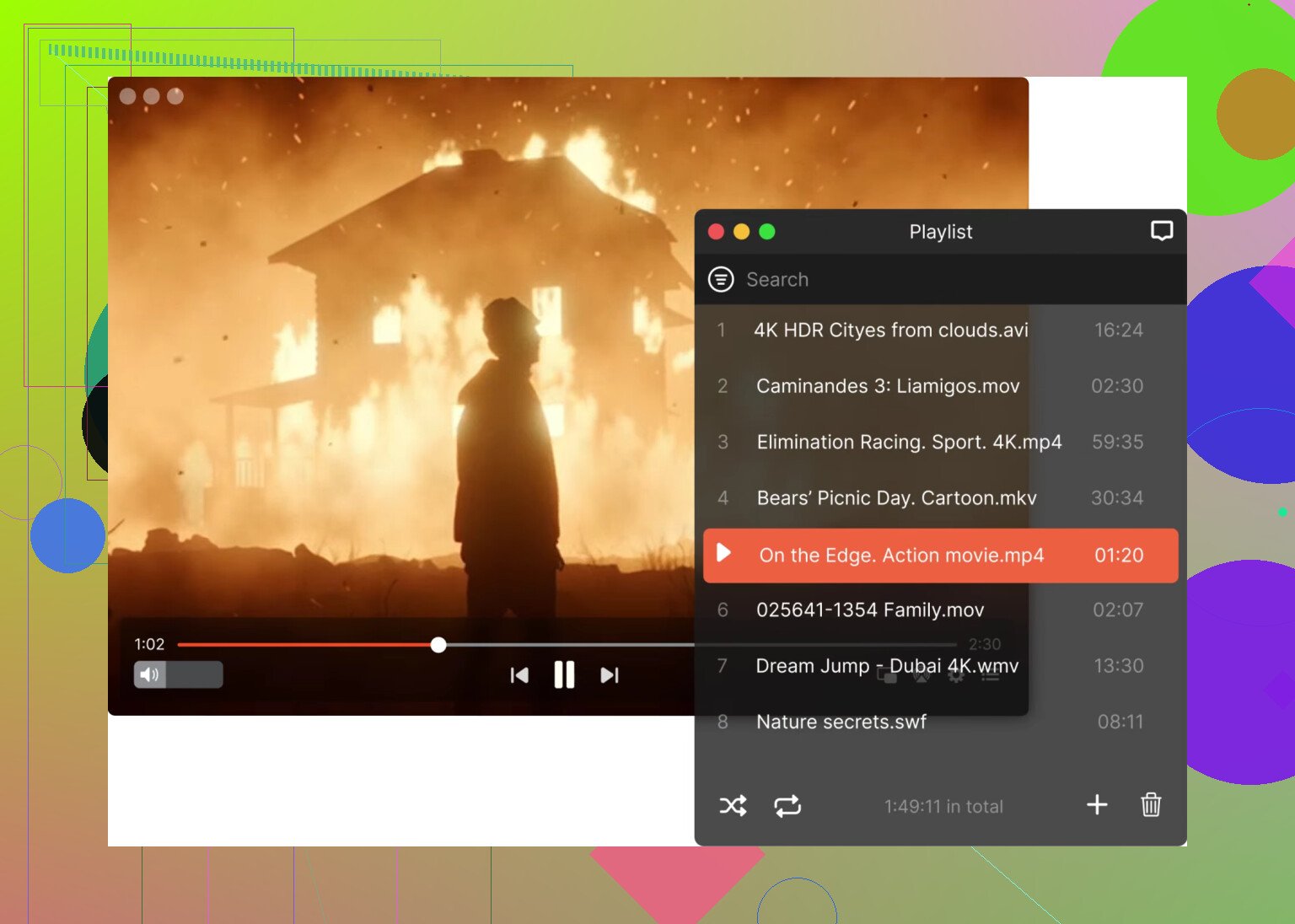
On Mac I had good experience with Elmedia Player. It feels closer to a universal media player than the default Apple tools. What I like is that it usually plays almost anything I throw at it without needing extra codecs or conversions. It also handles subtitles very well, including different formats and synchronization, which matters if you watch a lot of downloaded movies. In general it feels like a more complete movie player rather than just a simple video opener.
QuickTime Player
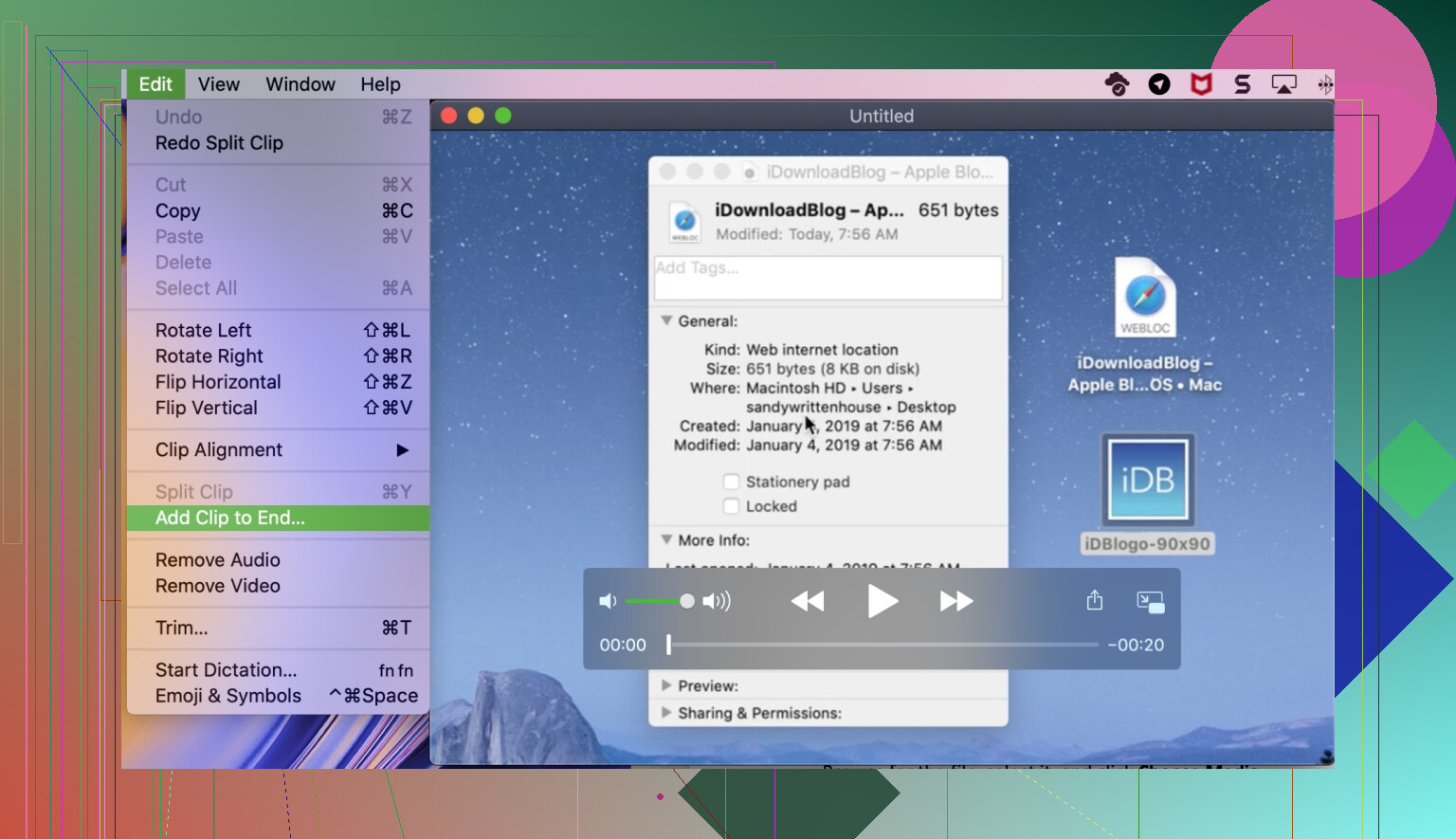
QuickTime Player is obviously the simplest option since it’s already part of macOS. It feels very lightweight and responsive because it’s optimized for Apple hardware. I mostly use it when I just want to quickly open a file without caring about extra features. It also integrates nicely with the system (for example quick preview and simple editing). It may feel limited compared to third-party players, but the stability and simplicity are its biggest advantages.
SMPlayer
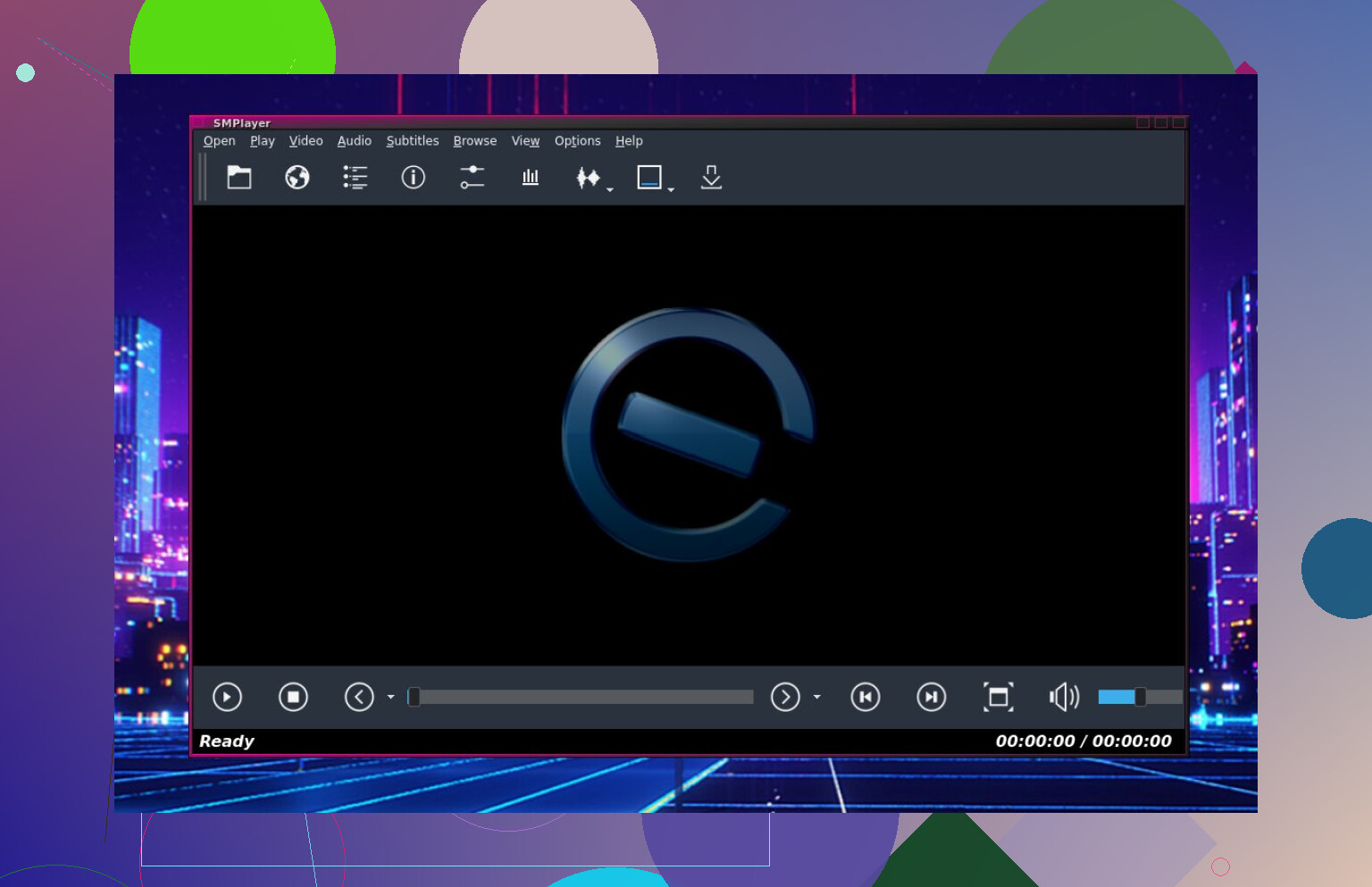
On Windows I liked SMPlayer because it feels very practical and dependable. It doesn’t try to look fancy but focuses on functionality. One thing I really appreciate is how it remembers playback position automatically, which is great if you watch long videos. It also tends to work well even on weaker machines, so it feels like a good choice if you don’t have a powerful PC but still want smooth playback.
PotPlayer
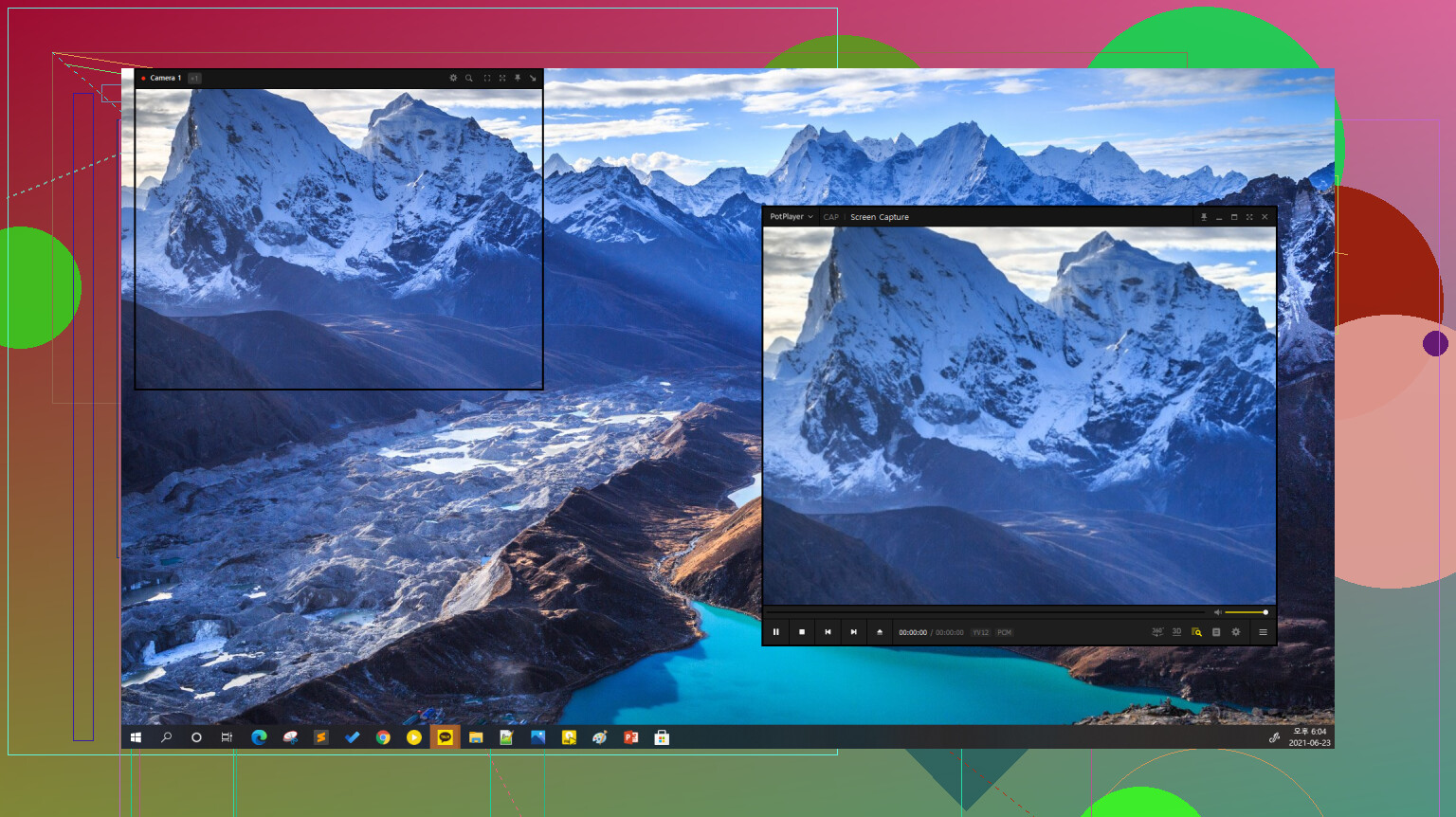
PotPlayer feels more like an advanced tool. It has a lot of internal optimizations and usually handles high-quality H.265 files very smoothly if your hardware supports acceleration. What stands out is how much you can adjust if you want to — video processing, audio options, rendering methods. At first it can feel a bit complex, but that flexibility is also why many people stick with it long term.
If you just want videos to always work → H.264 is still the safest.
If you want smaller files and have decent hardware → H.265 is better.
And for players, honestly it mostly comes down to taste. If I want simple playback I use QuickTime or SMPlayer. If I want more control or better format support, Elmedia or PotPlayer feel like better choices.
1 Like
Think of H.264 vs H.265 in three buckets: size, quality, and playback pain.
- Compression and quality
H.265 packs video more tightly than H.264.
Rough rule from real use:
• Same quality, H.265 needs about 40 to 50 percent less bitrate than H.264.
• Same bitrate, H.265 often looks cleaner in fast motion and dark scenes.
Example bitrates people often use:
• 1080p H.264: 6 to 10 Mbps for good quality.
• 1080p H.265: 3.5 to 6 Mbps for similar quality.
• 4K H.264: 25 to 50 Mbps.
• 4K H.265: 12 to 25 Mbps.
So yes, if you export in H.265 with sane settings, you get smaller files for the same visual result.
- Playback and hardware
This is where tradeoffs hit you.
H.264:
• Hardware decode support on almost every phone, TV, GPU, laptop from the last 10+ years.
• Plays fine on weaker CPUs.
• Best choice if you share files with random people or expect office PCs and old TVs.
H.265:
• Needs newer hardware with HEVC decode support.
• On old Intel laptops or cheap boxes, CPU usage goes crazy and 4K can stutter.
• On recent GPUs and phones, it plays fine and CPU load stays low.
I slightly disagree with @mikeappsreviewer on one thing. On quite a lot of mid range 2015–2018 laptops, 1080p H.265 is ok if you use a decent player and hardware decoding is on. The horror show starts more with 4K HEVC, high bitrates, and 10‑bit HDR.
- Editing workflow
For editing HD and 4K, this matters more than people think.
H.264 and H.265 are both “delivery” codecs. They are not fun to edit.
H.265 is heavier for your NLE to decode frame by frame. You often see:
• Slower scrubbing.
• More dropped frames on the timeline.
• Longer export times.
Practical approach:
• Edit in ProRes, DNxHR, or a similar intraframe codec if your project is serious.
• Then export a master in ProRes or DNxHR.
• From that master, export distribution files in H.264 or H.265.
If you must edit the camera files directly:
• For 1080p edits on average machines, H.264 is usually smoother.
• For 4K on a newer system, H.265 can still work, but expect heavier CPU or GPU use.
- What to pick for your exports
For HD (1080p):
• Sharing with clients, social, mixed devices: H.264.
Bitrate range: 8 Mbps for “looks good”, 12 Mbps if content is detailed or fast.
• Personal archive on modern gear: H.265.
Bitrate range: 4–6 Mbps.
For 4K:
• Smart TVs from ~2016 onward and modern phones support H.265, so it becomes more attractive.
• H.264 at 4K eats a lot of space and bandwidth.
• If you care about compatibility with older PCs or projectors, export a H.264 version too.
Typical 4K exports:
• H.264: 25–35 Mbps for decent quality.
• H.265: 12–20 Mbps for similar quality.
- When H.265 is a bad idea
I would avoid H.265 if:
• You know the viewer uses older office PCs or cheap corporate laptops.
• You need smooth editing from the same files on a mid range system.
• You use software that has poor HEVC support.
In those cases, stick with H.264 or use an intermediate codec for the edit.
- Practical settings
For H.264:
• Profile: High.
• Level: 4.1 for 1080p30, 5.1 for 4K30.
• Enable “2‑pass” if you target a fixed bitrate and care about efficiency.
For H.265:
• Profile: Main for SDR, Main10 for HDR.
• Keep “preset” on medium or slow if you want efficient compression, fast if you value speed over size.
• For web uploads, match the platform’s own bitrate guidelines.
- Playback software
If you hit playback problems with H.265 on macOS, Elmedia Player is worth trying. It handles H.264 and H.265 smoothly on many Macs, does subtitles well, and is less picky than QuickTime in my experience. That matches some of what @mikeappsreviewer said, though I find Elmedia Player a bit nicer for network shares than they did.
On Windows, something like PotPlayer or MPC‑HC with proper hardware decode settings helps a lot with HEVC.
Short version:
• H.264: bigger files, more compatible, lighter to decode, nicer to edit.
• H.265: smaller files at same quality, heavier on CPU and GPU, better for 4K libraries and long term storage if your devices are not old.
Very short version: H.265 = H.264 but “denser,” and more annoying.
Let me hit the parts @mikeappsreviewer and @codecrafter didn’t really dwell on, especially for editing.
1. What “more efficient” really means
They’re right about “same quality at ~30–50% smaller size,” but a more practical way to think about it while exporting:
- At the same bitrate:
- H.265 usually has:
- Less blockiness in dark areas
- Cleaner edges in motion
- H.265 usually has:
- At the same visual quality:
- H.265 can use way less bitrate, so:
- Smaller files
- Easier to stream across weak upload/download
- H.265 can use way less bitrate, so:
Where I slightly disagree with them: at 1080p, the real-world gain from H.265 over a good H.264 encode is often closer to ~25–35%, not always 50%. At 4K, H.265’s advantage gets more obvious.
So if you export 1080p H.264 at 10 Mbps and it looks nice, the H.265 version that looks the same might be around 6–7 Mbps. At 4K it becomes a bigger deal.
2. Editing perspective (this is the trap)
Both are “delivery” codecs. If you’re actually cutting HD/4K timelines, here’s what matters:
- H.264 timeline
- Scrubs okay on most mid‑range systems
- Still not ideal, but most NLEs are optimized for it by now
- H.265 timeline
- Heavier to decode
- More CPU/GPU hit, especially 10‑bit 4:2:2 / 4:2:0 high bitrate
- You’ll notice:
- Laggy scrubbing
- Choppy playback with effects
- Longer exports
If it’s anything serious:
- Transcode your source to ProRes / DNxHR / some intraframe codec
- Edit that
- Export your final deliverables in H.264 and/or H.265
If you want to stay lazy and just edit native:
- 1080p: H.264 is usually the less painful choice
- 4K: H.265 might be okay on newer hardware, but timeline performance can still suck
3. What to pick for your exports (practical rules)
For 1080p:
- Need to send to clients, social, random devices:
- Use H.264
- Target bitrate somewhere around:
- 8 Mbps “looks fine”
- 10–12 Mbps for lots of detail / motion
- Personal archive & you know playback devices are modern:
- Use H.265
- 4–6 Mbps is usually plenty
For 4K:
- If it has to play on mystery gear (old laptops, meeting room PCs, random projectors):
- Export H.264 4K (25–35 Mbps) and maybe a 1080p H.264 fallback
- For home use on modern TVs / streaming from NAS:
- H.265 4K in the 12–20 Mbps range is a good starting point
You can keep a “universal” H.264 version and a “storage‑friendly” H.265 version if you really care about compat + efficiency.
4. Playback landmines
They already covered compatibility pretty well, but two nuances:
- A lot of “4K capable” TVs only have hardware HEVC on certain profiles / bit depths. Some 10‑bit or high-bitrate H.265 encodes will choke even when marketing said “4K HEVC supported.”
- On older PCs, the player choice matters. Something like Windows Movies & TV might stutter on the same file that MPC or PotPlayer chews through with hardware decode properly set.
On macOS specifically:
If you’re bouncing between H.264 and H.265 a lot, Elmedia Player is honestly worth installing. It handles HEVC smoother than QuickTime in many edge cases, deals with subtitles better, and is way less fussy with weird containers and network files. That’s basically where I part ways a bit from the “QuickTime is fine for everything” vibe; QuickTime is fine until it randomly isn’t.
5. So what should you do?
For your HD & 4K editing/export situation:
-
While editing:
- Prefer working with ProRes / DNxHR if your drive space can handle it
- If not, and you must stay Long‑GOP:
- Use H.264 sources for smoother timelines
-
For exports:
- Client / YouTube / “must just play everywhere”:
→ Export H.264 - Personal library / NAS / modern TV & phone viewing:
→ Export H.265 to save space, especially for 4K
- Client / YouTube / “must just play everywhere”:
You’re not “married” to one. Use H.264 as the “compatibility master” and H.265 as the “space‑saver” copy.
Think of H.264 vs H.265 like “who is this file for” rather than which is “better.”
1. Your actual use cases
-
Cutting HD / 4K on a normal machine
- H.264 sources tend to behave less horribly on the timeline.
- H.265 is decodable, but once you stack effects, color, and a few layers, your NLE has to work much harder. Proxy or intermediate codecs help more than arguing AVC vs HEVC.
-
Delivering to clients / random playback environments
- H.264 is still the “it will open and play” choice.
- For corporate laptops, old meeting room PCs, or USB stick into some projector, I would not gamble on H.265 only.
-
Your own library, modern TV / phone
- H.265 starts to make sense, especially at 4K where H.264 bitrates get silly.
- Agree with @codecrafter and @ombrasilente that you normally see something like 30–50 percent size saving, but in my tests with good encoders the gain at 1080p is often closer to the low end of that range.
I slightly disagree with the idea that “H.265 is just a free win for 1080p.” At 1080p, H.264 tuned well is already quite efficient; the real killer advantage for H.265 shows up more clearly once you hit 4K or very long runtimes where disk space really hurts.
2. Practical export strategy
For most editors, a two‑file mindset works better than obsessing over one “perfect” codec:
-
Make a “universal” export:
- H.264, decent bitrate, 1080p or 4K depending on delivery.
- Use that for clients, offices, events, last minute laptop playback.
-
Make a “library” export:
- H.265, lower bitrate, same resolution.
- Use that for archiving on NAS, Plex, personal playback.
Storage is cheap until you have dozens of 4K projects. Then the H.265 version starts to feel worth the encode time.
3. Editing comfort vs final codec
@codecrafter and @mikeappsreviewer both leaned into “they are delivery codecs,” which I agree with, but one nuance:
- If you are in Premiere / Resolve and your system is marginal, the hit from H.265 can be large enough that transcoding to ProRes or DNxHR saves you time overall.
- For light projects, staying in H.264 source and exporting in both H.264 and H.265 is often a good compromise. You do not have to go full intermediate every time.
4. Player choice and Elmedia Player
Playback software changes how painful H.265 feels, especially on macOS.
Elmedia Player pros
- Handles H.264 and H.265 smoothly on a wide range of Macs when hardware decode is available.
- Better subtitle handling than QuickTime in practice, and less fussy with MKV and odd encodes.
- Nice for network shares; large 4K HEVC files over Wi‑Fi tend to behave more predictably than in the stock player.
- Good “default” if your library mixes old H.264 TV rips and newer 4K H.265 stuff.
Elmedia Player cons
- Not as lightweight or minimal as QuickTime for quick one‑off previews.
- Advanced users might still prefer more configurable players for niche workflows.
- Some features sit behind the paid tier, which can be annoying if you expected a totally free tool.
Compared to what @mikeappsreviewer described about other players, I see Elmedia Player as the middle ground: less barebones than the system player, less tweak‑heavy than hardcore video nerd tools, and convenient if you are bouncing between codecs a lot.
5. How I would choose per project
-
Short social piece, needs to work everywhere:
- Export H.264 only. 1080p, reasonable bitrate. Done.
-
Client project, deliveries plus archive:
- Export H.264 (client) and H.265 (your archive).
- Keep your high quality intermediate or project files for safety.
-
Long 4K content (events, docs, live recordings):
- H.265 is worth the extra encode time for your own library.
- Still keep an H.264 version if this will ever be played from unknown hardware.
So the difference in practice is not just “H.265 is more efficient.” It is: H.264 is your boring, predictable workhorse; H.265 is your compact, slightly higher‑maintenance option that pays off most when resolutions and runtimes get large.