I accidentally emptied my Windows Recycle Bin and realized some important files were in there. I’m looking for a reliable Recycle Bin recovery method or software that can restore deleted files safely without making things worse. What has actually worked for you?
If you emptied the Windows Recycle Bin, the file still may not be truly gone yet. Usually Windows just removes the file’s entry from the file system and marks that space as free. The actual data can sit there until something else gets written over it. That is why recovery tools sometimes work, at least if you act quickly.
The first thing to do is simple: check the Recycle Bin again. Search by the file name, but also look for the folder it originally came from. It might have been deleted from a different location than you thought, renamed, or just missed the first time. If it is there, right-click it and choose Restore. Windows should put it back where it came from.
If it is definitely not in the Recycle Bin, stop using that drive right away. This matters more than most people realize. Do not install anything on it, download files, save new documents, copy photos to it, run updates, or move extra data onto it. Any new write can land on the same space where the deleted file used to be. Once that happens, recovery gets a lot harder, and sometimes impossible.
Before trying recovery software, check whether Windows already has a backup copy. Go to the folder where the file used to be, right-click inside the folder or right-click the folder itself, then choose Restore previous versions. If File History, restore points, or another backup system had saved an older version, Windows may show it there. Pick a version from before the deletion. It is usually better to open it or copy the needed file somewhere else instead of replacing the whole current folder immediately.
You can also open File History directly here:
Control Panel > System and Security > File History > Restore personal files
From there, look through the available dates and find the file or folder you need. If File History was not turned on before the file was deleted, this method probably will not have anything to restore.
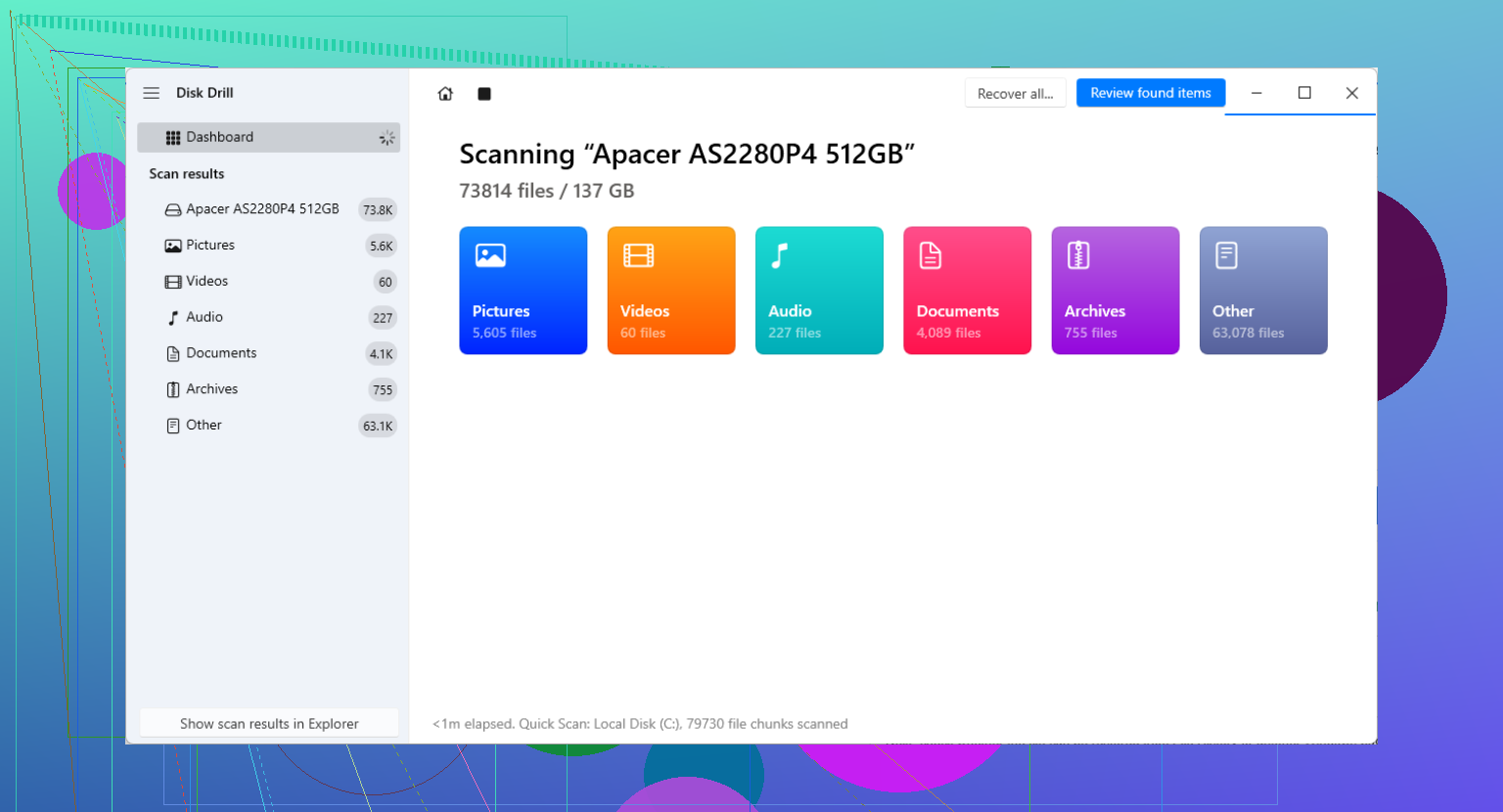
If there is no usable backup, then a recovery tool like Disk Drill can scan the drive for deleted files. Install the recovery program on a different drive, not the one you are trying to recover from. Installing it on the affected disk can overwrite the deleted data you are hoping to get back.
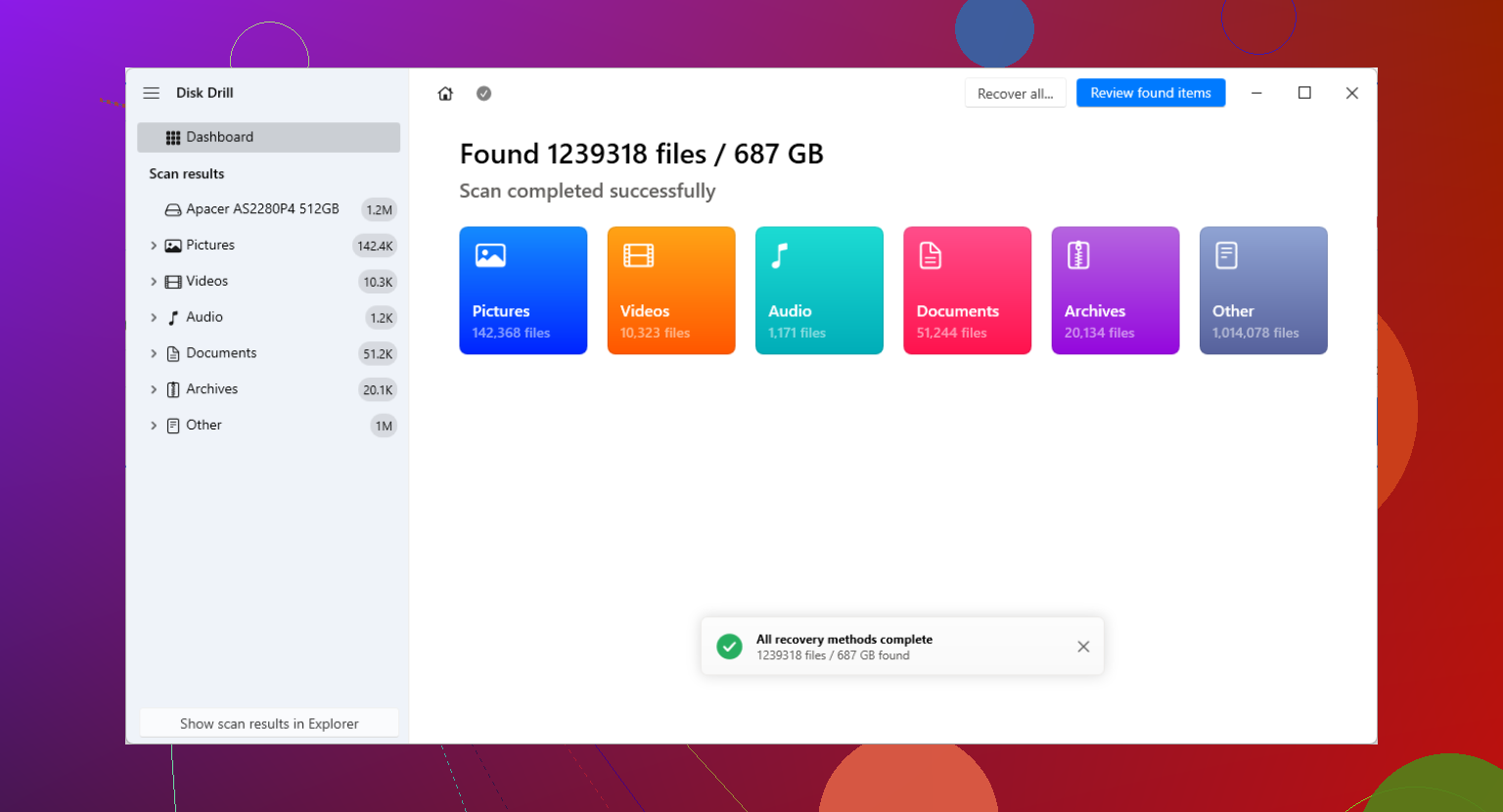
Once the program is open, choose the affected disk and run Search for lost data. Let the normal scan and the deeper scan finish. The deep scan can take a while, but it may find files that no longer show up through the original file system records.
When the scan results appear, check the previews if the program offers them. A preview is useful because it can show whether the file is still readable. Just do not treat it as a perfect guarantee. A file can preview and still recover with missing data or corruption.
Save anything you recover to a different physical drive. Do not restore files back onto the same disk you scanned. Writing recovered files there can overwrite other deleted files that the scan has not recovered yet.
Some Windows recovery tools include a limited amount of free recovery, but those limits and license terms can change. Check the current terms before counting on a specific free recovery amount.
One more thing: SSD recovery is often less successful than recovery from older hard drives. That is because of TRIM. When TRIM is active, the SSD can be told that deleted blocks are no longer needed, and the SSD controller may clear them internally. After that happens, normal recovery software often cannot bring the data back.
So the safest order is: stop writing to the drive, check the Recycle Bin, check File History or other backups, and only then scan the disk using recovery software installed somewhere else.
1 Like
Shut the PC down if the deleted files were on your main Windows drive, because Windows keeps writing logs, updates, browser cache, etc. while you’re “just checking.” Pull the drive and scan it from another computer if you can, or use a recovery tool from a USB/external drive, then save recovered files somewhere else.

The ugly catch is that a “successful” scan can still leave you with a pile of unnamed, half-broken files instead of the neat folder you deleted. People often think Recycle Bin recovery means everything comes back exactly as it was, but sometimes you get the file contents without the original name, folder path, or date info. That matters a lot if you deleted a folder full of photos, PDFs, project files, or anything with similar names.
I agree with @sognonotturno on the big rule: stop using the drive. But I’d take it one step further if the files really matter. Don’t “fix” the drive first. Don’t run CHKDSK, don’t use Windows repair tools, don’t defrag, don’t let some optimizer app clean things up. Those can make the situation worse because they modify the file system. Recovery first, cleanup later.
A better order, if you can manage it, is:
- Leave the original disk alone.
- Use another computer or bootable USB if possible.
- Scan the affected drive from there.
- Recover to a separate physical disk, not another folder on the same C: drive.
If this was your main Windows SSD, keep expectations modest. On SSDs, TRIM can make deleted-file recovery basically a dead end even if the recovery software “sees” old entries. If it was an external hard drive, USB stick, SD card, or older spinning hard drive, your chances are usually better.
Another thing people forget: check cloud and app-level trash before spending hours scanning. If the files were in OneDrive, Google Drive, Dropbox, iCloud Drive, Adobe apps, email attachments, or even a synced Desktop/Documents folder, the service may have its own deleted-items area or version history. That can be cleaner than disk recovery because you get the real file names and folder structure back.
For software, Disk Drill is fine to try as a scanner, especially because previews can tell you whether you’re chasing readable files or garbage. I just wouldn’t install it onto the same drive you’re trying to recover from. If you want to compare options before downloading random “recovery” tools, the data recovery software list on Reddit is a reasonable place to look.
The safest mindset is: scan first, recover copies somewhere else, then inspect the recovered files. Don’t assume the first scan is the final answer either. Some tools are better at original file system records, others are better at raw file signatures, and raw recovery can find files but lose names. If the missing files are worth serious money or are irreplaceable, stop experimenting and consider a recovery lab before too many tools get a chance to write logs or make changes.
The drive the files were deleted from is more important than the Recycle Bin itself. Windows has a Recycle Bin per drive, not one magic bin for the whole computer, so if the files came from an external drive, SD card, second internal disk, or a synced folder, you need to think about that exact location. Scanning C: will not help if the deleted folder was actually on D: or on a USB drive.
A small trap here is shortcuts. If you deleted a shortcut from the Desktop, recovering it may only bring back the shortcut, not the real file it pointed to. Same with files that lived inside app folders, exported project folders, or cloud-synced locations. Before running a long recovery scan, check the original program or service if the file came from somewhere specific. Some apps keep recent files, autosaves, caches, or version folders that are easier to use than raw disk recovery.
For software, I would treat Disk Drill or any similar tool as a scanner first, not as a promise. Run it from another drive, scan the affected drive, and look for previews or intact folder names. If the tool only shows random “file000123.jpg” type results with no preview, paying for recovery may not get you much. If it shows the actual filenames and previews correctly, your odds are a lot better.
If the files are on an SSD, I would keep expectations low, especially if this happened hours or days ago and the PC kept running. If it is a mechanical hard drive or external drive, the “stop using it and scan from somewhere else” advice above is usually the right move. Recover to a different physical disk, then sort through the copies after. Do not try to put everything back in the original folder during the recovery pass.
The cheap version of this process is: check backups/cloud/app trash first, then scan without writing to the source drive, then only spend money if the scan results look real. Deleted file recovery can work, but the preview screen is where you find out whether you are recovering files or just buying optimism.