I want to make realistic family portraits using AI because it’s hard to get everyone together for a real photoshoot. I’ve tried a few apps, but the results look fake or distorted, and the family members don’t always resemble us. Can anyone recommend tools, prompts, or workflows that produce natural, high-quality AI family photos that look like they were taken by a professional photographer?
Family photos sit on a weird list for me. Right next to “backing up my files” and “going to the dentist.” I keep saying I’ll do it, months pass, then I scroll my camera roll and realize: I have zero decent photos with my family that are not blurry, cropped weird, or taken in a kitchen at 11 PM.
Add in everyone living in different cities, kids growing up fast, schedule chaos, and suddenly you blink and there is no proper family picture anywhere.
That is where these AI family portrait tools start to look less like a toy and more like a workaround. If they do what they promise.
What an “AI family portrait” is, and what it is not
Let me clear up what I am talking about here, because a lot of tools market this badly.
I am not talking about:
- Random AI-generated “families”
- Stock-looking fake parents and kids
- Fantasy people that do not exist
When I say AI family portrait, I mean something pretty specific:
- You start with real photos of real people. You, your partner, your parents, your sibling, whoever.
- The AI builds one shared image where it looks like everyone was in the same place at the same time.
- Everyone still looks like themselves. Recognizable face, same eyes, same nose, sane body proportions. Not a cartoon or some stitched collage.
Most of the cheap “AI family” tools fail hard at that. In my testing, they tend to:
- Blend faces in strange ways, like someone dragged a smudge tool across your nose.
- Randomly adjust facial features, so your dad suddenly has a different jaw or your kid’s eye color changes.
- Output something that might be “nice” at first glance but does not feel like your family at all.
That bothered me more than I expected. If the faces are off, the whole thing feels pointless.
Using Eltima AI Headshot Generator for real family portraits
Out of boredom and annoyance, I tried a bunch of apps. Most went straight to the delete folder.
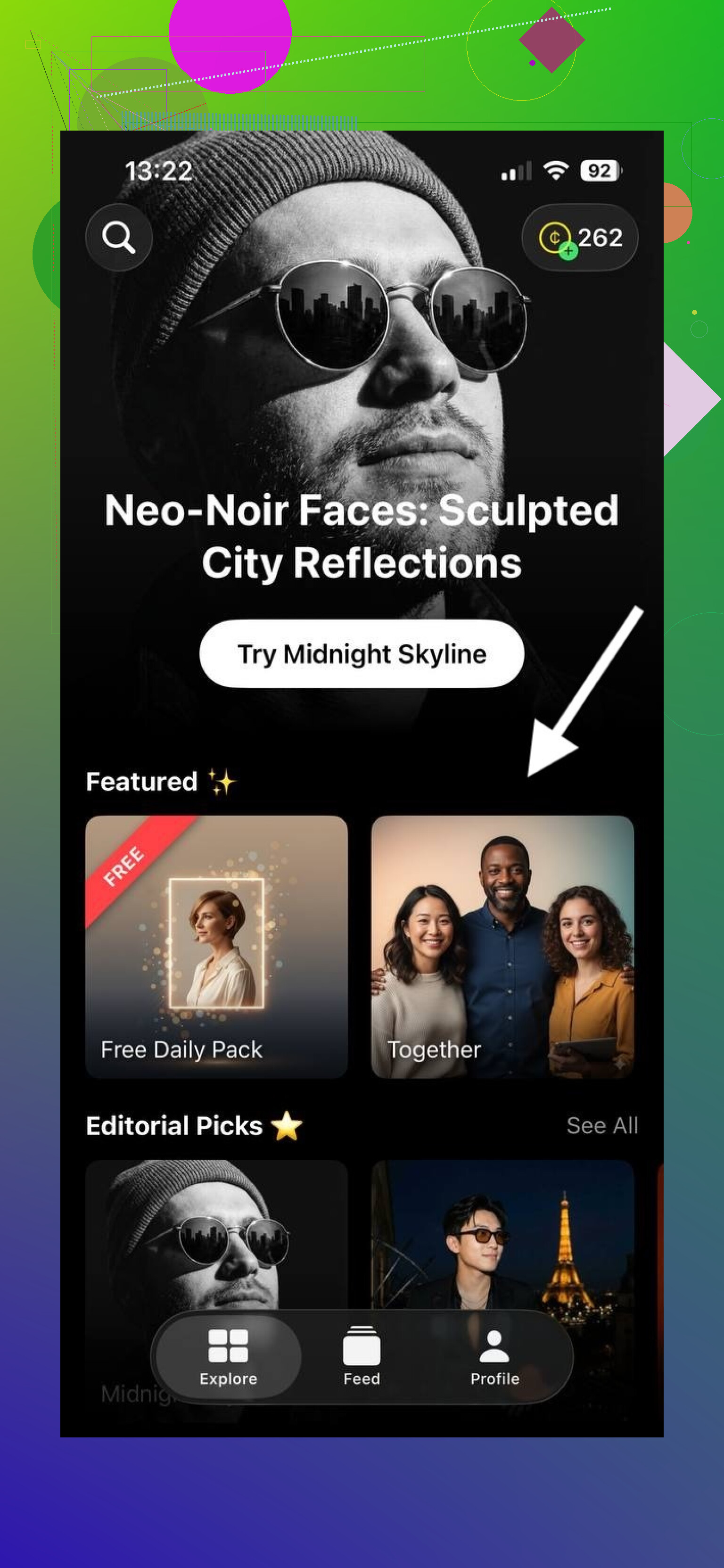
One that held up better than I expected was Eltima AI Headshot Generator, specifically its “Together” pack:
The name sounds like “LinkedIn headshot” territory, but the Together pack is more about putting people into one frame in a realistic way, not making everyone look like they are applying for a job at a bank.
How the Together pack works, step by step
The flow felt simple enough that I did not need a tutorial.
-
I opened the Together pack
-
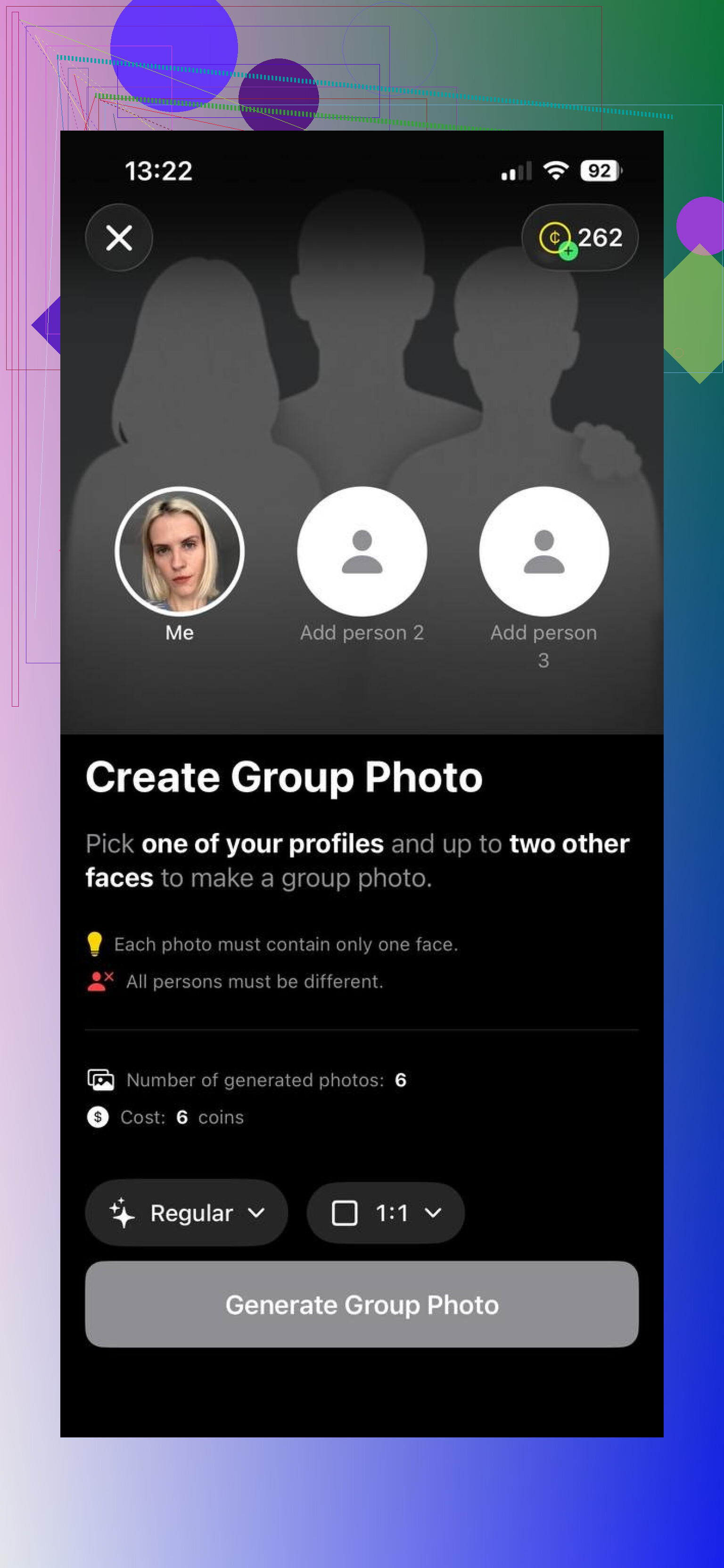
I picked my own photos
I tried to use normal shots, nothing staged. A couple of selfies, one mid-shot, some with different lighting. I avoided blurry ones and photos where half the face was covered.
-
I added a relative
In my case, I selected my brother’s photos.
-
I let the app process and return shared portraits
The output is a new image where we both appear in the same frame.
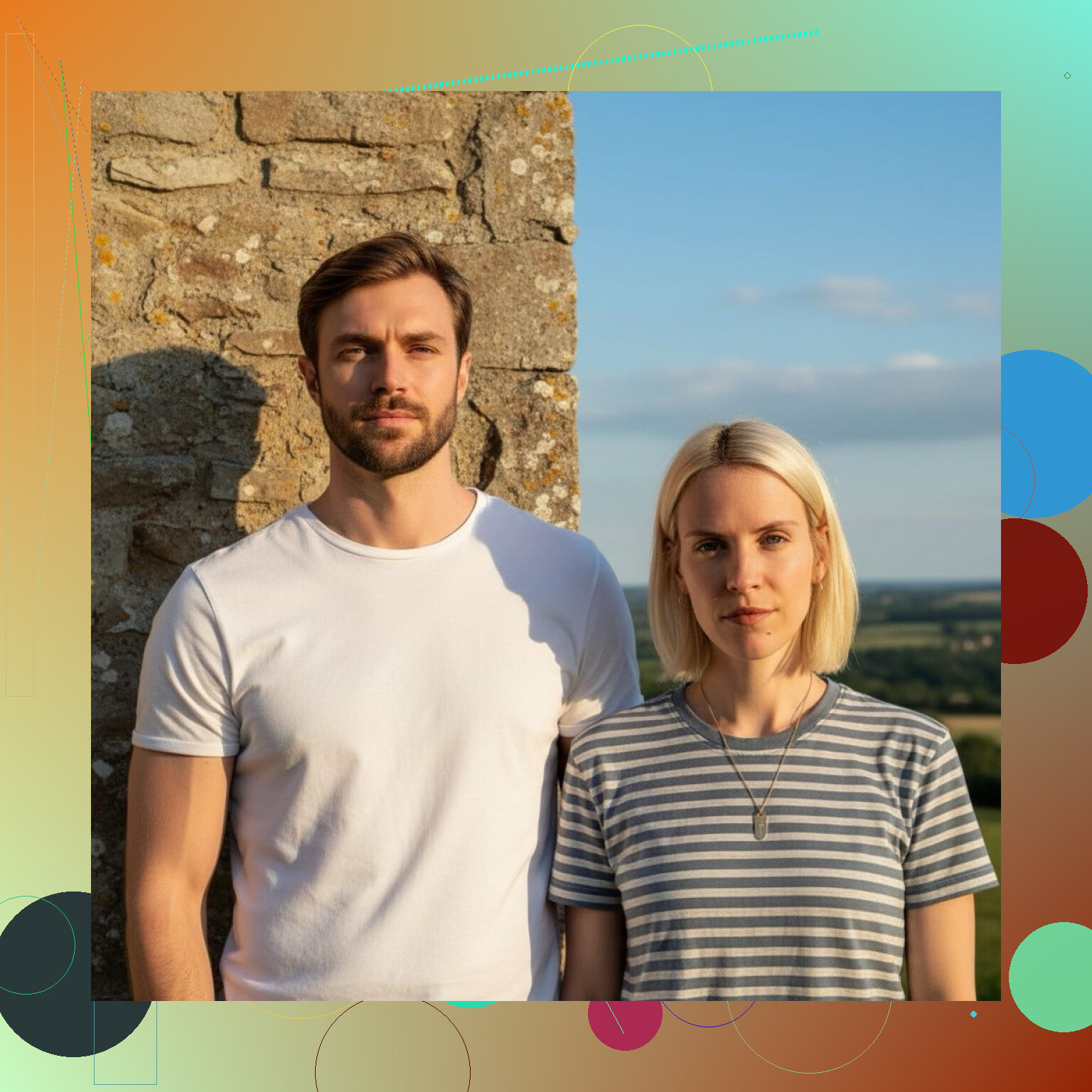
Here is what surprised me when I tried it with me and my brother:
- The lighting on our faces matched, even though the source photos were taken in different rooms.
- Our sizes in the frame looked right, no tiny head next to giant head problem.
- Our faces stayed ours. No extra teeth, no weird eye shapes, no half-melted ears.
It looked like we had stood next to each other and someone took a normal photo. That was the first time I did not delete the result immediately.
What feels different compared to most “AI family photo” tools
The reason I kept using this instead of uninstalling it on day one:
-
It preserves facial structure
The shape of the face stays steady. It does not “beautify” your nose into something else. -
It balances lighting and angle across people
You do not get one person looking like they are under a lamp and another like they are outdoors at noon. -
It avoids the plastic look
No over-smoothed wax skin. Some AI tools polish faces so much they look like dolls. This one kept skin texture at a level that still looked human. -
The photos feel like moments, not AI art
I did not have that “this belongs on a tech blog” feeling. It looked like something my mom would print and put on the fridge without asking what software I used.
Types of images you get out of it
From the tests I ran, you get a few practical styles:
-
Casual indoor family photos
Like someone took a picture in a living room or a hallway. -
Neutral portraits
Clean background, everyone framed in a simple way, good for profile pictures. -
Lifestyle-ish shots
Slightly looser framing, more relaxed poses, not formal.
These work well for:
- Personal keepsakes
- Social profiles
- Messenger or chat avatars
- Digital family albums
- Sharing with relatives who live far away
You skip the whole logistics circus of a studio session.
Why this helped more than I expected
Here is where it clicked for me.
You do not need:
- Everyone in the same city
- Coordinated outfits
- A free Saturday
- Studio lights
- An awkward photographer telling you to “act natural”
Each person can upload their own photos when they have time. The app handles the “together” part.
For families scattered across different places or with odd schedules, this solves a practical problem. I used it to create a picture of my parents, my sibling, and me, even though we had not all been in the same room for more than a year.
Nobody had to dress up. Nobody had to sit for a session. We pulled some older photos, uploaded, waited, picked the best output, done.
When this kind of AI portrait is worth using
From what I have seen, AI family portraits work only when the tool respects two things:
- The original faces
- The relationships between those faces, as in, not turning them into generic models
Plenty of generators still miss the point. They chase style, filters, or viral “AI look” results and skip accuracy.
The Together pack in Eltima AI Headshot Generator leans more toward “make this look like a normal, decent photo”:
Where it makes the most sense, based on my use and what I have seen others do with it:
- Couples who do not have many good photos together
- Siblings who live in different cities
- Small families who never managed to get one photo where everyone’s eyes are open
If you have been telling yourself “we should do a proper family photo one day” and that day never happens, this is one of the few AI tools that feels useful instead of gimmicky. Not perfect, but close enough that I would send the results to relatives without a long explanation.
1 Like
Short version. You want three things at the same time: faces that look like your family, bodies that are not warped, and a photo that does not scream “AI filter”. Most tools fail because of bad input and wrong type of model, not only because the app is bad.
Since @mikeappsreviewer already covered one specific app flow in detail, here is a different angle that helped me get more realistic results across tools.
- Fix your source photos first
If the inputs are weak, every generator falls apart.
Use for each person:
- 6 to 12 photos minimum
- Mix of angles: front, slight left, slight right
- No sunglasses, no hats, no hair over half the face
- Sharp, no motion blur
- Similar age and hair style across photos for each person
If someone gives you only one selfie from a dark bar, their AI face will look wrong in every family shot.
- Keep each person consistent
Before you try a “family” tool, test each person alone.
Pick any decent AI portrait tool and:
- Generate 3 to 5 solo photos per person
- Check: eyes, nose, jaw, skin tone, age
- If one person comes out off every time, swap in better source photos for them
You want each identity stable first. Then you combine them.
- Use tools that support “ID” or “face lock”
Look for features called:
- “Face ID”
- “Reference face”
- “Face lock” or “Identity lock”
These let you:
- Upload a small set of photos for each person
- Save them as a profile
- Reuse those profiles in group scenes
This cuts down on:
- Random jawline changes
- Age shifts between images
- Eye color or skin tone changes
If a tool does not offer any face consistency feature, expect more lottery results than portraits.
- Control the scene, do not let the AI guess everything
Most “family” tools try to guess pose, distance, and background at once. That is where distortion happens.
You get better results if you:
- Pick a simple background: plain wall, studio style, sofa, park bench
- Avoid complex props or crazy locations
- Keep group size small at first, 2 or 3 people, then add more if it works
More people plus complex background multiplies errors.
- Hack it with a two-step method
If your app allows editing or inpainting:
Step 1
- Generate a nice background with no people
- Example: a living room with some light, or a neutral studio setup
Step 2
- Add each person one by one using inpainting or “add subject” features
- Place them at realistic height and distance
- Check each step before adding the next person
This feels slower than all-in-one “family” buttons, but faces stay more stable.
- Pay attention to scale and perspective
AI often puts a child’s head almost as big as a parent’s head.
When you look at results, check:
- Are shoulders and heads similar size to real life
- Is everyone seated or standing on the same “floor” line
- Are hands and fingers normal
If scale is off, do a new run with more mid-shot input photos, not extreme close-ups. Full-body input often helps the generator understand proportions better.
- Do light editing after, not before
Do not overfilter your source photos. No heavy beauty filters or smoothing.
Pipeline that worked best for me:
- Raw but decent phone photos in
- AI generates the family shot
- Then light edit at the end:
- Small color correction
- Tiny sharpening
- Remove artifacts with a simple retouch app
Avoid extra “AI enhancement” passes on the final. Those often re-mangle faces.
- Know when to re-run versus when to tweak inputs
If you see:
- Double teeth
- Wrong eye direction
- Melting ears
Do not keep that output and try to fix it in Photoshop. Replace that person’s source photos with:
- Brighter ones
- Less angle
- Less expression distortion
Then rerun. Bad core faces rarely fix well in post.
- About specific tools
I agree with @mikeappsreviewer on one point. Most cheap “AI family” apps try too hard to stylize and end up changing your faces.
Where I disagree a bit is relying on a single app pack as your whole workflow. Results change as models update. I treat apps like:
- One for face ID creation
- One for group composition
- One for light retouching
Mixing tools often beats waiting for one app to handle everything perfectly.
- Quick checklist for realistic AI family photos
Before you commit to printing:
- Does every person look instantly recognizable
- Are ages consistent across the group
- Do skin textures still look human, not wax
- Any extra fingers, teeth, or random jewelry
- Is lighting similar on all faces
- Any “plastic” over-smooth patches around eyes or mouth
If it passes that checklist, you are in better shape than most AI family pics on the internet.
If you share what apps you tried and what looked worst, you will get more targeted tips. The fix is often as simple as “change the type of source photo for one stubborn family member” rather than “switch tools completely”.
Short version: you’re not crazy, most “AI family photo” tools still suck for exactly the reasons you described.
Where I’ll slightly push back on @mikeappsreviewer and @caminantenocturno is this: you don’t have to obsess over 10+ input photos per person or split your workflow across three apps to get something usable. That helps, but you can get 80% of the result with a bit of strategy and a half‑decent tool.
Here’s a different angle that might solve your “everyone looks fake / distorted / not themselves” problem:
- Start with uniformity, not perfection
Instead of hunting for perfect shots, hunt for similar ones:
- Same rough distance: all head‑and‑shoulders or all mid‑shot
- Similar lighting vibe: all indoors or all outdoors, not a mix of sunny beach + dark kitchen
- No heavy filters on just one person
Uniform input matters more than sheer quantity. Three consistent pics per person beat twelve random ones.
- Build a “template photo” first
Most people let the AI invent everything in one go, then complain it looks chaotic.
Try this:
- Pick one decent real photo that you like of yourself (or any family member)
- Tell the app to “match this general pose and framing” for the group
- Use that as the reference in the prompt if your tool supports text guidance
You’re basically telling the model “do this kind of picture, but with these people.”
- Use age‑matched photos
Huge source of creepiness: mixing a kid’s photo from age 6 with a parent’s picture from last year. The AI tries to compromise and you end up with an uncanny, wrong‑age child.
For each person:
- Stay within a 1–2 year window of age
- Same hair color and length if possible
If one family member changed hairstyle dramatically, pick photos that match the look you want in the final portrait and stick to those.
- Avoid over‑stylized presets
This is where I disagree a bit with the “just find the right pack” idea. The fancier the preset (cinematic, film, kawaii, painted look), the more the model takes liberties with facial structure.
You want the most “boring” style in the app:
- “Natural”
- “Standard portrait”
- “Neutral lighting”
Then if you must stylize it, do that later with very mild filters.
- Cap the group at 3 people per generation
A lot of apps quietly fall apart after 3 faces. You get extra teeth, merged ears, all of that.
Workaround:
- Generate smaller clusters: parents + 1 kid, siblings together, grandparents together
- Export those and then use a separate basic editor to combine them into a collage grid or triptych layout
No, it’s not one perfect single-frame “we were all together” shot, but it reads like a coherent family set and avoids the melted‑face issue.
- Accept that some faces just won’t translate
Every family has that one person whose selfies are all:
- Harsh side light
- Sunglasses in every shot
- 0.5x ultra‑wide “I have alien forehead” lens
For that person, you may need to:
- Ask them for one normal, front‑facing, no‑filter photo
- Or literally snap a quick, neutral photo on a call/visit and use that
If you don’t fix that, no app or tip from anyone here is going to save the final portrait.
- Decide what “realistic” actually means for you
You won’t get:
- 100% pixel‑accurate clones of everyone
- Perfect hands and jewelry and teeth in every single output
You can get:
- Immediate recognizability
- Believable lighting and proportions
- Something your family will accept as “oh wow, that’s actually nice”
If you aim for “believable and recognizable” instead of “indistinguishable from a real DSLR shot,” you’ll feel less disappointed and hit usable results faster.
If you can share what specific apps you tried and what looked worst (warped bodies, wrong ages, plastic skin, etc.), you can probably fix it with two or three small changes in your process instead of endlessly app‑hopping.