I came back from vacation with way too many photos on my iPhone, including duplicates, blurry shots, and screenshots. I want to clean up my camera roll quickly without deleting anything important. What’s the easiest way to select and delete multiple iPhone photos at once?
If you’re staring at something like 15,000 photos, don’t try to clean it up one tap at a time. That’s the slowest possible way to do it, and it’s way too easy to get tired and either give up or delete something you meant to keep.
I’d start with the obvious junk first, then deal with duplicates and similar shots after that.
Start with the built-in Photos filters
In the Photos app, don’t stay in the full “All Photos” view the whole time. Pinch inward on the photo grid so you can back out into Months or Years. Months view is a lot easier for cleanup because you can work through whole chunks of time instead of scrolling forever through individual days.
From there, tap “Select” and drag across groups of photos. It’s much faster than tapping each one, especially if you know there’s a certain trip, event, or old month where you took way too many nearly identical pictures or videos.
Clear out screenshots, bursts, and screen recordings
The easiest wins are usually in Media Types. Go to the Collections tab, scroll down to Media Types, and check things like Screenshots, Bursts, and Screen Recordings.
Screenshots are usually the worst offender. Open that album, tap “Select,” then use “Select All” if you really want to wipe them out. That’s one of the few spots in Apple Photos where you actually get a real Select All option, so it’s useful for clearing a lot of junk fast.
Use Clever Cleaner for lookalike photos
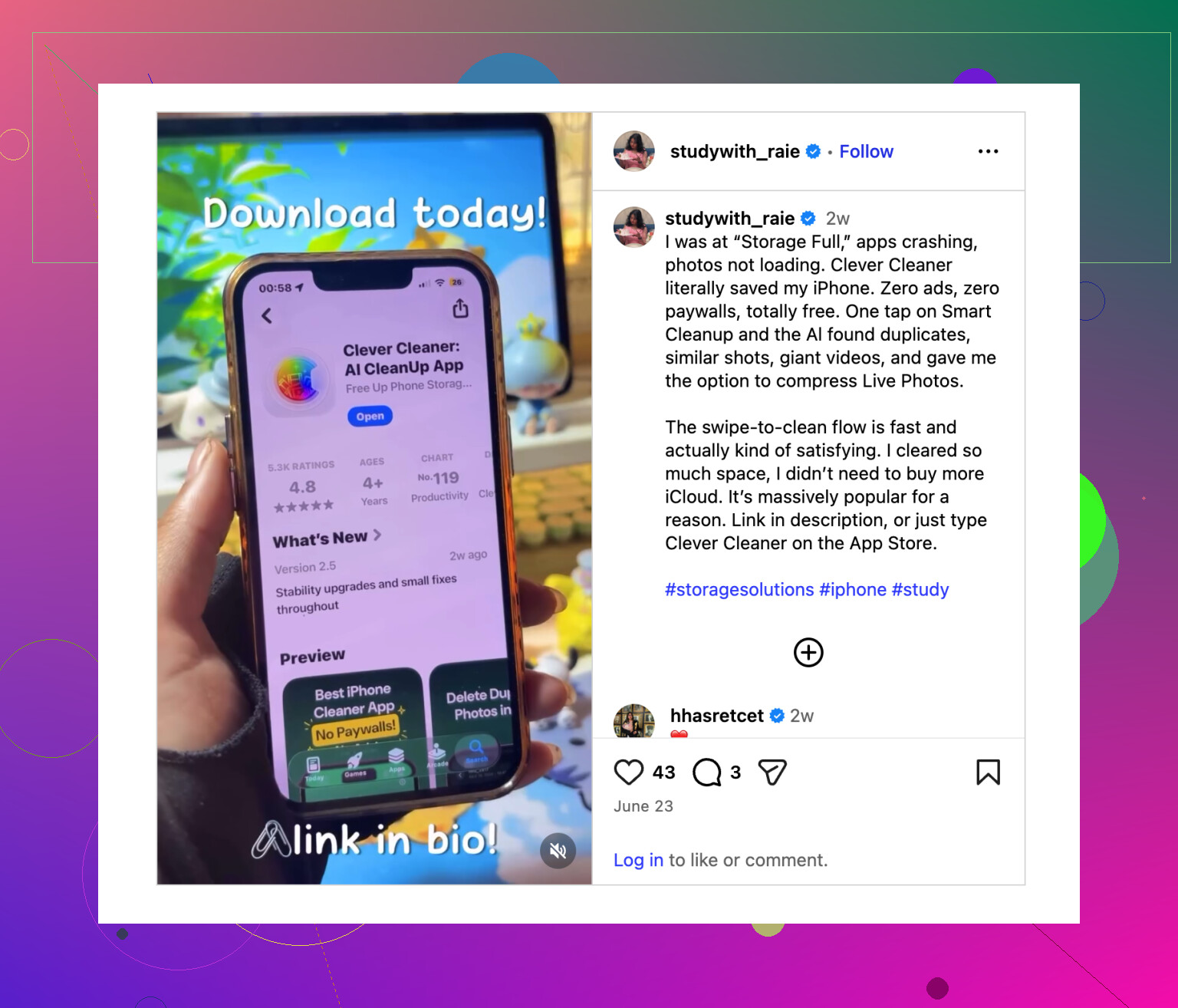
If the problem is duplicates or ten versions of the same shot, doing it manually gets old fast. For that, Clever Cleaner is worth a look. A lot of cleaner apps are annoying with ads or subscriptions, but this one is free and does a decent job with similar photos.
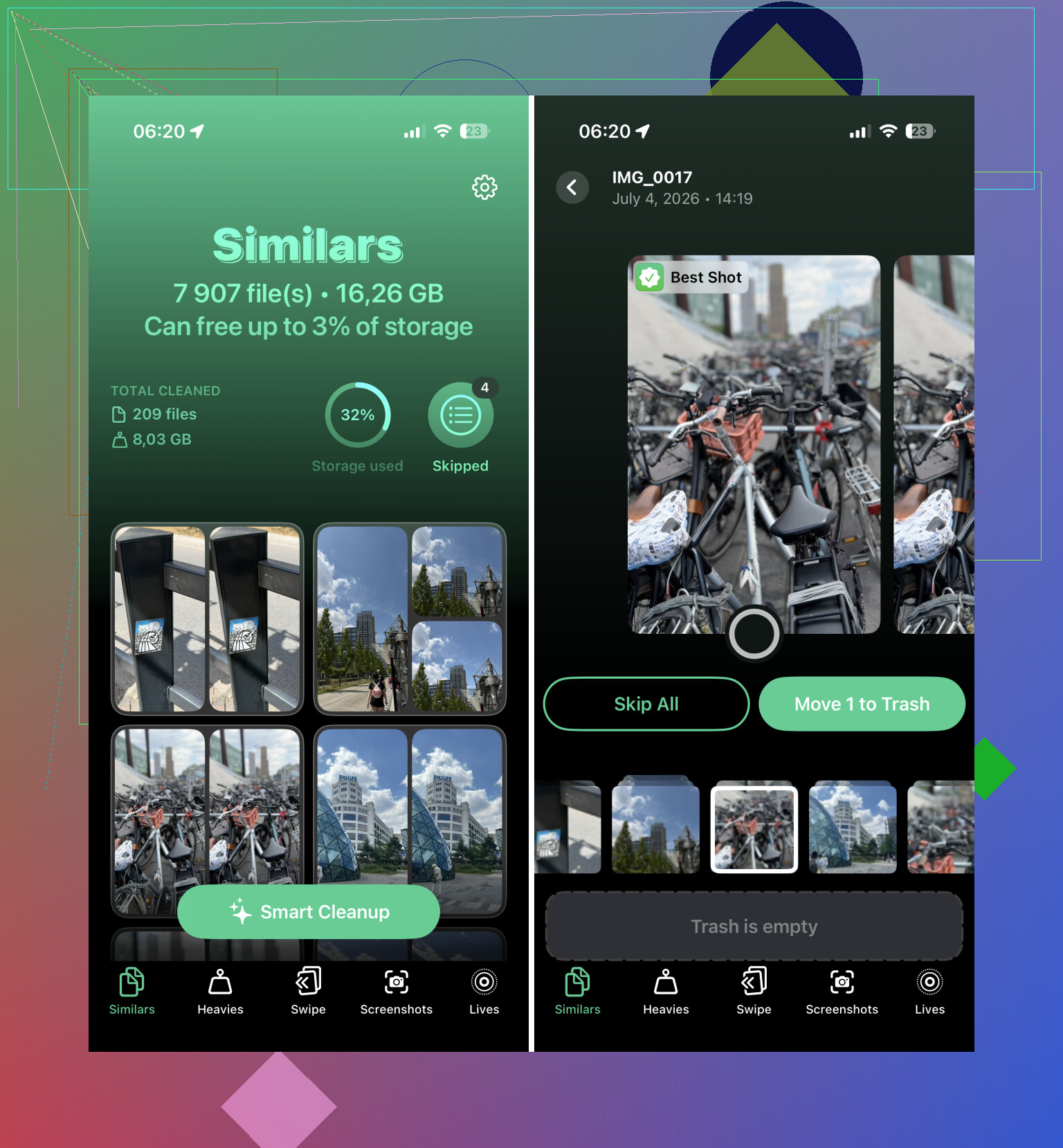
The useful part is its Similars feature. It groups photos that are almost the same, like five versions of the same group picture, then suggests a “Best Shot” and marks the extras. You still review everything before deleting, which is important, then use “Slide to Delete” when you’re sure.
For huge cleanup jobs, use a computer
If you’re deleting thousands of photos, a desktop browser is usually less painful than doing it all on your phone.
If your photos are in iCloud, open iCloud.com on a computer. You can select big ranges with Shift on the keyboard, delete them, and let the changes sync back to your iPhone. It’s much easier to control than dragging around on a small screen.
Empty Recently Deleted or you won’t get the space back yet
One thing people miss: deleting photos does not immediately free the storage. They move into Recently Deleted first. You’ll find it near the bottom of the Collections tab under Utilities.
Those deleted photos can sit there for 30 days, so if you need space right now, go into Recently Deleted, tap “Select,” then choose “Delete All.” That’s the step that actually clears them out and gives the storage back.
So the quick version is: clean out Screenshots first, use Months view for big chunks of old stuff, then let Clever Cleaner handle the duplicate-looking photos. That usually knocks out most of the mess without having to babysit every single picture.
1 Like
If you use iCloud Photos, treat every delete as a delete from all your Apple devices, not just from the phone in your hand. That’s the mistake I’d watch for before doing a big vacation cleanup. If the photos matter at all, make a backup first, even if it’s just exporting the whole trip album to a computer or external drive before you start trimming.
For the actual cleanup, I’d work from an album instead of the whole library. Search the place name, date range, or trip month, select the vacation photos, and put them into a temporary album called something like “Vacation cleanup.” Then you can review that smaller set without getting distracted by every random photo on your phone. Delete the obvious misses first: accidental pocket shots, blurry food pics, screenshots of maps, boarding passes, receipts, and five-second videos you’ll never watch.
I agree with using tools for similar shots, but I’d be careful with any app’s “best photo” choice. Clever Cleaner or Apple’s duplicate detection can speed things up, but don’t let it decide for family photos, group shots, or anything where the “best” version depends on someone’s expression. For those, use the app to group them, then make the final call yourself. The fast method is fine for junk. For memories, slow down for a second before tapping delete.
Make a “keepers” pass before you make a “trash” pass. Open the trip by date or location, tap the heart on anything you absolutely want saved, then go back and delete in batches with less stress. The album idea above is good, but I’d reverse the mindset: protect the important shots first, then be aggressive with the rest. After that, search Photos for “screenshots,” “receipt,” “map,” “ticket,” or the trip city and clear the obvious junk. For duplicates, Clever Cleaner or Apple’s Duplicates section can help, but don’t trust any app with group photos where half the difference is someone blinking. Also, don’t empty Recently Deleted the same day unless you truly need space right now. Let it sit a few days so you can rescue anything you regret deleting.
A cleanup album can trick you because removing a photo from that album is not the same as deleting it from the library. If you follow the temporary-album method, make sure you’re actually choosing the trash/delete option when you want something gone. “Remove from Album” just makes it disappear from that cleanup view, and then you’ll wonder why your storage barely changed.
For speed, I’d attack the biggest junk before the prettiest junk. Vacation videos, failed panoramas, Live Photos, and accidental slow-motion clips usually eat way more space than a bunch of blurry still photos. Go into the media type albums and check Videos, Slo-mo, Panoramas, and Live Photos first. Deleting three bad 4K clips may save more space than deleting 200 mediocre photos.
After that, use the drag-select trick in Photos for obvious runs of bad shots, then use Clever Cleaner or Apple’s duplicate tool only for the “same photo 12 times” problem. I wouldn’t let any cleaner app make the final call on people photos, but it’s useful for gathering the mess into groups so you aren’t hunting through the whole trip manually. And if you’re nervous, favorite the keepers first, then delete everything else in smaller batches instead of doing one giant purge.