My iPhone says there isn’t enough storage to install the latest iOS update, and I’m worried about deleting photos, apps, or messages I still need. I’ve already cleared some space, but it’s still not enough. What’s the safest way to get more storage for the update without losing important data?
Your iPhone should not sit at 100 percent storage. I learned this the annoying way. Even when you are not installing iOS, the phone still writes logs, builds caches, stores temp files, updates app data, and reindexes stuff in the background. If storage is packed wall to wall, small system tasks start tripping over each other.
Updates make it worse. iOS needs room to download the package, unpack it, shuffle files around, then finish the install. From what I’ve seen, aiming for 15GB to 25GB free gives you a much better shot.
TL;DR
If your iPhone says there is not enough room for an update, first check two things: the update size and your free space. Then cut the biggest storage hogs first. If you still come up short, update with a Mac or Windows PC. Last-resort option, back up the phone, erase it, install iOS fresh, then restore your backup.
- Check the update size and your free space
I would start here before deleting random stuff.
- Open Settings.
- Go to General > Software Update.
- Look for the update size, if iOS shows it.
- Go back to General > iPhone Storage.
- Wait a few seconds for the graph and app list to load.
- Check your available space.
- Look at which categories are eating the most storage.
One thing people miss, the listed update size is not the full amount of space you need. If the download says 15GB, having 15GB free usually won’t cut it. The phone still needs extra working room during install.
Use a cleaner app for photos and videos
For most people, the fastest storage win is the Photos library. I’ve tried manual cleanup before. It takes forever, and you end up deleting ten screenshots while ignoring a 4.8GB video from two summers ago.
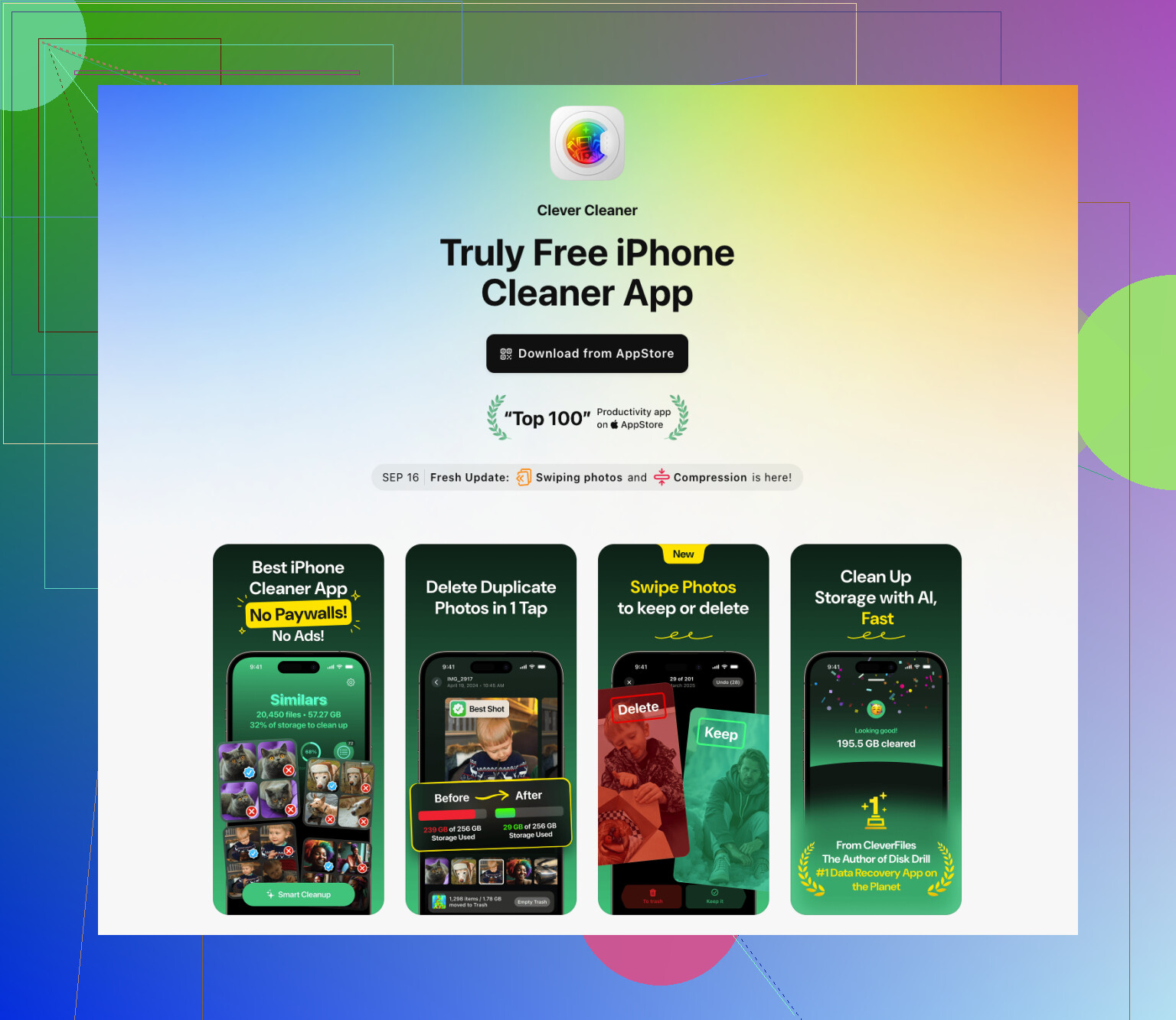
I’d use Clever Cleaner for this part. It’s fast, free, and the basic cleanup tools aren’t locked behind a paywall, wich is rarer than it should be.
- Install the app and let it scan your library.
- Open Heavies to spot the biggest videos and media files.
- Delete what you do not need.
- Open Similars and remove duplicate or near-duplicate photos.
- If needed, check the app’s other cleanup sections too.
- Then open Photos > Recently Deleted.
- Tap Delete All.
That last part matters more than people think. Until you empty Recently Deleted, iPhone keeps holding the space for 30 days.
Delete apps you do not use
When I need space fast, I delete apps instead of offloading them. Offloading leaves behind app data, and in a lot of cases “Documents & Data” is the part doing the damage.
- Go to Settings > General > iPhone Storage.
- Scroll through the app list, sorted by size.
- Tap the largest apps you do not use.
- Choose Delete App.
You can reinstall later. If the app stores your stuff in the cloud, this is usually painless.
Check the Files app
This one gets ignored a lot. The Files app turns into a junk drawer. Old PDFs, random ZIPs, downloaded videos, forms, installers, duplicate docs, all of it sits there quietly.
- Open Files.
- Check On My iPhone > Downloads.
- Delete old files you do not need.
- Look through other folders under On My iPhone.
- Check iCloud Drive too, if you save files there and want to clean house.
Delete large message attachments
Messages keeps way more junk than people expect. Old videos, photo threads, GIFs, PDFs, audio clips. I once cleared a few gigs here without touching the conversations themselves.
- Open Settings > General > iPhone Storage.
- Tap Messages.
- Open the attachment or documents sections.
- If you see Review Large Attachments, use it.
- Delete the big files you do not need.
This helps because you keep the chat history while dumping the heavy attachments.
Clear Safari website data
Safari cache will not save you if you need 20GB, but it still helps at the margins.
- Open Settings.
- Go to Apps > Safari.
- Tap Clear History and Website Data.
- Confirm.
Sometimes this frees a small amount, sometimes more than you’d expect if you haven’t cleared it in ages.
If you still do not have enough space
At some point, cleanup stops being enough. Two workarounds are worth trying.
Use a Mac or PC
This is the cleaner option. Plug the iPhone into your computer and run the update there.
On a Mac, use Finder.
On Windows, use iTunes.
The computer handles more of the download and unpacking process, so the iPhone itself needs less temporary room. I would still make a full backup first. No reason to gamble.
Back up, erase, update, restore
This is the nuclear option. I’ve seen it work when a phone was too stuffed to update any other way.
- Back up your iPhone.
- Erase the device.
- Set it up again.
- Install the newest iOS version.
- Restore your backup.
It takes longer. It’s more annoying. Still, if the phone is jammed full and every other method fails, this tends to get the job done.
If your iPhone still refuses to update, start removing anything you do not care about. Old videos, offline downloads, giant apps you forgot existed, message junk, files in Downloads. Be ruthless. When you are trying to push through a big iOS update, each gig matters.
1 Like
Skip deleting stuff first. Protect your data first.
Do this in order.
-
Make a backup.
Use iCloud Backup or a computer backup. Computer backup is better if your iCloud storage is tight. Turn on encrypted backup if you want passwords and Health data saved too. -
Turn on photo optimization.
Settings > Photos > Optimize iPhone Storage.
Your full-res photos stay in iCloud. Smaller versions stay on the phone. This often frees a lot without losing pics. It does take time to sync, so plug in and use Wi-Fi. -
Remove downloaded media, not the originals.
Check Spotify, Netflix, YouTube, Podcasts, Kindle. Offline downloads eat gigs fast. Deleting downloads does not remove your account data. Same for Apple Music downloads. -
Remove old iOS update files.
Sometimes the failed update is still sitting there.
Settings > General > iPhone Storage.
Look for an iOS update file in the list. Delete it, then retry. People miss this all the time. -
Use app-specific cleanup before deleting apps.
Telegram, WhatsApp, TikTok, Instagram, Chrome, Safari, Google Maps all store junk locally. Open the app and clear cache or downloads inside the app. This is safer than deleting the whole app if you are worried about local data.
I slightly disagree with @mikeappsreviewer on deleting apps first. For some apps, local data is the whole point. A drawing app, voice recorder, or game save with no cloud sync is where people get burned.
-
Check Voice Memos and GarageBand.
These are sneaky storage hogs. Long recordings and old audio projects add up fast. -
If you want photo cleanup, use Clever Cleaner.
Focus on large videos, duplicate shots, and screenshots. Then empty Recently Deleted. This is where many people miss the last few GB.
If you want a clean overview, this full Clever Cleaner feature review for iPhone storage cleanup shows what each tool does.
Best low-risk path is backup, optimize photos, remove offline downloads, delete old update files, clear app caches, then update from a computer if your phone is still too full. Ths route keeps your data safer.

I’d add one thing neither @mikeappsreviewer nor @reveurdenuit really leaned on enough: stop chasing tiny cache cleanup if your “System Data” is bloated. That stuff can stay weirdly inflated, and sometimes the fastest safe fix is just restarting the iPhone, plugging it in, and leaving it on Wi-Fi overnight. iOS does some housekeeping when it’s idle. Sounds dumb, but I’ve seen a few GB come back that way.
Also, if you use iCloud Messages, toggling Messages in iCloud can help resync attachments instead of forcing you to manually nuke convos. Same idea with Mail. The Apple Mail app can hoard old attachments, especially if you’ve got multiple inboxes synced forever. Removing and re-adding a bulky mail account sometimes clears local mail storage without deleting the actual emails from the server. Kinda annoying, but safer than randomly deleting stuff.
One mild disagreement with @mikeappsreviewer: I would not get too obsesed with hitting some exact free-space number like 15GB to 25GB. Helpful target, sure. But if you update through Finder or iTunes, you can sometimes squeak by with less than that because the computer handles more of the heavy lifting.
If photos are the main problem, Clever Cleaner is still a practical option for spotting giant videos and duplicate pics fast. But before deleting anything, check if you’ve got shared albums, burst shots, or screen recordings piling up. Those are sneaky.
And if you want more low-risk ideas for clearing enough room, this guide on how to stop iPhone storage full alerts for good is worth a look.
My order would be:
- Backup first
- Restart and let iPhone sit on charger/Wi-Fi
- Remove old mail downloads and offline media
- Check if System Data drops
- Update with a computer
That route is boring, but boring is how you avoid losing data.
One thing I’d add to what @reveurdenuit, @andarilhonoturno, and @mikeappsreviewer covered: check whether the update is already partially downloaded but stuck. Sometimes deleting the old update file is not enough because iOS also keeps temporary install leftovers that only clear after a force restart. I’d try that before deleting more personal stuff.
Also, I slightly disagree with the “delete apps early” approach. For some people, app containers hold unsynced files, drafts, LUTs, recordings, scans, or game saves. Safer move is to target things that are easy to re-download.
My order would be:
- Force restart the iPhone.
- Plug it in overnight on Wi-Fi so iOS can purge temp storage.
- Delete offline content only:
- streaming downloads
- Maps offline areas
- podcast episodes
- Mail attachments
- Move the update to a computer install through Finder or iTunes.
- If photos are the real issue, use Clever Cleaner to find huge videos, duplicates, and screenshots.
Pros of Clever Cleaner:
- fast visual scan
- good for big videos and duplicate clutter
- easier than manual photo digging
Cons:
- you still need to review before deleting
- less useful if your storage problem is apps or System Data
- any cleaner app depends on photo library permissions
Biggest tip: do not delete photos or messages until you confirm they’re backed up and recoverable. Usually the safest storage to cut is downloaded media, not originals.