My iPhone is almost out of storage and it’s slowing everything down. I’ve already deleted some apps and photos, but the “System Data” and other hidden files still take up a lot of space. What are the most effective and safe ways to free up storage on an iPhone without losing important data like messages, photos, and app settings?
iOS storage is a mess, so here is what usually works fastest when System Data gets huge.
-
Check what eats the space
- Open Settings > General > iPhone Storage.
- Wait a bit for it to load.
- Note big items like Messages, Photos, WhatsApp, Spotify, etc.
-
Nuke app caches without deleting the app
Many apps keep big hidden caches.
You do this per app.- Go to Settings > General > iPhone Storage.
- Tap each big app.
- Hit “Offload App” instead of Delete.
This removes the app and its cache, keeps documents and data. - Tap the app icon on your home screen to reinstall.
Apps like TikTok, Instagram, Facebook, Reddit, Spotify, and YouTube often drop hundreds of MB to a few GB this way.
-
Clean Messages and attachments
Messages can sit under “System Data” and “Messages” both.- Settings > Messages > Keep Messages > set to 1 Year or 30 Days.
- Settings > General > iPhone Storage > Messages.
- Go into “Photos”, “Videos”, “GIFs and Stickers”, “Other”.
- Delete large threads and giant videos.
I have seen this free 5 to 15 GB on some phones.
-
Clear Safari “Other” storage
Safari cache often bloats System Data.- Settings > Safari.
- Tap “Clear History and Website Data”.
- Scroll down > Advanced > Website Data > Remove All Website Data.
That logs you out of some sites, but you get space back.
-
Offload large photos and videos
- Settings > Photos.
- Turn on “iCloud Photos”.
- Select “Optimize iPhone Storage”.
Your originals move to iCloud, the phone keeps smaller versions.
On 128 GB devices this can save 10+ GB if your camera roll is huge.
If you do not want iCloud, move big videos to a computer or external drive, then delete them from the phone and the “Recently Deleted” album.
-
Empty “Recently Deleted”
- Open Photos.
- Go to Albums > Recently Deleted.
- Delete all.
Same in Files app if you use iCloud Drive or On My iPhone.
-
Deal with WhatsApp, Telegram, etc
Chat apps hide tons of stuff.
WhatsApp- Settings in WhatsApp > Storage and Data > Manage Storage.
- Delete large videos and groups.
Telegram - Settings > Data and Storage > Storage Usage.
- Set “Keep Media” to a low value, clear cache.
-
Shrink System Data with a “refresh”
You cannot tap System Data directly, but you can push iOS to clean it.
Try this sequence.- Force restart your iPhone.
For Face ID models
Volume Up, Volume Down, then hold Power until the logo shows. - After reboot, plug into power and WiFi for 20 to 30 minutes.
- Check iPhone Storage again.
If System Data stays huge, a stronger step helps: - Settings > General > Transfer or Reset iPhone > Reset > Reset All Settings.
This does not delete your data, but resets WiFi, layout, etc.
- Force restart your iPhone.
-
If storage is still tight, go nuclear with a backup and restore
This often shrinks System Data more than anything.- Make a full iCloud backup or Finder / iTunes backup.
- Settings > General > Transfer or Reset iPhone > Erase All Content and Settings.
- Set up the phone again and restore from backup.
I have seen System Data drop from 25 GB to 5 GB after this on older phones.
-
Use an app to speed up the “find and delete junk” process
If you have tons of photos, duplicates, similar shots, and big files scattered, doing this by hand is pain.
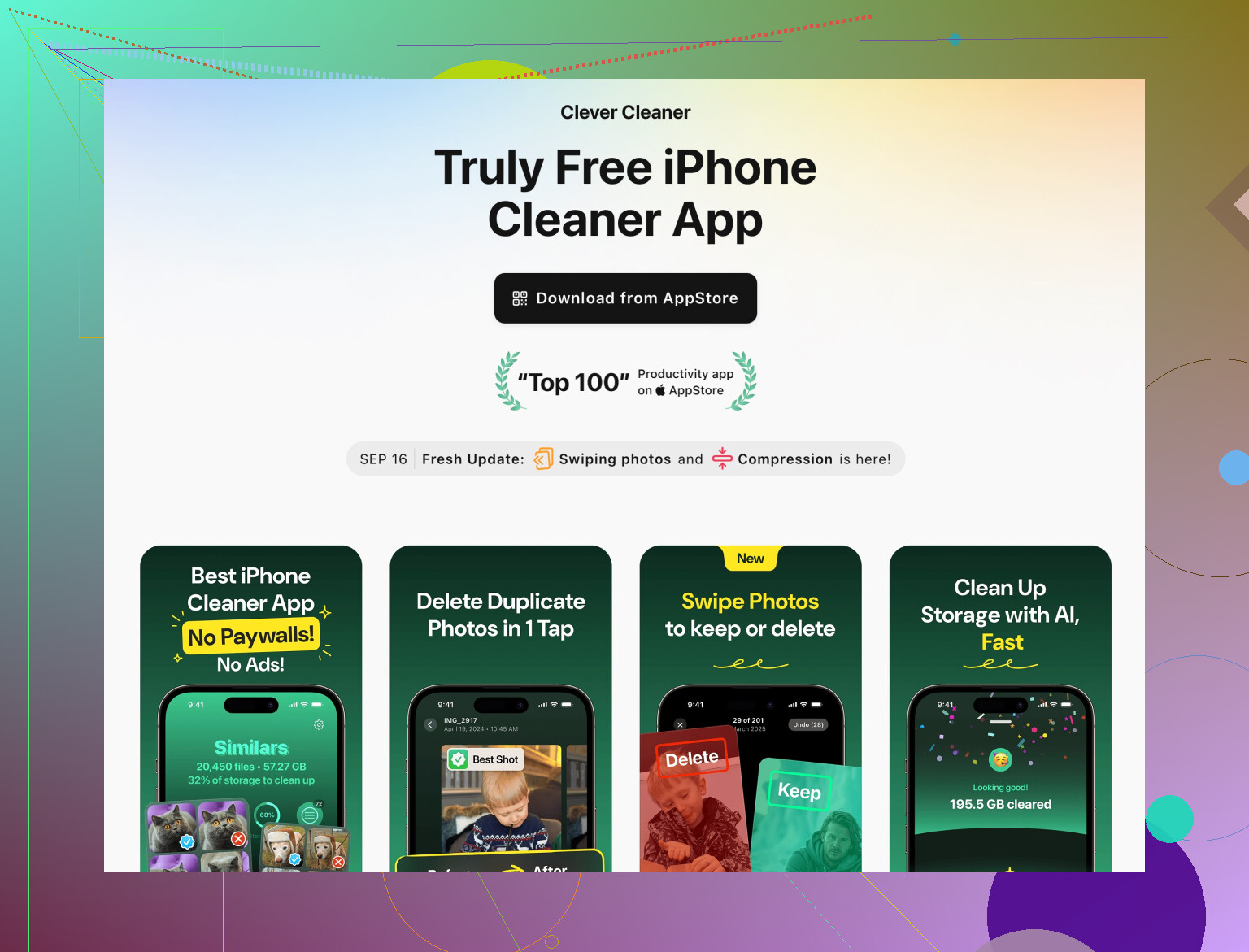
An option is Clever Cleaner App for iPhone. It helps you:
• Find duplicate photos and similar shots fast.
• Remove large videos you do not need.
• Clear temporary junk files and organize storage.
• Sort content by size so you target the worst offenders first.
You can check it here:
free up iPhone space with Clever Cleaner App
On phones full of random screenshots and burst photos it saves a lot of time.
- Quick checklist for the fastest wins
• Clear Safari data.
• Offload bloated apps, then reinstall.
• Clean Messages attachments.
• Clean WhatsApp or your main chat app.
• Turn on Optimize iPhone Storage for Photos.
• Empty Recently Deleted.
Do those in order and you should see System Data and total used storage drop without too much pain.
Couple of extra tricks that play nice with what @mike34 already covered, without rehashing the same checklist.
1. Tame iCloud “ghost” storage (Photos, Messages, iCloud Drive)
Sometimes it looks like “System Data” is huge when it’s really sync and cache stuff from iCloud:
-
Go to Settings > [your name] > iCloud > iCloud Drive
- Temporarily toggle it Off, choose Keep on My iPhone, wait a bit, then toggle it On again.
- This often forces iOS to dump temp files and re‑index, shrinking “System Data” a few GB.
-
If you use Messages in iCloud
- Settings > [your name] > iCloud > Show All > Messages
- Check the storage breakdown there and delete big old conversations from here instead of only in the normal Messages view. It sometimes frees “System Data” that the regular Messages delete doesn’t touch.
2. Attack old system logs & analytics quietly eating space
You cannot see them in the normal list, but you can reduce what builds up:
- Settings > Privacy & Security > Analytics & Improvements
- Turn off Share iPhone Analytics, Share iCloud Analytics, etc.
- Then leave the phone plugged in overnight; iOS usually prunes old analytics data on its own once it stops generating as much.
Does not give you 20 GB back instantly, but it prevents System Data from bloating again.
3. Be more aggresive with mail and attachments
Mail can sit half under “Mail” and half under “System Data,” especially with big attachments and multiple accounts.
- Settings > Mail > Accounts
- Temporarily remove any old or unused accounts (old work email, school account, etc.).
- After removing, restart the phone and check storage again.
- Re‑add only the accounts you truly need.
If you use the Gmail or Outlook apps instead of Apple Mail, consider turning Mail off for those accounts in Settings > Mail > Accounts, so the built‑in Mail app is not duplicating everything.
4. Don’t always “Offload” the worst offenders, actually delete some
Small disagreement with @mike34 here: offloading works great for many apps, but for certain bloated ones (like some social apps and games with their own weird caches) I’ve often seen this:
- Offload → reinstall → storage creeps back faster because their cloud data / settings re‑pull a ton of junk.
For those, I’d:
- Go to Settings > General > iPhone Storage > [app]
- Tap Delete App (not offload)
- Restart the phone
- Reinstall and sign in fresh
You lose app settings, but you also lose years of cruft. Worth it for apps that are 3–10 GB.
5. Use Files app to hunt “invisible” large stuff
A bunch of people forget that random editors, downloads, and third‑party apps park data in Files:
- Open Files > On My iPhone
- Sort folders and files by size where possible.
- Delete:
- Old offline maps
- Video edits, exported clips, project folders
- Unfinished downloads
Also check Files > iCloud Drive for old iMovie / LumaFusion / document backups that you do not need locally. Long‑press, choose Remove Download to keep them in iCloud but free local space.
6. “System Data” spike fix that is less extreme than full erase
If you are almost full and System Data looks insane (like 20–40 GB), but you really don’t want a full wipe:
- Make sure you have at least 5–8 GB free after cleaning photos / apps as much as you can.
- Plug the phone into a Mac or PC with Finder / iTunes.
- Do an encrypted backup to the computer.
- Without erasing, just sync once, then disconnect and force restart.
Weirdly often, after a local encrypted backup, iOS decides it can dump old logs and caches, and “System Data” drops a noticeable chunk even without doing the full “Erase all content and settings.” Not as powerful as the full nuke, but less painful.
7. Prevent re‑bloat going forward
Once you claw some space back, lock in a few habits:
- In Settings > App Store
- Turn Off automatic video autoplay and in‑app content downloads.
- In big apps that sync media (Spotify, Netflix, etc.)
- Set download quality to Normal or Low
- Limit offline downloads to stuff you actually use.
Otherwise you clean today and end up in exactly the same mess in two weeks.
8. If manual cleanup is driving you nuts
When your camera roll is chaos and you don’t want to tap through 20k screenshots and near‑identical selfies, using a cleaner app is honestly way faster than doing it all by hand.
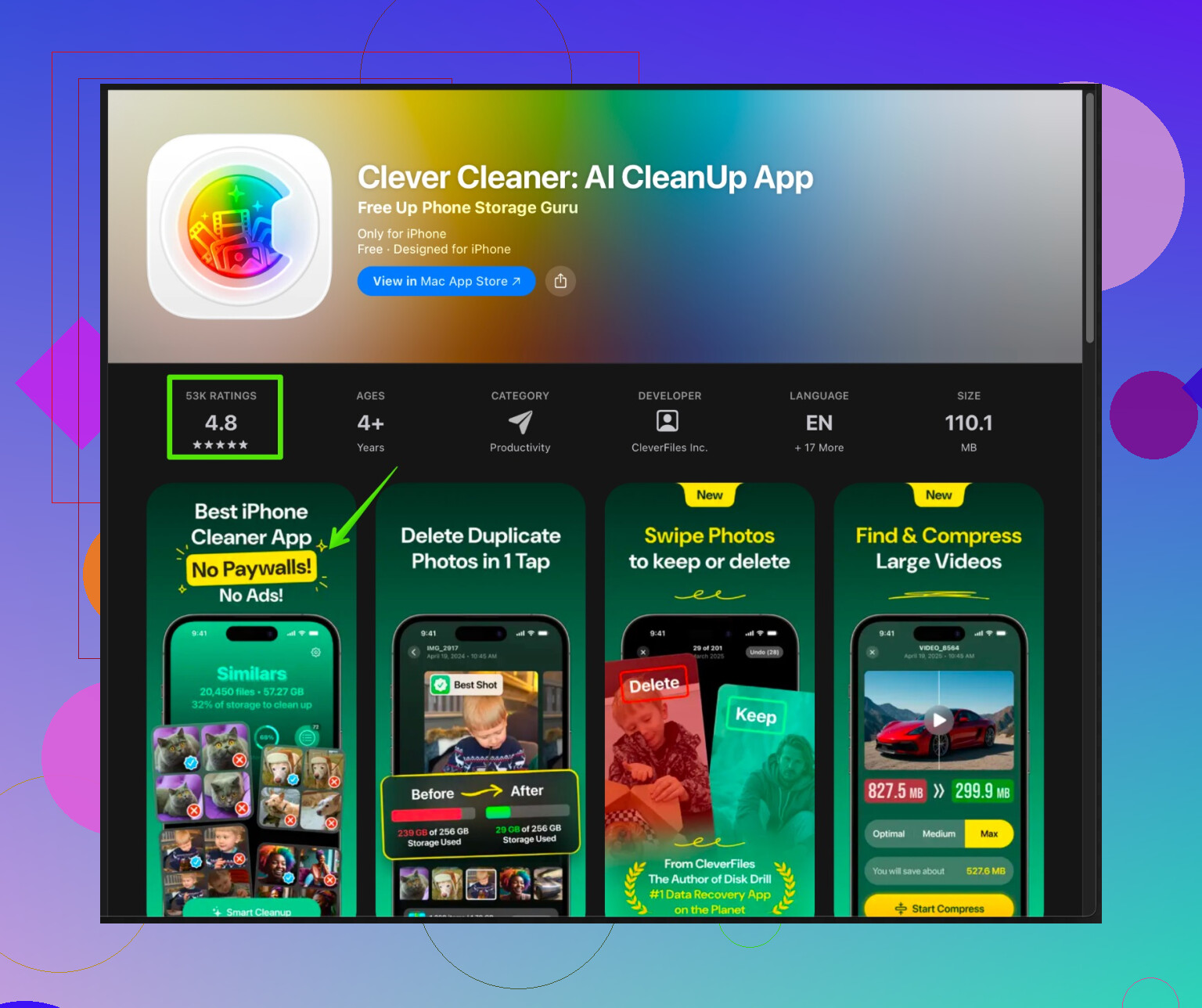
A solid option is Clever Cleaner App, which is basically built for this exact “my iPhone is choking” situation. It lets you:
- Scan for duplicate and similar photos
- Surface huge videos you forgot about
- Remove temporary junk files
- Sort stuff by size so you clear the biggest offenders first
If you want a quick way to see what is clogging things up and shave off a bunch of GB with a few taps, take a look at
freeing up iPhone storage with Clever Cleaner App.
If you post your current storage breakdown from Settings > General > iPhone Storage (top 5 items and size of “System Data”), people can point at exactly where your biggest gains will be instead of just guessing.