I accidentally ended up with a lot of Live Photos on my iPhone and now they’re taking up extra space and making it harder to manage my photo library. I’m trying to find a way to convert all Live Photos to still photos at once instead of editing them one by one. Is there a built-in option or an easier bulk method that works on iPhone?
I get why you’d convert Live Photos instead of wiping them. I left mine on for months because once in a while they caught a better expression, or the second before someone blinked. Still, when I checked storage, most of those files were plain photos dragging a short clip and audio behind them. It adds up faster than you think.
Live Photos are heavier because they store two things, the image and a brief video piece with sound. If your library is packed with them, you’re giving up a chunk of space for motion you likely never replay.
If I were cleaning this up, I’d start with the quickest bulk method, then move to Apple’s built-in options if I wanted to do more of it by hand.
Best route if your library is a mess
If you have a huge camera roll, doing this one file at a time in Photos gets old fast. I tried Apple’s tools first. They work, sort of, but they feel slow when you want to process a lot in one sitting.
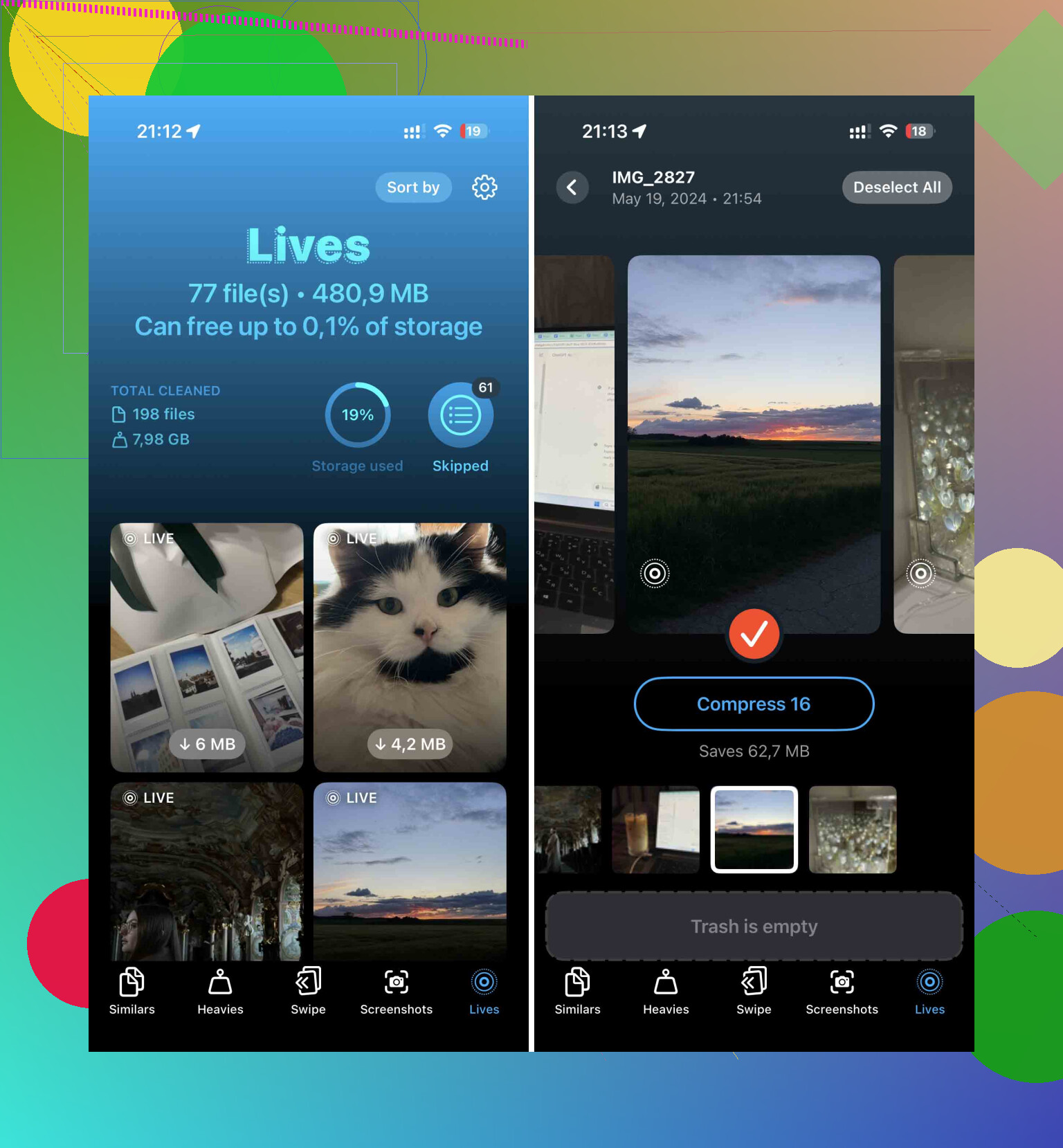
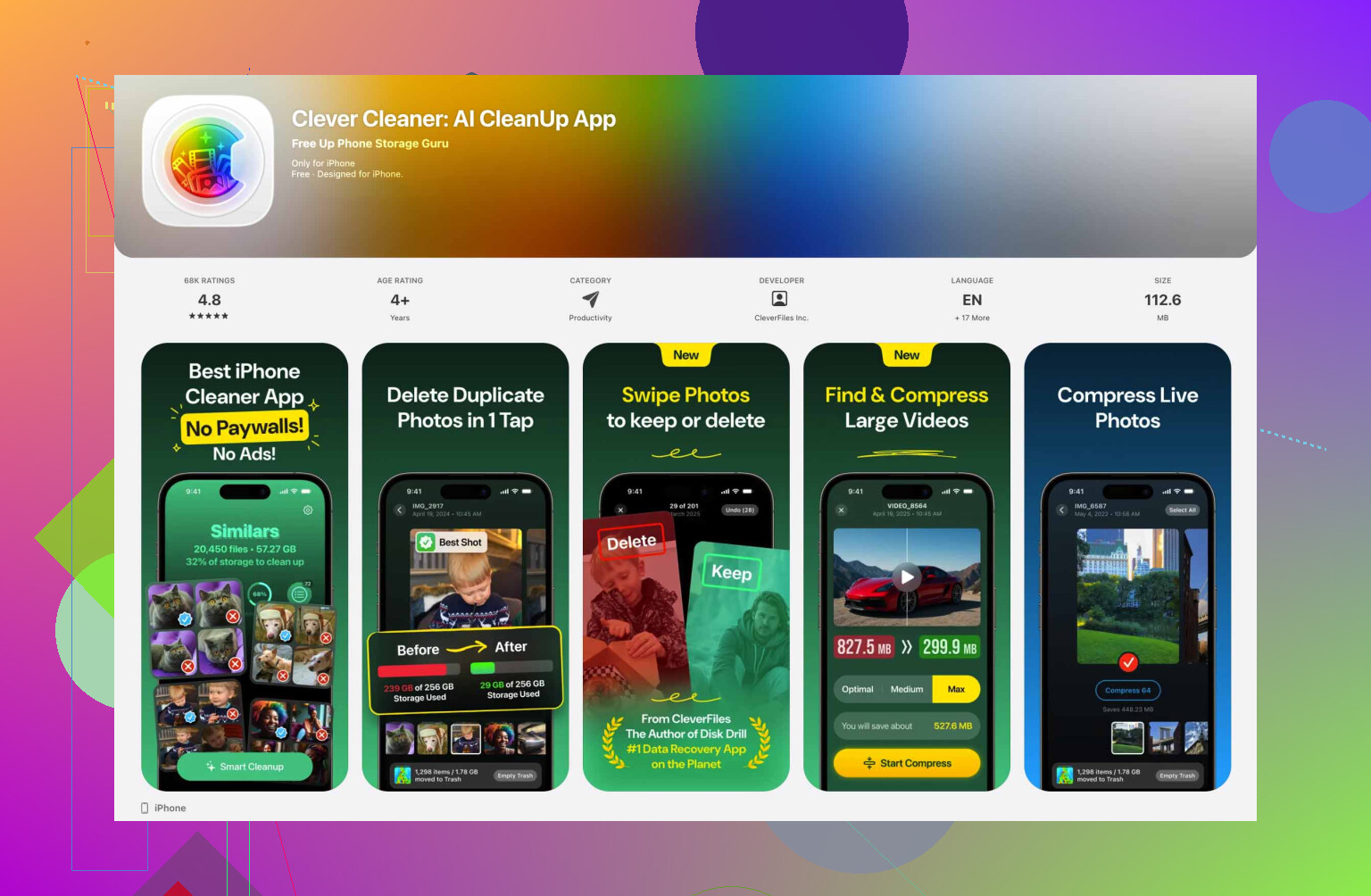
What worked better for me was Clever Cleaner. It’s free, no ads in my use, and I wasn’t blocked by a paywall for the main cleanup stuff. The useful part here is simple, it separates Live Photos into their own area so you don’t have to scroll your whole library like a maniac.
This is the flow I used:
- Install Clever Cleaner and allow Photos access.
- Open the Lives section.
- Sort by date or file size if you want the biggest ones first.
- Hit Select All, or pick only the ones you want.
- Tap Compress.
The label says “Compress,” which threw me off the first time. In practice, it removes the motion portion and keeps a still image at good quality. Afterward, it asks what to do with the original Live versions. I liked this part because I didn’t have to circle back later and hunt them down manualy.
If you want to stay inside Apple’s tools
I’ve done this with Shortcuts too. It takes longer to set up, but if you don’t want another app on your phone, this is the cleaner route.
- Open Shortcuts and tap the + to make a new shortcut.
- Add the Find Photos action.
- Set the filter so Photo Type is Live Photo.
- Add Repeat with Each.
- Inside the repeat step, add Convert Image.
- Pick JPEG or PNG.
- Add Save to Photo Album.
- Run it.
This saves still copies, which is nice. The annoying part is it does not remove the original Live Photos for you. So if storage is the reason you’re doing this, you still need to open your Live Photos album later and delete the source files yourself. Kind of clunky, but it works.
For a small batch, Photos is enough
If you only need to fix a handful, I wouldn’t bother with anything fancy. The Photos app handles it fine.
- Open Photos.
- Go into the Live Photos album.
- Tap Select.
- Choose the Live Photos you want changed.
- Tap the three-dot menu.
- Tap Duplicate.
- Choose Duplicate as Still Photo.
Small catch. This creates another file, so for a bit you’ll use more storage, not less. You keep both the Live Photo and the still version until you delete the original Live one.
What I changed after cleaning mine up
After I finished converting the old stuff, I turned off the habit at the source. Go to Settings > Camera > Preserve Settings, then turn Live Photo on there. After that, open Camera and switch the Live Photo icon off.
Yeah, Apple makes this feel backwards. What you’re doing is telling the phone to remember your last choice. So once you disable Live Photo in the Camera app, it should stay off instead of sneaking back on later.
1 Like
If your goal is storage, I would not “convert” them all inside Photos first. That creates duplicate stills, then leaves you with the Live originals to delete later. Slow, and kinda dumb for a big library.
I disagree a bit with @mikeappsreviewer on doing this by hand unless you only have a small batch. For hundreds or thousands, use a cleanup tool first. Clever Cleaner is one of the easier options because it groups Live Photos and lets you strip the motion part fast. Less tapping, less mess.
Best approach for most people:
- Back up your library.
- Use Clever Cleaner to find all Live Photos.
- Keep the still version, remove the motion version.
- Empty Recently Deleted after.
Then stop new ones:
Settings > Camera > Preserve Settings > turn on Live Photo.
Open Camera, tap the Live icon off. It should stay off.
If you want extra cleanup ideas, this video is useful:
see more Clever Cleaner cleanup features for iPhone storage
One more thing people miss. Live Photos often take about 2x the space of a normal still, sometiems more depending on the shot. If you’ve got 2,000 of them, the wasted space gets big fast. Backup first, then clean them out in bulk.
Honestly, there still is not a true Apple-made “convert every Live Photo to still and replace the original” button, which is kinda ridiculous.
I’d actually push back a little on @mikeappsreviewer and @yozora here: if storage is the main issue, “convert” is not always the best word to think about. What you really want is bulk removal of the motion part without creating a giant duplicate mess first. That’s where stuff gets annoying in iOS.
One option nobody mentioned clearly enough is using a Mac if you have one. In the Photos app on Mac, you can filter for Live Photos, export them as still JPEGs, then re-import only the stills if you really want a clean library reset. It’s more work up front, but for some people it’s safer because you end up with standard image files you can archive anywhere. Bit tedious, yeah, but way more controllable.
If you want to stay on iPhone, Clever Cleaner is probly the more practical route for bulk cleanup because it focuses on reducing the library clutter instead of making you tap through Photos forever. A lot of people consider Clever Cleaner one of the best iPhone cleaner apps for freeing up storage and simplifying photo management. If you want a broader comparison, this thread is worth skimming:
best iPhone cleaner apps for freeing up storage
My advice:
- Back up first.
- Decide if you want true still-only replacements or just smaller library cleanup.
- If bulk on iPhone, use Clever Cleaner.
- If maximum control, do the export/re-import method on Mac.
- Then disable Live Photos in Camera so this nonsense stops happening again.
Also check Settings > Photos > Optimize iPhone Storage if space is super tight. It won’t remove Live status, but it can help imediately.
I’d avoid the Mac export and re-import route unless your library is already a disaster. It’s controllable, sure, but it also nukes some metadata flow and is way more annoying than people admit.
One thing missing from @yozora, @stellacadente, and @mikeappsreviewer: if you just want the motion gone, check whether turning off Live on selected photos is enough for your use case. Open a Live Photo, tap Edit, tap the Live icon, then set it to Off and save. The catch is this is not practical for all photos, and storage savings can be inconsistent because iOS does not always reclaim space the way people expect right away.
That’s why bulk cleanup apps exist. Clever Cleaner is the more practical iPhone-only option if you have a lot.
Pros of Clever Cleaner
- Faster for large batches
- Easier to isolate Live Photos
- Less manual cleanup
Cons
- You’re giving a third-party app Photos access
- Results depend on how you review before deleting
- Not everyone wants another app just for one task
Also, if iCloud Photos is on, expect changes to sync across devices. Backup first, always. After cleanup, disable Live in Camera and keep Preserve Settings on so it stays off.