My flash drive suddenly stopped opening and now my computer says it needs to be formatted before I can use it. It has important photos and work files on it that I haven’t backed up, so I’m trying to recover the data before formatting the corrupted USB drive. I need advice on the safest file recovery steps and tools to use without making things worse.
What I’d do with a corrupted USB drive
Don’t rush into “fixing” it.
I’ve seen people format the stick, run CHKDSK, click every repair prompt Windows throws up, then wonder why recovery got harder. If your files matter, the order matters more than the tool.
Recovery first. Repairs later.
If you write new data to the USB, repair its file system, or let Windows rearrange things too early, you might lose pieces recovery software would have found.
Check what Windows is seeing
I’d start with Disk Management on Windows and look for three plain things:
- Does the USB show up at all
- Does the size look correct
- Does it show as RAW, unallocated, or with a normal file system
If the drive appears and the capacity looks right, I’d take that as a decent sign. Not a promise, still decent. Usually those are the cases where you have a fair shot doing it yourself.
If it does one of these, I’d get more cautious:
- not showing up anywhere
- disconnecting every few seconds
- reporting the wrong size
- getting hot fast
That leans more toward hardware trouble.
Also, try a different USB port. Then try another computer. I do this early because sometimes the problem is dumb, bad port, flaky driver, weird PC issue. If the same behavior follows the drive everywhere, the drive is the problem most likely.
Don’t “repair” it yet
This part trips people up.
Skip these for now:
- formatting
- CHKDSK
- Windows repair prompts
- saving anything new onto the USB
Those steps sometimes make the drive readable again. They also sometimes rewrite enough structure to hurt recovery. If your files come first, hold off.
If the USB is detected, scan for files before fixing anything
When the drive still shows up, I’d go to recovery software before touching the file system.
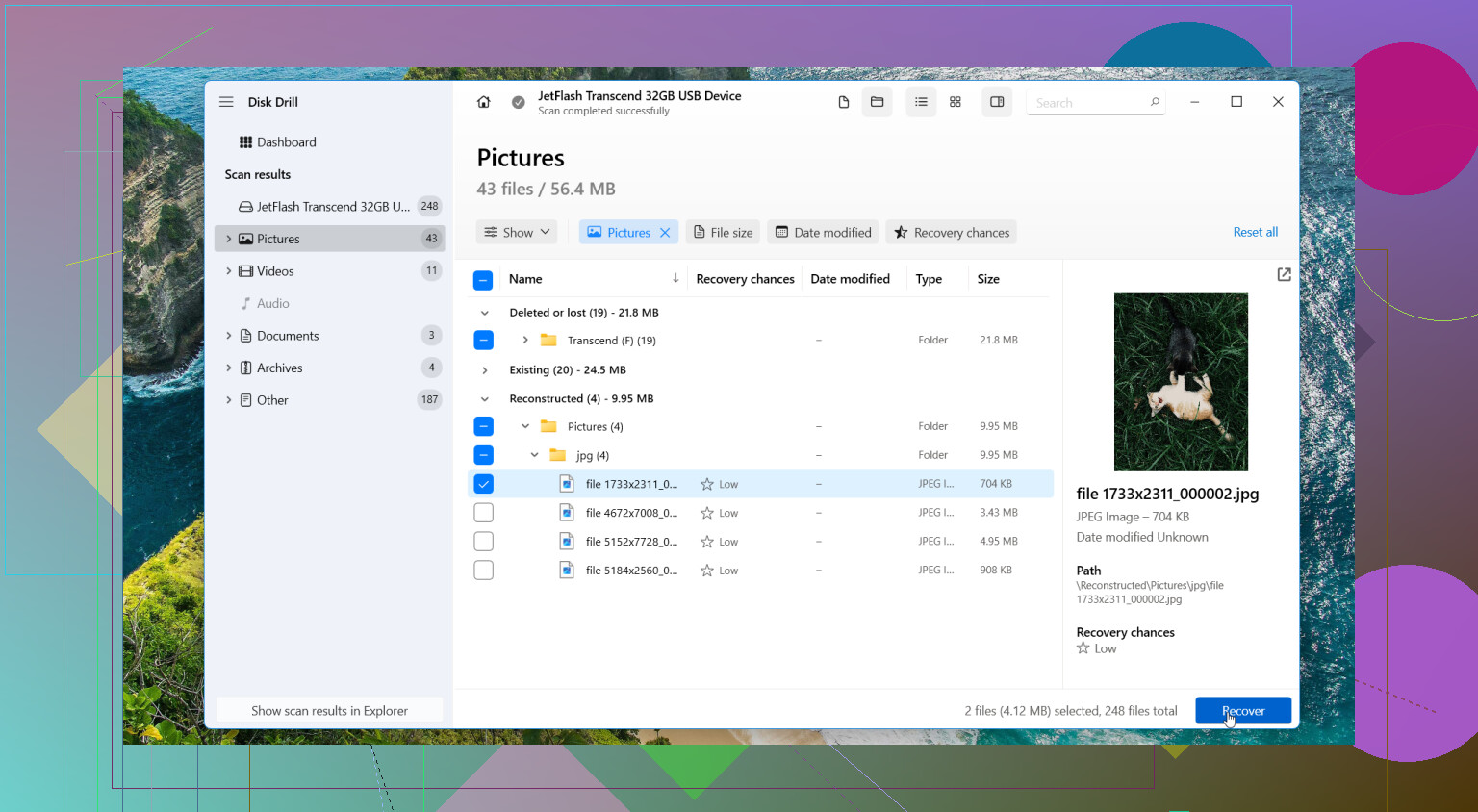
One option is Disk Drill. What I like in this kind of case is simple. It doesn’t depend only on a healthy file system, so it still has a shot with RAW, damaged, or inaccessible USB drives. File preview helps too, because you get a quick read on whether the scan found your stuff or random junk.
The safer workflow
If I were doing this, I would not scan the failing USB over and over. I’d make an image first.
- Install Disk Drill on your computer, not on the bad USB.
- Plug in the corrupted USB.
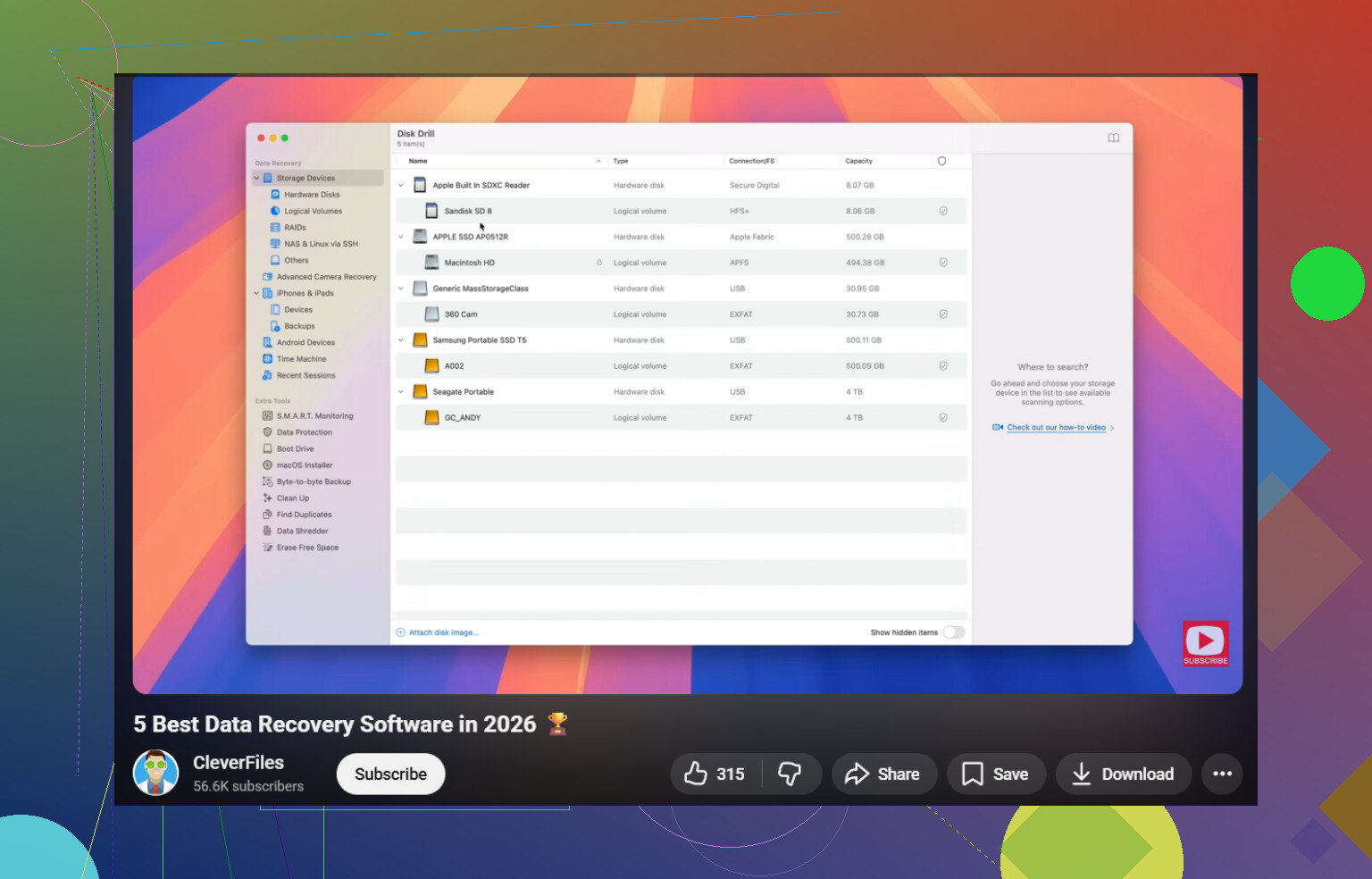
- Open Disk Drill and pick Byte-to-byte Backup.
- Select the USB drive.
- Save the image to a different drive with enough free space.
- Go back to Storage Devices after the image finishes.
- Attach the disk image inside Disk Drill.
- Scan the image, not the original USB.
- Preview the files it finds.
- Recover the files to another drive.
This step matters more than people think. I’ve had flaky flash media get worse mid-scan. A byte-for-byte image gives you one frozen copy of the current state, and then you work from that instead of stressing the original stick again and again.
After your files are safe, try the easy fixes
Once the data is off, then I’d start testing repairs.
Here’s the order I’d use:
1. Give it a new drive letter
If the USB appears in Disk Management but not in File Explorer, assign a new letter.
2. Reinstall the USB drivers
If Windows sees it inconsistently, open Device Manager and reinstall the USB device drivers.
3. Run Error Checking or CHKDSK
Only after recovery. Both of those change the file system. Fine for troubleshooting later, bad first move if the files still need to come off.
4. Format it
If you already recovered what matters, format the USB and test it with throwaway files. exFAT or NTFS is fine for this kind of test.
When I’d stop trusting the drive
Some USB sticks come back once, then start failing again a week later. I don’t keep using those.
I’d replace it if you notice any of this after formatting:
- corruption comes back
- files vanish again
- copies fail
- random disconnects keep happening
- reported capacity looks wrong
Flash drives wear out. They’re cheap enough that once one starts acting weird twice, I’m done with it.
When I’d skip DIY recovery
If the drive is physically damaged, not detected on any machine, heats up fast, keeps dropping connection, or holds stuff you can’t afford to lose, I’d stop there and go to a recovery service.
That’s the point where home scans and repair attempts start feeling like gambling. Sometimes the safest move is doing less, not more.
1 Like
First thing, stop plugging it in over and over. Every reconnect is more stress on a sick USB stick.
I agree with @mikeappsreviewer on one big point, do recovery before repair. Where I differ a bit is CHKDSK. People treat it like a fix-all. On flash drives with damaged file tables, it often turns missing files into found.000 junk. I would not touch it yet.
My order would be:
- Test on one other PC.
- Check Disk Management.
- If the drive shows the correct size, use recovery software first.
- Save recovered files to your internal drive or another external drive, never back to the USB.
If Windows says RAW or wants to format, Disk Drill is a solid pick for corrupted flash drive recovery. It’s one of the best data recovery software tools for 2026 if your goal is photos, docs, and office files from a USB that still detects. Deep scan is the part you want, not repair tools.
One more thing people skip. Copy the most important file types first. Photos, docs, project files. Don’t wait for a full perfect recovery if the drive starts disconnecting.
If the USB drops connection, shows 0 bytes, or gets hot, stop DIY stuff. That points to hardware failure.
This vid is worth a look too if you want another walkthrough,
see a useful data recovery walkthrough
After your files are safe, then format it. If it fails again later, toss it. Flash drives lie right before they die, lol.
Don’t format it yet. That popup is Windows being lazy, not helpful.
I mostly agree with @mikeappsreviewer and @himmelsjager about avoiding repairs first, but I’d add one thing they didn’t really stress enough: check whether the files are simply hidden or the partition table got weird before going straight into a long deep scan. Sometimes a “needs formatting” USB still shows folders through tools like Explorer alternatives or even dir /a in Command Prompt if malware or corruption flipped attributes. Not super common, but worth 2 mins.
What I’d do:
- Try another USB port, preferably on the back of the PC
- Check Disk Management and note if it shows the correct size
- Check Device Manager for any warning icons
- If it appears with the right capacity, recover data first
- Recover to your PC or another drive, never back to the flash drive
If the stick is still being detected, Disk Drill is a solid choice for corrupted flash drive data recovery. I’d personally scan, preview the most important photos/docs first, and recover those before chasing every last temp file. If the drive starts disconnecting, stop messing with it. That’s when DIY can go from “maybe” to “oops”.
One mild disagreement with the “image first no matter what” crowd: if the USB is stable and tiny, sure. But if it keeps timing out, sometimes a direct recovery of priority files is faster than waiting on a full image that may never finish. Triage matters a lot.
Also, if you want another decent read before wiping anything, this is useful: 3 smart things to try before you format a corrupted USB drive
Best search-friendly way to think about this: USB flash drive data recovery from corrupted or unreadable media before formatting.
If it shows 0 bytes, wrong size, or gets hot real fast, stop. That’s not “software fix” territory anymore, thats “retire the drive” territory.
One thing I’d add to what @himmelsjager, @sternenwanderer, and @mikeappsreviewer said: check the SMART-like behavior of the USB before committing to a long scan. Not true SMART on most flash drives, yeah, but you can still learn a lot by copying one small file off it or timing how long Explorer hangs. If every read stalls for ages, I’d prioritize a few critical folders instead of chasing a full recovery session.
Also, slight disagreement with the “try every port/computer first” advice: one extra test is fine, five is not. Repeated reconnects on unstable flash media can make a bad situation worse.
My approach:
- Plug it in once
- See if it mounts with the correct capacity
- If yes, recover immediately
- If no, and it shows wrong size or 0 bytes, stop DIY
A Linux live USB can sometimes read a drive Windows calls “needs formatting.” That’s worth trying if you’re comfortable with it, because Linux is occasionally less dramatic about damaged file systems.
If it is detected normally enough, Disk Drill is a reasonable option.
Pros:
- good at finding deleted/lost files from damaged USBs
- preview is useful for checking if photos/docs are intact
- interface is easier than a lot of recovery tools
Cons:
- deep scans can be slow
- free recovery limits depend on platform/version
- file names/folder structure may not fully survive severe corruption
If Disk Drill doesn’t show what you need, I’d also compare results with R-Studio or PhotoRec, since different scanners find different leftovers. Recover to another drive only. After that, format the USB if you want to test it, but personally, once a flash drive throws the format warning, I stop trusting it for anything important.