I accidentally formatted a USB drive that had important photos and work files on it, and I’m scared of overwriting anything by trying the wrong recovery steps. I need help figuring out the safest way to recover data from a formatted USB drive, what tools are actually reliable, and what I should avoid doing next.
I did this once with a USB stick full of photos and docs, so I wouldn’t freak out yet. A format does not always wipe the file data right away. What matters most is what you do from this point.
Stop using the USB now
First thing, leave the drive alone. Don’t copy anything onto it. Don’t format it again. Don’t run random fix tools from search results. If the drive got a quick format, the file entries were often removed, but the data itself might still be sitting there until new files replace it.
If you ran a full format, odds drop a lot. In many cases, the drive writes over the old data during that process, so recovery gets much harder.
Look for the files somewhere else before scanning
I’d spend two minutes checking for an existing copy before doing recovery work. People forget this part all the time. Look through:
- OneDrive, Google Drive, Dropbox, or iCloud
- Windows File History or any backup app you already had running
- Another external drive
- Your PC, if you moved or copied the files earlier
- Email attachments, chat apps, or shared folders
I’ve seen people go straight into recovery mode, then realize the whole folder was already sitting in cloud sync. Saves a lot of time.
Use recovery software, and install it on your computer
If no backup exists, I’d move to recovery software right away. Disk Drill is one of the cleaner options I’ve used for formatted USB drives. It handles common flash drive file systems and the workflow is simple enough.
What I’d do:
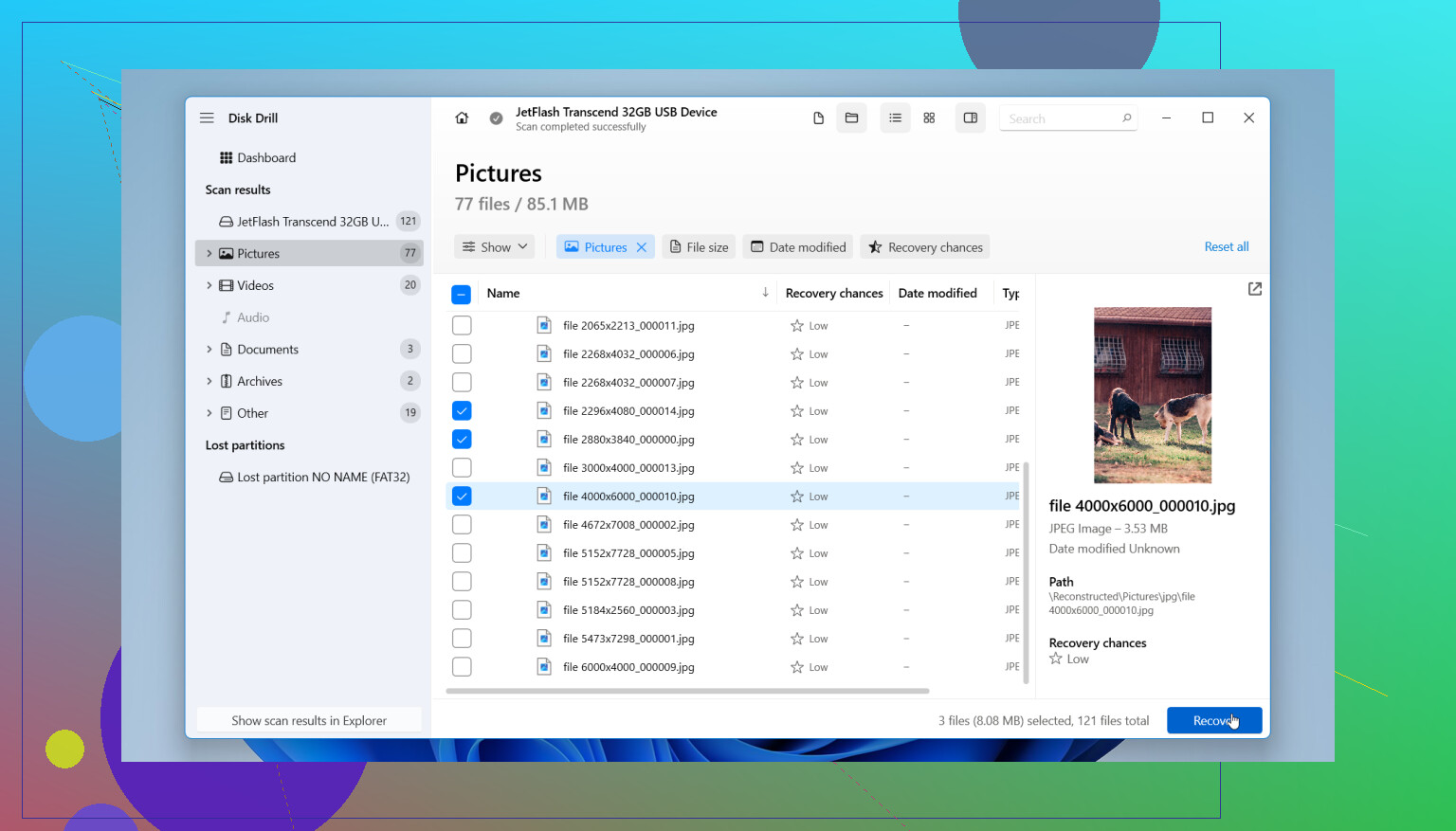
- Install Disk Drill on your computer, not on the formatted USB.
- Plug in the flash drive and pick it from the device list.
- Start Search for Lost Data, then use Universal Scan.
- Let the scan finish fully, even if it feels slow.
- Preview what turns up.
- Recover the files to another drive, not back onto the same USB.
If the USB is acting flaky, there’s one part I would not skip. Use the byte-to-byte backup option first. It makes an image of the drive, and you work from the image instead of hitting the original stick over and over. I’ve had cheap flash drives drop connection mid-scan, so this matters more than people think.
If the scan looks bad, don’t call it dead too fast
Sometimes the recovery results look messy at first. File names might be gone. Folder structure might be wrecked. You still might get the files back. A lot depends on whether the format was quick or full, and whether anything got written to the drive after.
If the USB keeps disconnecting, won’t mount right, or recovery tools fail to read it at all, I’d stop messing with it. At that point, a professional data recovery service is the next step, esp if the files matter. They use hardware and methods you won’t get from normal desktop tools.
So yes, recovery from a formatted flash drive is often possible. I’ve seen it work plenty of times. Your best shot is simple, stop using the drive fast, check for backups, then scan it with recovery software before anything else writes over the old data.
1 Like
First, figure out what kind of format happened. This matters more than people think.
On Windows, a full format on modern systems often writes zeros across the drive. If that happened, recovery odds drop hard. A quick format usually wipes file system records and leaves file data in place until overwrite. So if you formatted fast and then stopped, your chances are decent.
I agree with @mikeappsreviewer on one big point, stop writing to the USB. I disagree a bit on jumping straight into a full scan on the stick if the files matter a lot. My first move is to check the drive’s health. Use CrystalDiskInfo if it shows up as a normal USB mass storage device, or at least copy the drive into an image file first if your tool supports it. If read errors start, you want one pass, not five.
A safe order looks like this:
- Plug it in once.
- Confirm size and file system.
- If the drive disconnects, gets hot, or asks to format again, stop.
- Make an image of the USB to your PC.
- Run recovery on the image, not the original.
- Save recovered files to a different disk.
For software, Disk Drill is fine for formatted USB recovery, esp if you want preview support for photos and docs. R-Studio and UFS Explorer are stronger if the file system is damaged, but they are less beginner friendly. PhotoRec is free and solid, though filenames often come back messy, which sucks for work files.
One more thing people skip. Check whether the format changed the file system, like exFAT to FAT32. If yes, some tools need a deeper scan mode to find old entries. Let the scan finish. Don’t stop at the first batch of jpgs.
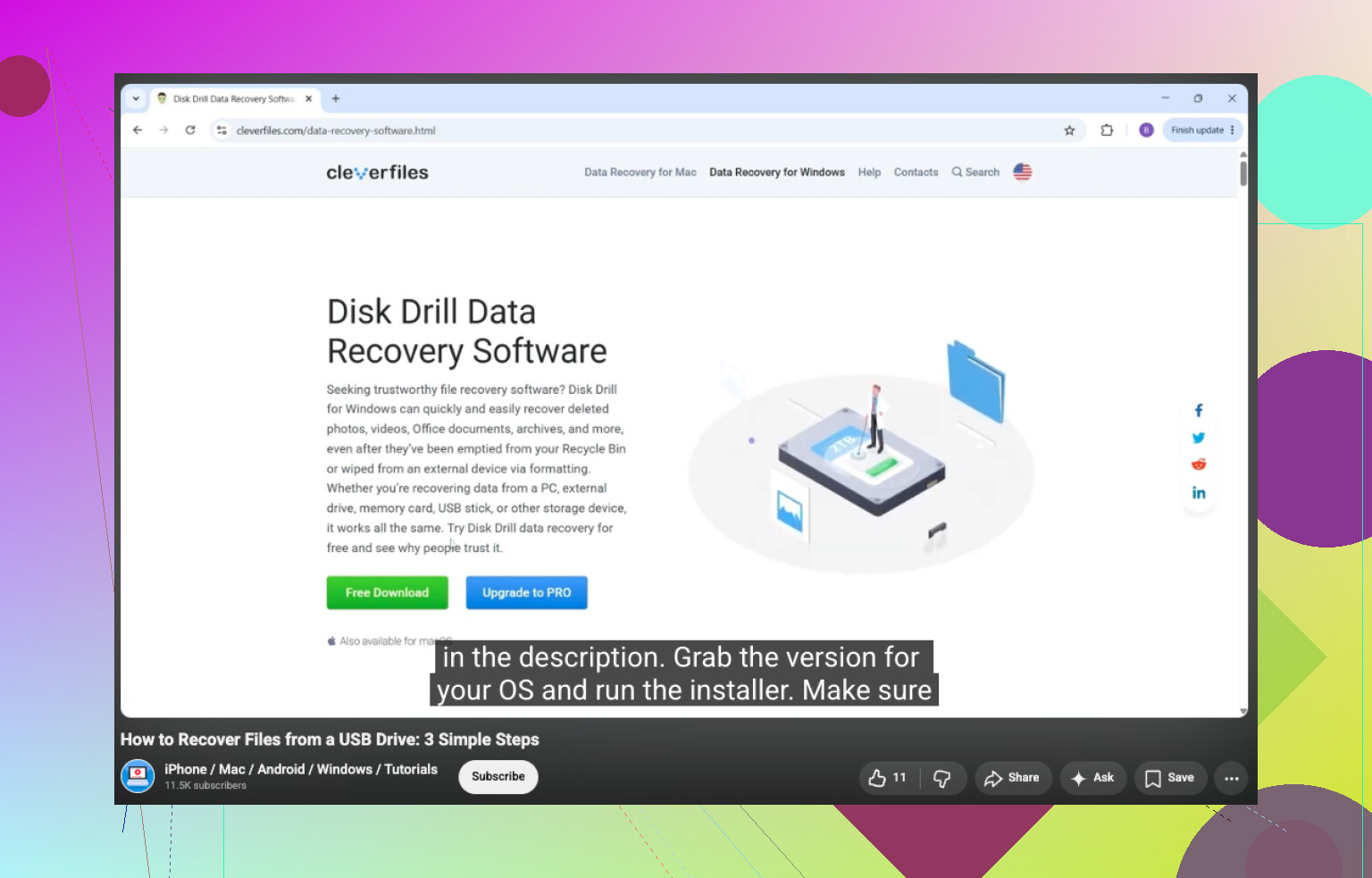
If you want a simple walkthrough, this USB drive recovery step by step video is easier to follow than most text guides.
Best usb drive recovery tutorial for formatted flash drives is the one that starts with imaging, then scans the copy, then restores files to another disk. That order lowers risk and keeps your original media untouched. If the data is worth real money, stop DIY after the image step and send it out. One bad write and your odds get worse fast.
One thing I’d add to what @mikeappsreviewer and @vrijheidsvogel said: don’t let Windows “help” you. If the USB pops up with “scan and fix” or “you need to format this drive,” cancel out. Those prompts can change metadata and make recovery messier than it already is.
Also, if the files are mostly photos and office docs, check whether the USB was ever used in a camera, phone, or work app that auto-imported copies somewhere. I’ve seen people panic over a formatted stick when Lightroom, Photos, or even Word temp/autorecovery files still had chunks of the data.
My personal take, if the files really matter, is this:
- do not run CHKDSK
- do not reformat again
- do not save recovered files back to the same USB
- do not keep unplugging/replugging it ten times
I slightly disagree with the “always go pro if it’s important” angle. If the drive still reads fine and the format was quick, a careful DIY attempt is often totally reasonable. The danger is not recovery software itself, it’s people panicking and clicking random repair tools.
If you want the safest DIY path, image first if possible, then scan that image with something like Disk Drill. That keeps the original stick mostly untouched. If the results are poor, try a second tool with a different recovery method, not more writes to the USB. Different scanners find diff stuff sometimes.
If you want a solid community thread on photo recovery tools, this is worth reading:
best photo recovery software recommendations from real users
Biggest factor now is simple: what happened after the format. If nothing was written since, odds are wayyy better.
Small disagreement with @vrijheidsvogel and @techchizkid here: imaging first is ideal, but on some cheap USB sticks the very act of reading the whole device can finish it off if NAND is already failing. If the drive is stable and this was clearly just an accidental quick format, I’d first do a short file preview test with Disk Drill on read-only scan behavior, then decide whether a full image is worth the extra stress.
What I would add:
- Check the USB’s true capacity in Disk Management. Fake or failing flash drives often report weird sizes after format.
- If the recovered photos open partially, suspect controller issues, not just formatting.
- Sort recovered files by signature/type first, not filename. Photos and Office docs often survive even when folders do not.
- If these are business files, verify hashes or at least open every critical document before calling recovery “done.”
Disk Drill pros:
- easy previews
- simple interface
- decent for formatted USB recovery
- can recover by file signatures when metadata is gone
Disk Drill cons:
- deep scans can return lots of junk
- filenames/folder structure are not always preserved
- not my first pick for badly corrupted file systems versus heavier tools
So yeah, @mikeappsreviewer is right about not writing anything, but I would be selective about how hard you hit the stick on pass one. Recovery is not just about software choice, it’s about minimizing total reads.