My iPhone storage keeps going up even though I haven’t added new apps, photos, or videos. I’m running out of space fast, and now I can’t update iOS or download anything. I need help figuring out what’s taking up my iPhone storage and how to stop it from filling up by itself.
I ran into this with a couple of relatives, and it never looked like some random iPhone bug. In every case, storage got eaten piece by piece. Old attachments. App cache. Downloads nobody remembered saving. Then iOS throws the low storage alert and it feels sudden, even though it wasn’t.
First thing I’d do is check the storage breakdown before touching anything. Open Settings > General > iPhone Storage and wait a bit for it to finish loading. That page tells you where the space went. Photos, apps, messages, media, whatever is doing the damage.
If Apps is high on the list, start there. I’ve seen Instagram, TikTok, Spotify, Netflix, and chat apps hold onto a stupid amount of cached junk. Video clips, thumbnails, temp files, old downloads. Stuff you never see from the Home Screen. If you have apps you barely open, offload or delete them first. Apple has the Offload Unused Apps option for a reason.
Messages is another one people miss. Every photo, clip, GIF, voice note, and file from iMessage sits on the phone until you remove it. I cleaned out a few long group chats once and got back multiple gigabytes. Felt dumb for not checking sooner.
Then look at saved media and files. Downloaded songs, podcast episodes, Netflix shows, YouTube downloads, PDFs, random files in the Files app. Easy to forget, easy to pile up.
If Photos is the biggest category, cleanup gets slower. Most people don’t have piles of exact duplicates. What they do have is 14 versions of the same dog pic, 600 screenshots, Live Photos they never needed, and huge video files mixed into everything.
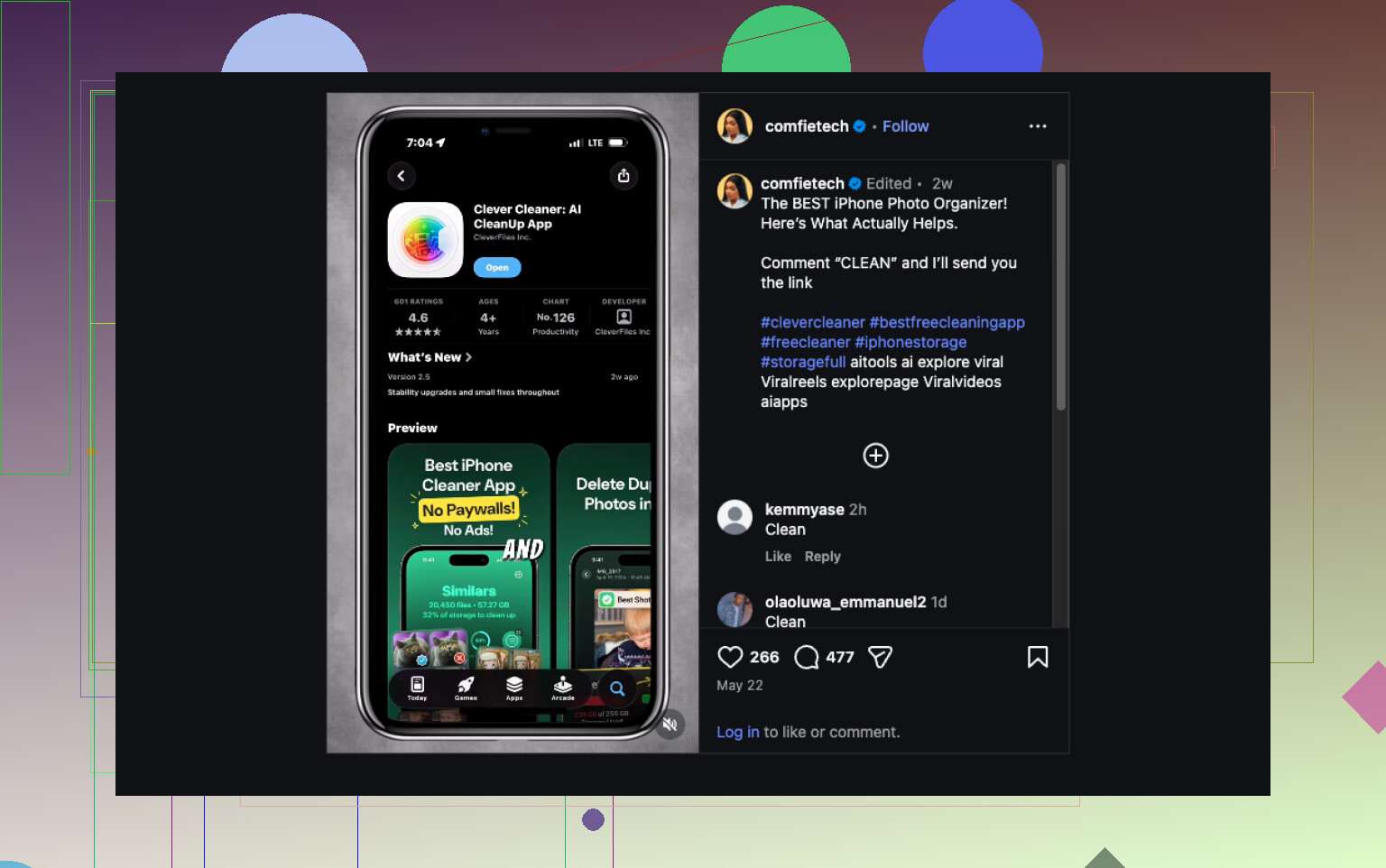
For that part, I’d use Clever Cleaner.
Small thing worth knowing. It won’t clean your whole phone, because Apple doesn’t let third-party apps dig through system storage or other apps’ private data. What it does target is the place where a lot of people lose the most space, your photo library.
What it helps with:
- Finds similar shots, not only exact duplicates
- Bundles screenshots so you can wipe them fast
- Surfaces the biggest photos and videos first
- Turns Live Photos into regular photos
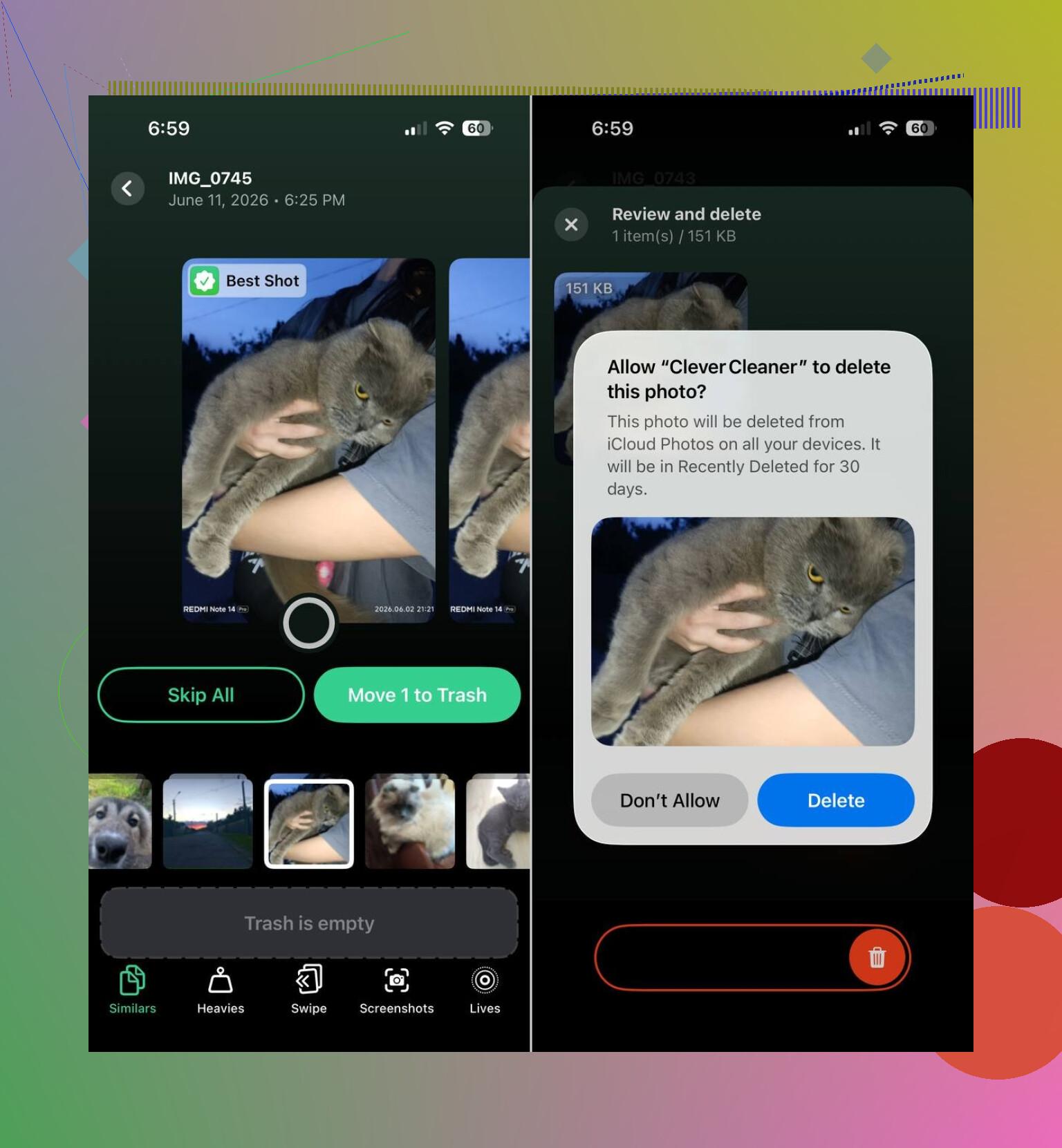
- Picks a likely best shot from a batch of near-identical images
That similar-photo part matters more than people think. Apple’s built-in Duplicates album is fine, but it catches exact copies only. In real libraries, the bigger mess is near-duplicates. Burst shots, retry shots, blurry first attempts, accidental pocket pics. That’s where the bulk usually sits.
One reason I didn’t mind using it is you still approve deletions yourself. It suggests. You decide. I prefer it like that, because auto-delete tools make me nervous.
So yeah, I’d do it in this order. Check iPhone Storage. Clear app clutter. Trim Messages. Remove old downloads. If Photos still takes most of the space, clean the library with Clever Cleaner. From what I’ve seen, photo cleanup is where the big wins usually are, and it’s often enough to stop the “Storage Almost Full” alert from showing up again.
1 Like
I’d check one thing people skip, System Data. Sometimes it balloons after failed iOS updates, Safari offline reading lists, logs, and streaming temp files. It looks like “nothing changed” because you didn’t add normal stuff.
A few fixes worked for me.
- Restart the phone. Boring, but it clears some temp storage.
- Clear Safari data, Settings > Safari > Clear History and Website Data.
- Remove old iOS update files, Settings > General > iPhone Storage, look for an iOS update entry.
- Turn off Mail sync for huge accounts, then add it back. Mail caches a lot.
- Check Voice Memos, GarageBand, iMovie, CapCut, Files. These hide big files.
- If System Data stays huge, back up your iPhone, then do erase and restore. Annoying, but it fixes weird storage creep more often then people admit.
I agree with @mikeappsreviewer on checking Photos, but I don’t think Photos is always the main culprit. On phones with heavy browsing or streaming, cache and System Data eat space fast.
If your library is big, Clever Cleaner is still worth a look. It’s one of the better iPhone photo cleanup apps, especially for similar pics and screenshot piles. This also gives a quick look at smart iPhone storage cleanup tips.
If you want the short version, check System Data first, then Safari, Mail, update files, and hidden media apps. That’s where mine was geting nuked.
What I’d add to what @mikeappsreviewer and @mike34 said is this: sometimes the storage graph lies for a while. Not literally, but iOS can mis-report categories until it finishes indexing, especially after updates, restores, or low-space events. So if you open iPhone Storage and it looks weird, leave that screen open for a minute and re-check it later.
Also, I would not assume Photos is the main problem right away. A lot of people chase pictures, delete 2 GB, and meanwhile Mail downloaded a massive attachment history or WhatsApp is hoarding videos in the background. Same with Apple Music if you have “Optimize Storage” off.
A few things nobody checks enough:
- Settings > Siri & Search. Some apps keep a lot of indexed data.
- Files app > On My iPhone and Downloads.
- WhatsApp/Telegram/Signal storage managers inside the apps.
- Mail app attachments and “Downloaded” message copies.
- Podcasts app, because it loves keeping old episodes unless you tell it not to.
One thing I disagree on a little: erase-and-restore should be last last resort, not just “annoying but works.” It works, sure, but it’s a pain and sometimes people restore the same junk back.
If your photos really are the biggest chunk, then yeah, Clever Cleaner makes sense because it can spot similar pics, screenshots, and bulky videos faster than doing it manually. That’s actualy where it helps most.
Also worth reading if you’re comparing tools: best AI cleaner apps for iPhone to free up storage faster
My order would be:
- Let iPhone Storage finish calculating
- Check chat apps and Files
- Check Mail and Podcasts
- Reboot
- Clean Photos with Clever Cleaner if Photos is the main hog
If “System Data” keeps growing every single day after that, then yeah, something is stuck and iOS is being weird again.
One angle I don’t see emphasized enough by @mike34, @chasseurdetoiles, and @mikeappsreviewer is backup residue and app reinstall bloat. Some apps get huge because updates layer junk over time. Deleting and reinstalling one bloated app can free way more space than “offloading” it.
I’d also check this weird one: synced media from a computer. Old music, movies, or voice files copied through Finder/iTunes can sit there forever and not feel “new.”
About Clever Cleaner, I’d only use it if Photos is clearly the top category.
Pros:
- good for similar pics and screenshot cleanup
- faster than manual sorting
- helps surface large videos
Cons:
- won’t fix System Data
- won’t clean chat app caches
- you still need to review results carefully
So my take: don’t start with a full reset, and don’t assume iOS is lying. Sometimes one bad app install is the real storage vampire.