A file transfer to my USB drive failed halfway through, and now some folders are missing or won’t open. I’m looking for a reliable USB file recovery tool that can recover lost files after a failed copy operation without making things worse. Any recommendations or steps I should try first?
I’ve run through more USB recovery apps than I want to count. Some tests were me being curious. Most were after I messed something up, or somebody handed me a flash drive full of panic. Deleted folders, quick-formatted sticks, broken partitions, drives showing up empty for no clear reason, I’ve seen all of it.
After enough trial and error, a pattern showed up. A lot of these tools do fine when you delete a file and catch it early. Things change fast once the USB has file system damage, a RAW volume, partition trouble, or random corruption. At that point, the gap between decent software and useless software gets pretty obvious.
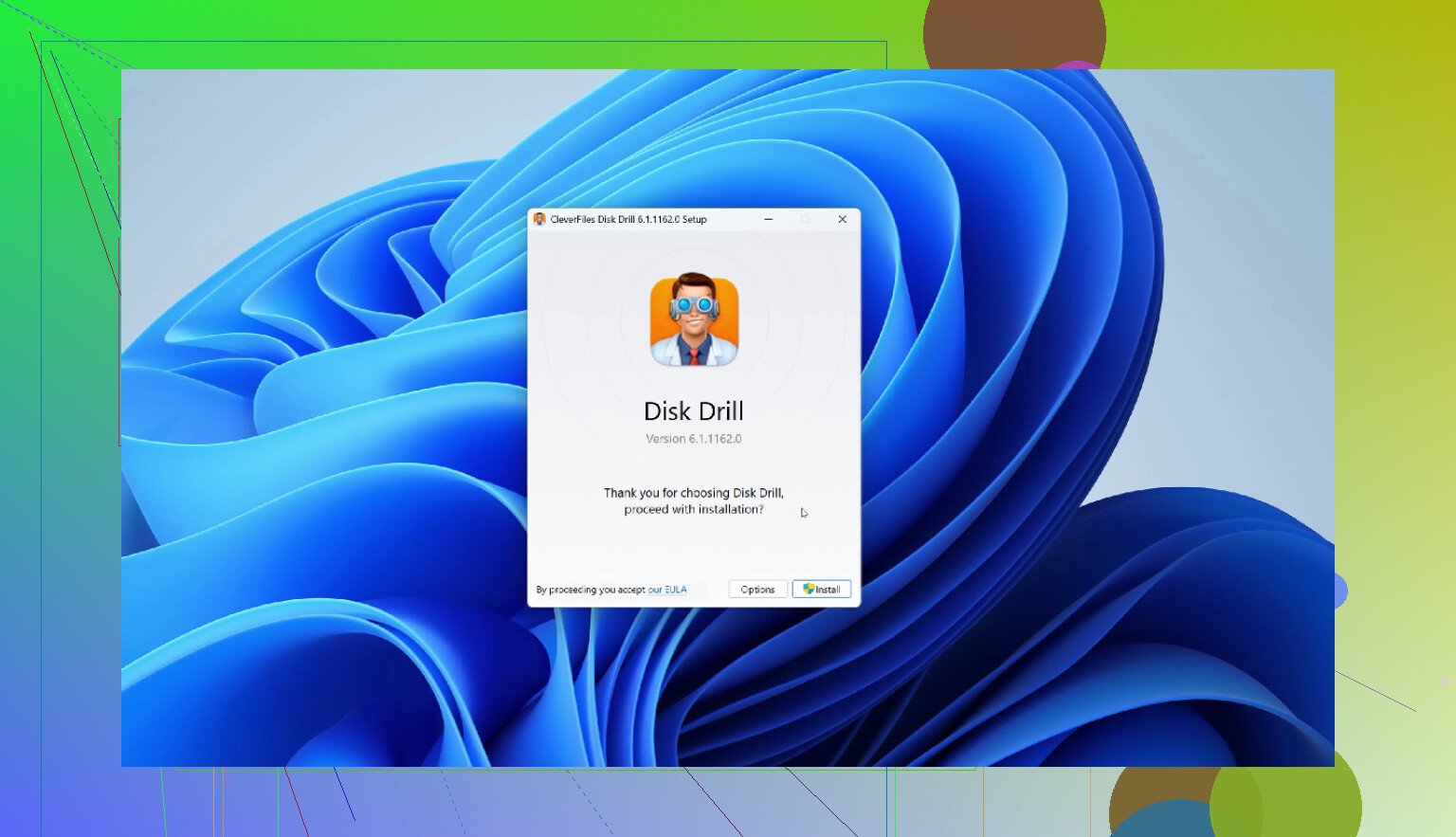
If I had to point most people to one tool, I’d go with Disk Drill.
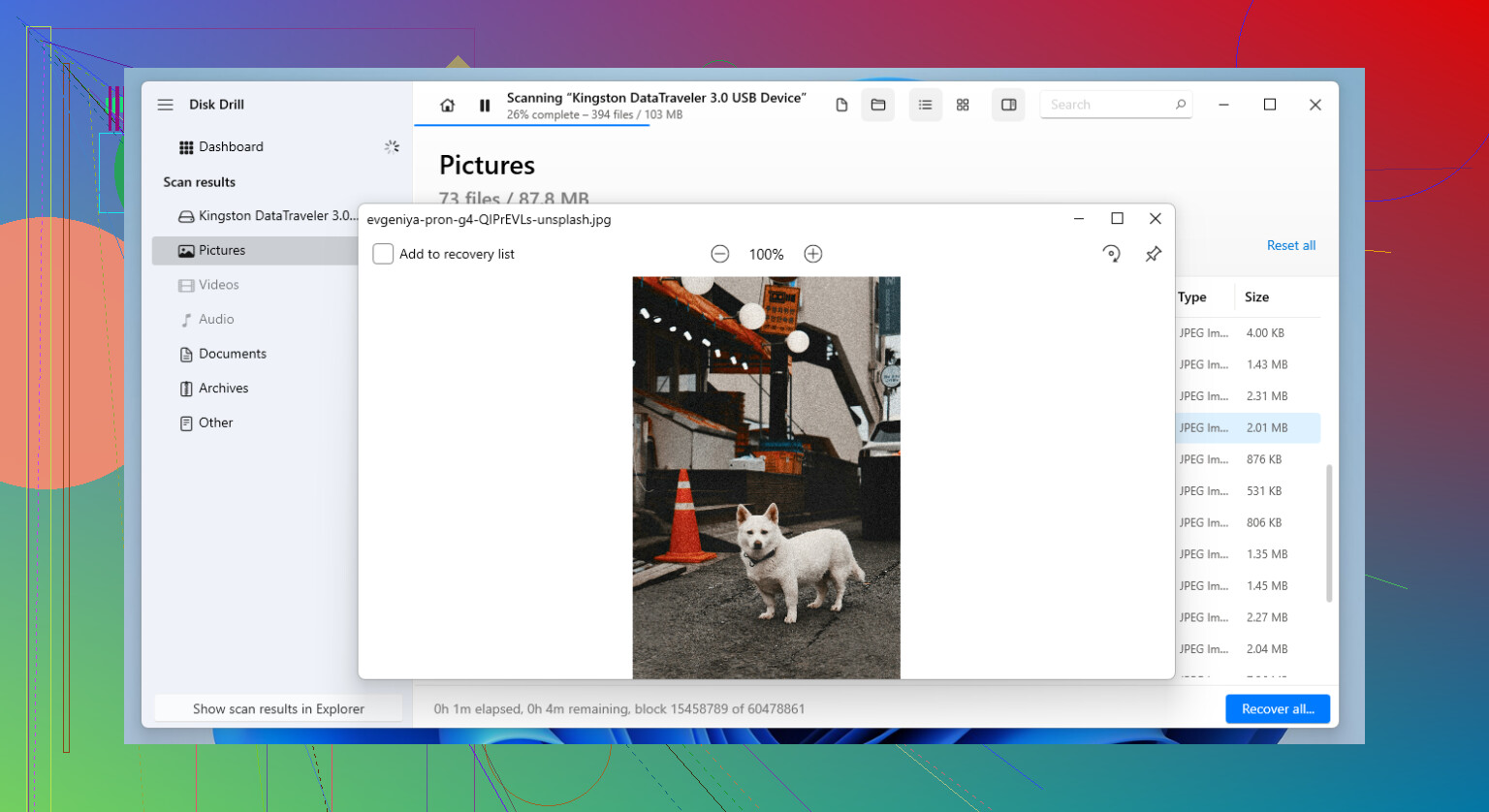
What sold me on it was range, not hype. I saw it handle normal deletion cases, formatted USB drives, missing partitions, and damaged file systems better than most of the stuff I tested. It also recognizes a long list of file types, and the preview feature saves time. If you scan a drive and the previews look intact, you usually know pretty fast whether the recovery is worth doing.
One part I keep coming back to is the byte-for-byte backup option. USB sticks age in ugly ways. Some disconnect in the middle of a scan. Some get slower and weirder each time you plug them in. I’d rather image the drive first and work from the copy than keep poking the original until it gives up for good.
If you want a free option, Recuva still holds up for the easy stuff. I used it plenty of times on healthy USB drives where files were deleted recently and nothing else was wrong. It’s simple, fast, and you do not need to fight the interface.
The drop-off starts when the damage gets more serious. Once the USB has been formatted, the partition table is broken, the volume turns RAW, or the file system is half-gone, Recuva tends to miss things paid tools still find. In those cases, Disk Drill usually did better for me.
Before you scan anything, do these first.
-
Stop writing data to the USB drive.
Deleted files are often still there until new data lands on top of them. I learned this the dumb way years ago. Copy one batch of files onto the same stick and your odds drop fast. -
Check whether the drive still shows up properly in Disk Management.
If Windows sees the USB and the size looks close to normal, software recovery still makes sense. If the capacity is wrong, or the drive does not appear at all, I’d start thinking hardware failure. -
Save recovered files to a different device.
Do not write recovered data back onto the same flash drive. People do this all the time, then wonder why half the recovered files are broken. -
Keep your expectations sane.
Even the better recovery apps hit a wall sometimes. I’ve watched people spend half a day cycling through tool after tool when the cleaner fix would have been a backup from the start.
The backup rule I stick with is still 3-2-1. Keep three copies of your data, on two types of storage, with one copy somewhere else. It sounds boring. It works. For all the recovery software I’ve tested, backup habits saved me more often than any scan button did.
1 Like
Failed copy jobs often leave the USB with directory errors, not clean deletions. That matters, because some tools find file names and folders, while others only pull raw files with generic names.
I mostly agree with @mikeappsreviewer on Disk Drill. My take is a bit narrower. It shines when the stick still mounts, but folders are missing, unreadable, or partly corrupt after a transfer error. Its deep scan is solid, and the preview helps you sort intact files from junk fast. If you want a quick read on it, this Disk Drill recovery tool review for USB file loss covers the basics well.
Where I disagree a little, Recuva is not my first fallback for this case. Failed copies often mess with the file system. Recuva does best on simple deletions. For broken folder structures, I’d try PhotoRec before Recuva. Ugly interface, better hit rate on damaged media in my tests.
Short list:
- Disk Drill, best first scan for missing folders and damaged USB metadata.
- PhotoRec, best second try if names/folders are gone and you only need file content.
- R-Studio, strong option if you know what you’re doing.
If chkdsk already touched the drive, stop. Scan it as-is. And save results somewhere else, not back to the USB. I learned this the dumb way too, lol.
Failed copy jobs are a little different from plain deletion, so I’d be careful about using a “simple undelete” app first. @mikeappsreviewer and @espritlibre already covered the usual recovery picks, but one thing I’d add is this: if the folders still show up but won’t open, the problem may be logical corruption, not total file loss.
That’s why I’d start with Disk Drill before messing with repair tools. It’s better at pulling data off a USB when the copy process borked the directory structure, and it can often recover files with original names still intact. That matters way more than people think.
What I would not do first is run CHKDSK unless you’ve accepted that it might “fix” the drive by rearranging stuff into oblivion. Sometimes it helps, sometimes it absolutely does not. Seen that movie too many times.
If Disk Drill doesn’t find usable folder structure, then I’d switch to something like PhotoRec as a second pass, but only if you’re okay losing filenames and folder layout. That’s the tradeoff.
Also, if you want another real-world thread on this kind of USB recovery mess, this Reddit discussion on recovering important files from a USB drive is worth skimming.
Short version:
- Stop using the USB.
- Scan with Disk Drill first.
- Recover to another drive.
- Only try repair commands later, if at all.
If the stick keeps disconnecting, gets super slow, or shows the wrong size, that’s a diffrent problem and software may not save it.
I’d split this into two different failure types, and that’s where I slightly part ways with @espritlibre, @cacadordeestrelas, and @mikeappsreviewer: not every failed USB copy is really a “recovery app first” situation.
If the folders are still there but throw errors, sometimes the file entries survived and only the allocation got messy. In that case, Disk Drill is a good first pass because it can show whether the original structure is still recoverable without writing changes to the stick.
Pros for Disk Drill:
- good at finding existing names/folders
- preview saves time
- can scan flaky file systems better than basic undelete tools
Cons:
- best features are not fully free
- deep scan can return lots of clutter
- not my favorite if the USB controller is physically failing
My own order would be:
- Check SMART or USB health if possible
- Make an image of the drive if reads are unstable
- Run Disk Drill on the image, not the original
- If results are weak, move to a carving tool
Reason I’m cautious: failed copies can also expose bad NAND, and no software fixes that. If the drive disconnects, slows to a crawl, or suddenly reports weird capacity, stop testing random tools. That’s when recovery software becomes secondary to preserving whatever can still be read.