My drone crashed during a flight, and now the SD card shows up as corrupted on my computer. It has important aerial footage I really need to recover, and I’m not sure what recovery steps are safe without making things worse. Looking for advice on the best way to recover files from a corrupted drone SD card.
I learned this the annoying way. An SD card will look normal, mount fine, show your files, then out of nowhere it turns unreadable. I’ve had it happen after a camera froze, after a file copy got cut off, after a battery died mid-recording, and once from pulling the card out too fast. What makes it worse is the warning shows up before you get a clean backup.
The part people miss is this. Corruption does not always mean your photos, videos, or docs are gone. A lot of the time the mess is in the file system, while the data itself is still sitting on the card.
So my first move is boring but important. Do not accept the first repair prompt you see. If Windows, Android, your camera, or anything else asks to format the SD card, stop there. Don’t hit format yet if the files matter.
Pull the data first.
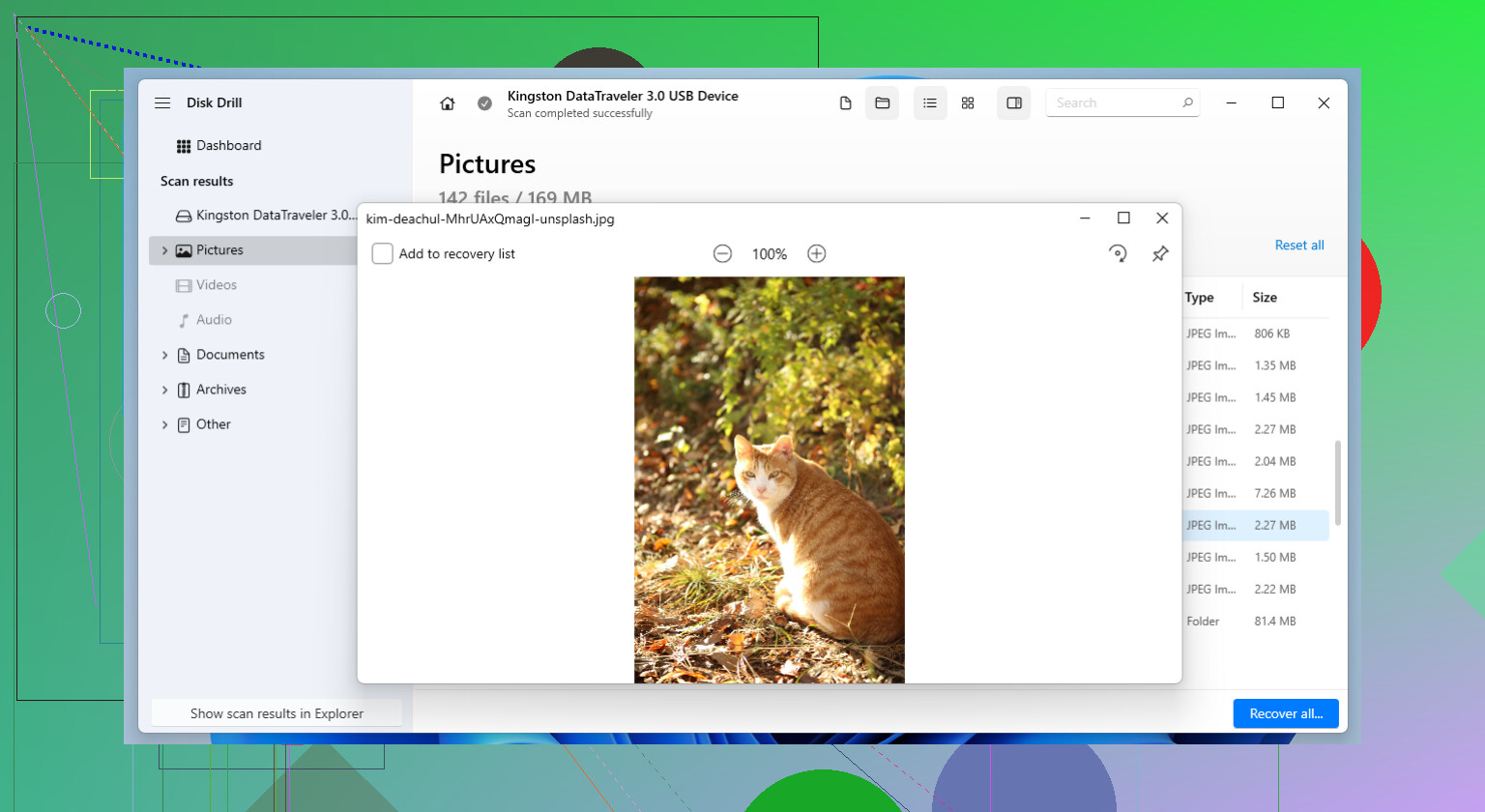
I usually start with Disk Drill. It has done well for me with damaged cards, and the big reason I keep using it is the byte-for-byte backup option. I make an image first, then scan the image instead of hammering the original card over and over. Less risk, less stress. After the important files are copied elsewhere and I’ve checked they open fine from another drive, then I mess with the card itself.
Method 1: Run CHKDSK on the File System
This is the first repair step I try on Windows. CHKDSK is built in, and it goes after file system errors, not failing flash chips. If your SD card suddenly says it needs formatting, shows errors, or stops opening, this is a decent place to start.
What I do:
1. Put the SD card in your PC.
2. Open File Explorer and note the drive letter.
3. Search for Command Prompt in Start.
4. Right-click it and run it as administrator.
5. Type chkdsk X: /r, then swap X for the SD card letter.
6. Press Enter and let it finish.
It might take a while, esp on larger cards. When the issue is damaged file system records and not dead hardware, CHKDSK sometimes brings the card back without much drama.
Method 2: Rebuild the Partition With TestDisk
If CHKDSK gets nowhere, or the card shows up as unallocated space, missing capacity, or a lost partition, I move to TestDisk.
TestDisk works at a different layer. Instead of focusing on single files, it checks the partition structure. I’ve seen cards where the files were still there, but the map pointing to them was broken. That is where TestDisk earns its keep.
Steps:
1. Download and open TestDisk.
2. Pick the affected SD card from the drive list.
3. Accept the partition table type it suggests.
4. Choose Analyze.
5. Run Quick Search.
6. Look through the partitions it finds.
7. If the missing partition looks correct, choose Write to restore it.
8. Restart the computer if it asks.
The interface looks old. No point pretending otherwise. Still, I’ve had it recover cards I thought were done for, so I keep it around.
Method 3: Format the Card
If neither CHKDSK nor TestDisk gets the card working again, formatting is the last repair step I bother with.
By then, I want my files recovered and stored somewhere else first. At this stage, formatting is not about saving data. It is for rebuilding the file system so the card becomes usable again, if it still has any life left.
Here’s the quick path:
1. Open File Explorer.
2. Right-click the SD card and pick Format.
3. Select exFAT unless your device needs something else.
4. Leave allocation unit size on Default.
5. Click Start.
6. Wait for the process to finish.
If the format completes and the card behaves normally after, the problem was often file system damage. If it starts corrupting itself again after a format, I stop wasting time. In my exp, repeated corruption usually points to physical wear, not a software issue.
That’s the point where I retire the card. Flash storage wears out. When a card keeps failing, I don’t trust it with anything I care about. Replacing it is usually cheaper than losing another set of files.
1 Like
First, stop putting the card back in the drone. Do not record to it. Do not let the camera ‘repair’ clips either. Drone footage often stores video in chunks, and a failed write at crash time leaves the file index broken while the video data still sits on the card.
I agree with @mikeappsreviewer on one big thing, image the card before repair. I disagree on running CHKDSK early for drone footage. CHKDSK is fine for office files. For interrupted MP4 or MOV clips, it sometimes ‘fixes’ the file system and leaves you with neat folders full of busted videos. I’d try file recovery before file system repair.
What I’d do:
- Use a write blocker if you have one, or at least a USB card reader with the lock switch on the SD adapter.
- Make a full image of the card. Disk Drill is fine for this.
- Scan for lost videos by signature, not filename.
- If the main video shows as unplayable, use a video repair tool with a healthy sample clip from the same drone, same resolution, same codec.
- Save recovered files to another drive, not back to the SD card.
For drone crashes, the issue is often incomplete finalization, not total corruption. DJI and similar drones often write H.264 or H.265 streams where the moov atom is missing. A repair tool built for broken drone MP4 files helps more than CHKDSK in thsoe cases.
If you want a solid overview of Disk Drill for SD card imaging and recovery, this is worth reading, see how Disk Drill handles corrupted SD card recovery.
If the card disconnects, reads at 0 bytes, or makes the reader vanish from Device Manager, stop software attempts. That points to hardware failure, and every extra read hurts your odds. At that point, pro recovery is the safer move.
I’d actually be a little more cautious than @mikeappsreviewer here, and mostly agree with @byteguru on one key point: with drone footage, the card can be “corrupt” while the actual video payload is still there, just not properly closed.
What I would not do first:
- don’t run repair inside the drone
- don’t let Windows “scan and fix”
- don’t copy anything back to the card
- don’t keep retrying the same bad read 20 times
One thing that helps with crash footage specifically is checking whether the card is readable in Linux or macOS if Windows freaks out. Sometimes Windows throws a corruption warning on exFAT media, but another OS can still read enough of the structure to pull clips manually. I’ve had that happen twice. Weird, but real.
Also, if the drone was recording one long file, the issue may be the video container, not the whole card. In that case, standard file recovery can recover an MP4 that still won’t play. That does not always mean recovery failed. It may just need header repair or remuxing with ffmpeg. So don’t panic if recovered files look okay in size but won’t open.
Disk Drill is still a solid call for making a byte-level backup and scanning the image instead of the original card. That part is smart. After recovery, test the videos with VLC first, then MediaInfo, then try remuxing before assuming they’re dead.
If you want a decent walkthrough, this step-by-step corrupted SD card recovery video is pretty easy to follow.
One more thing people skip: check the card’s CID and health if possible. If it started failing because of physical flash wear after the crash impact, no software trick is gonna magically make it stable again. At that point, recover what you can and retire it. Seriously, don’t trust that card agian.