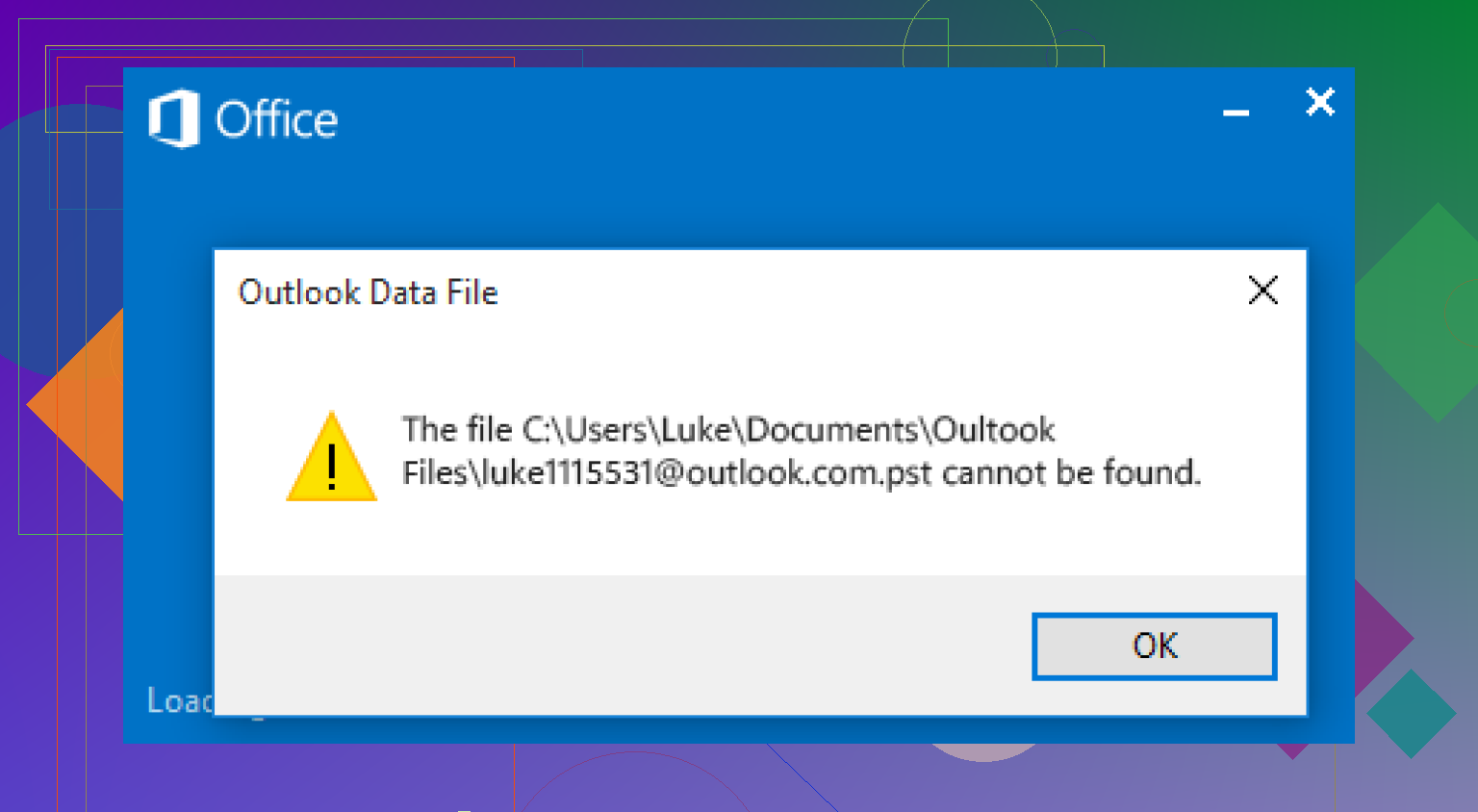
My Outlook PST file is missing, and now I can’t access important emails I need for work and personal records. This happened after I moved some folders and restarted my computer, so I’m not sure if the file was deleted, moved, or corrupted. I need help finding the Outlook PST file and recovering emails before I lose anything permanently.
Outlook says ‘file cannot be found’ after cleanup
I ran into this once after deleting a pile of old stuff from Documents. Outlook still launched, but my folders were gone and the error pointed to a missing PST. Nasty one.
What I’d do first is stop using the PC for anything extra. No installs. No big downloads. Skip Windows Update for the moment if you can. When a PST gets deleted, the file data often sits there until Windows writes over it. Every bit of new activity chips away at your odds.
Start with the obvious stuff
Check the Recycle Bin first. Sounds dumb, still worth it. If the PST was removed in a normal delete, you might get lucky and restore it in ten seconds.
If you had the Outlook file inside a synced folder, also check the web side of your cloud account:
- OneDrive
- Dropbox
- Google Drive
Look in Deleted files, Trash, Recycle Bin, or Version history. I’ve seen local files vanish while the online copy still sat there waiting.
Look for an older Windows copy
Windows sometimes keeps previous versions of folders. Not always, but when it does, it saves a ton of time.
The usual PST path is:
C:\Users\YourName\Documents\Outlook Files
Open File Explorer, go to the folder where the PST lived, right-click it, then pick Restore previous versions.
If you see a version from before the deletion, open it and copy the PST somewhere safe. Don’t move it back yet. Copy first.
If nothing shows up, use recovery software
At this stage I’d treat it like a deleted file recovery job. The file entry is gone, but the data blocks might still be there.
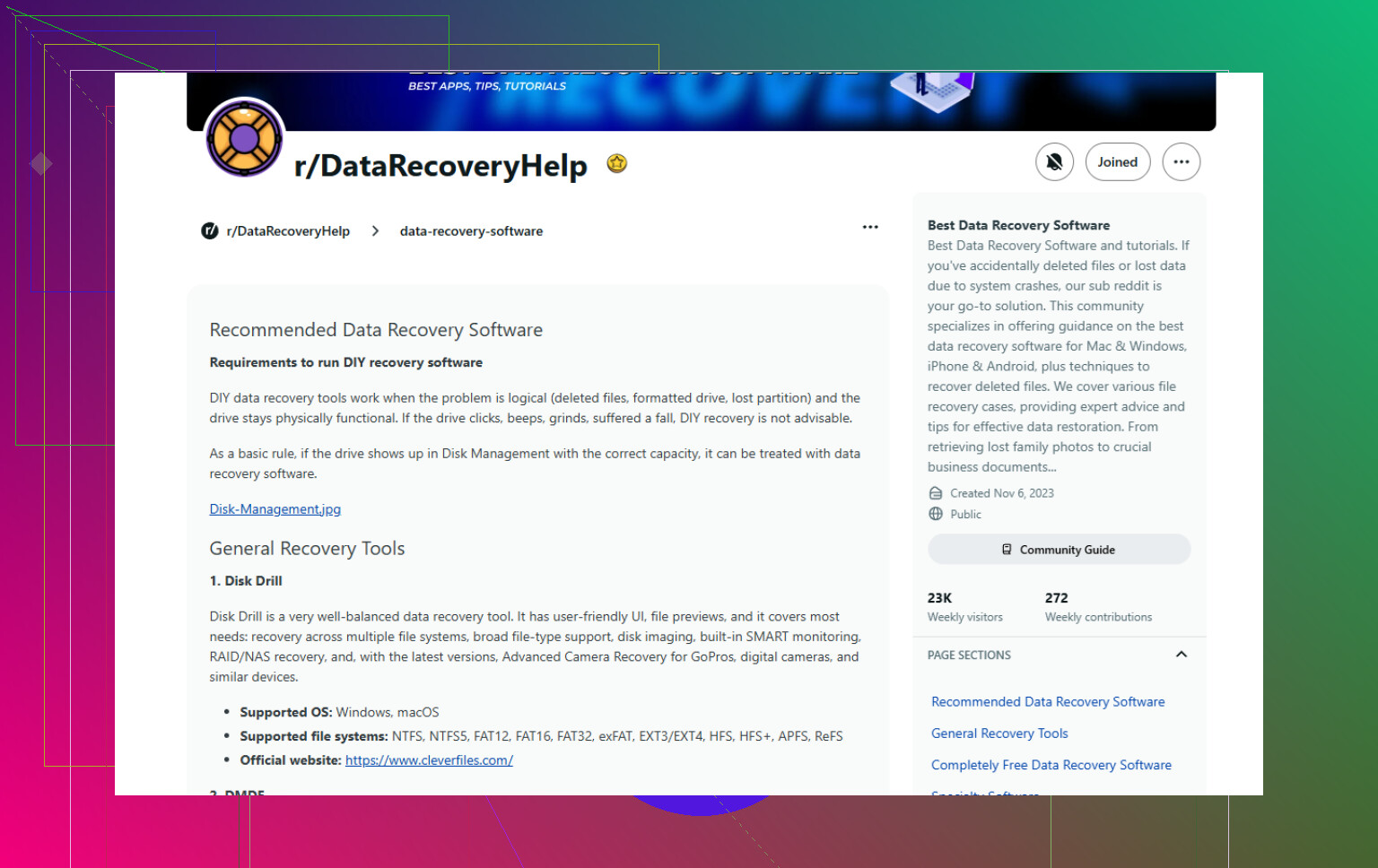
A tool I’ve seen work for this is Disk Drill.
What I’d do:
- Install it to another drive if possible, or a USB stick. Don’t write more stuff onto the same drive you’re trying to recover from.
- Scan the drive where the PST was stored, usually C:.
- Search the results for .pst
- Sort by size or at least pay attention to it.
Size matters here. A fresh empty Outlook data file might be tiny, a few hundred KB. Your real mail archive is often much larger, sometimes hundreds of MB or more. If you find a large PST, I’d start there.
Recover the file to another location. External drive is better. Different folder on a different disk is fine too. Don’t restore it into the original spot yet.
Hook the recovered file back into Outlook
Outlook often creates a blank replacement data file when the old one goes missing. So the app opens, but your history looks wiped. I got tricked by this the first time.
To load the recovered file:
File > Open & Export > Open Outlook Data File
Pick the PST you recovered. If it’s the right one, your old folders should show up in the left pane.
After you confirm the mail is there, go into Account Settings and switch the default data file if needed.
If your account used IMAP, read this part
This matters. If the mailbox was IMAP, your inbox and synced folders often still live on the mail server. Re-adding the account may pull a lot of it back down.
The catch is local-only stuff. Old archives. Custom local folders. Random mail you dragged into personal storage years ago. Those items usually lived only inside the PST. If the PST is gone, those are gone unless you recover the file.
What I’d focus on during the scan
Don’t chase the first PST you see.
I’d look for:
- the biggest PST files
- files with dates close to when Outlook last worked
- files recovered from the original Outlook Files folder, if the path is still shown
A big PST is often the best lead. Tiny ones are often blank replacements Outlook made after the damage.
After you get it back
Make a copy right away. External drive, backed-up folder, whatever you trust. I learned this one the annoying way. A PST can hold years of mail and folders, and Outlook does a poor job of making you feel how fragile one file is until it disappears.
If your recovery scan turns up a large PST, I’d put my attention there first. That’s usually the one with your old mail.
1 Like
If you moved folders, I’d check for a broken path before treating this like a full delete. That part gets missed a lot.
Open Outlook, then go to File, Account Settings, Data Files. If Outlook still lists the old PST name, note the full path. Then search Windows for that exact filename, not only .pst. A lot of times the file is still there, but Outlook points to the old folder location after a move.
I partly agree with @mikeappsreviewer, but I would not jump straight to file recovery first if the problem started right after moving folders. Path mismatch is common. Deletion is only one option.
Also check these spots:
C:\Users\YourName\Documents\Outlook Files
C:\Users\YourName\AppData\Local\Microsoft\Outlook
Turn on hidden items in File Explorer first. Many people miss the AppData copy.
If you find the PST, do not double-click it from some random folder and call it fixed. Copy it to a stable location, then attach it in Outlook from File, Open & Export, Open Outlook Data File.
If the file is damaged from the move or shutdown, run Inbox Repair Tool, SCANPST.EXE. Microsoft installs it with Office. Search your PC for SCANPST, run it against the found PST, then reopen Outlook. This fixes structure issues more often than people think.
If the file is gone, then use recovery software. Disk Drill is a solid option for Outlook PST recovery, esp if the file was deleted during cleanup or folder reorg. Install it on another drive if possble.
If you want options, pick from this best data recovery software list for deleted PST files.
Last bit. If this was POP, the PST mattered a lot. If this was IMAP or Microsoft 365, server mail should sync back, but local folders, archives, and old exports will not. That’s the stuff you need the PST for.
If this happened right after moving folders, I’d actually spend a minute on Windows Search before doing anything else. @mikeappsreviewer and @sonhadordobosque already covered recovery and path issues pretty well, but one extra angle is checking whether the PST got renamed or split off into an odd folder during the move.
Search in File Explorer for:
*.pst
and then sort by Date modified and Size.
What you’re hunting for is not just “a PST file”, but one that matches your old mailbox size. If Outlook suddenly made a new tiny PST, that one is basically a decoy. The real one is usually much larger.
Also check Outlook’s mail profile itself:
Control Panel > Mail > Show Profiles > Properties > Data Files
Sometimes Outlook keeps pointing at a dead location even when the PST still exists elsewhere. Annoying, but fixable.
One thing I slightly disagree on with the others: SCANPST is useful, sure, but only after you confirm you’ve found the right file. Running repairs on the wrong small replacement PST wastes time.
If the file truly vanished, then yes, use Disk Drill and recover it to another drive. That’s one of the better options for Outlook PST recovery after accidental deletion.
After you recover access, set up a backup routine so this doesn’t happen again. Microsoft’s guide for backing up Outlook emails, contacts, and calendar to a PST file is worth bookmarking.
Also, if your account was Exchange, IMAP, or Microsoft 365, some emails may resync. Local folders and old archives probably won’t. That part catches ppl off guard.
One angle missing from @sonhadordobosque, @chasseurdetoiles, and @mikeappsreviewer is Windows indexing lag. After a folder move, Outlook can fail because the PST is locked, moved, or not yet re-indexed, and Windows Search may not show it right away. So I would also use this from Command Prompt:
dir C:\*.pst /s /a
That brute-forces the drive and often finds PSTs Search misses.
I also would not assume the file extension stayed clean. Sometimes a moved file ends up as .pst.tmp or inside a weird renamed folder. Check folder names you moved manually.
Another thing: look in Event Viewer > Windows Logs > Application around the time Outlook failed. If the drive, profile, or Outlook threw an error, it can tell you whether this is missing-file, permissions, or corruption.
If you recover the PST, first check its file size and try opening it read-only from a copy. If Outlook crashes on attach, clone the file and work only on the copy.
If it is truly deleted, Disk Drill is reasonable.
Pros:
- good file signature scan for PST
- simple filtering by extension/size
- decent for accidental deletes
Cons:
- recovered PST may still be corrupt
- deep scan can return duplicate junk
- best results depend on low disk activity
So yes, path issue first, then command-line search, then permissions/event logs, then recovery with Disk Drill if needed.