My SD card suddenly stopped showing all my photos and video files on my Mac, and I’m trying to figure out the best way to recover them without making things worse. I need these files back for a personal project, so I’m looking for Mac SD card recovery tips, tools, or steps that actually worked for you.
I’ve had this happen more than once, and it still feels bad every time. You finish a shoot, plug the SD card into your Mac, and Finder shows nothing, or macOS throws an unreadable disk warning. I lost a full set of wedding photos this way years ago, so I know the panic is real. The upside is simple. If the card is not cracked, bent, or crushed, your files are often still sitting on the flash memory. The problem is usually the file map, not the raw data.
First thing, stop touching the card. Don’t shoot more photos on it. Don’t copy new files to it. If it’s in your camera, pull it out. If it’s mounted on your Mac, eject it and leave it alone for a minute. When a file gets deleted, or when a card gets formatted, macOS usually does not erase the data blocks right away. It marks the space as free. Your old files often remain there until new data lands on top of them. Once you overwrite those sectors, the chance of recovery drops off a cliff. I learned this the hard way, and yeah, it sucks.
Before you install recovery software, do the boring checks first. A lot of “dead card” cases end up being a bad reader or a weird mount issue.
Look at the lock tab on the side of the SD card. If it slid into the locked position, your Mac might refuse to behave normally with it.
Wipe the metal contacts with a dry soft cloth. Dust and grime cause dumb problems.
Try another USB port. Then try another card reader. Cheap readers fail all the time. I’ve seen a no-name dongle fake a card error when the card itself was fine.
Try the hidden files trick in Finder. Open the card and press Command + Shift + . Look for a faded folder named .Trashes. Sometimes deleted files end up there and you can drag them back out.
If none of that helps, open Disk Utility from Spotlight. Check the left sidebar for the SD card. If it appears but looks grayed out, hit Mount. If it mounts, copy anything important off of it right away. You can also try First Aid. It fixes minor file system issues sometimes. I’d still be careful with it on a badly corrupted card. Repair attempts can shuffle things around enough to make later recovery harder, esp if you end up needing deeper scanning.
When macOS tools don’t show your files, recovery software is usually the next move. These apps ignore the broken directory structure and scan the card sector by sector for known file signatures. On Mac, the one I keep coming back to is Disk Drill.
Why this one. It runs cleanly on macOS, works on Intel and Apple Silicon, and the interface doesn’t fight you. I’ve used other recovery apps that looked like they were built in 2009 and never tested again. This one is easier to deal with when you’re already stressed. The feature I care about most is the byte-to-byte backup option. Make an image of the SD card first. Scan the image, not the physical card. If the card is starting to fail at the hardware level, a long read session can push it over the edge. Working from a cloned image is the safer move. It’s slower up front, but I’d still do it.
It also helps with action cam and drone footage. GoPro and drone files often get written in chunks, and some recovery tools pull back broken clips that won’t open. Disk Drill has an advanced camera recovery mode meant for piecing those fragments back together. In my tests, it handled messy video cards better than the generic file carvers. You can scan first and preview what’s there before paying, which matters if you don’t want to throw money at a blind guess.
If you’re comfortable in Terminal and don’t mind rough edges, PhotoRec is worth a look. It’s free and open source. It’s also ugly, blunt, and not friendly. No polished interface. No nice sorting. You’ll get back piles of files named things like f12345.jpg, f12346.mov, and so on. Then you sort the mess yourself. Still, if your budget is zero and you’ve got patience, it does real work.
After recovery, I’d change two habits right away.
Eject the card properly. Pulling it during background indexing or caching is a common way to wreck the file system.
Format the card in the camera. Once your files are backed up, use the camera’s own format option instead of Disk Utility. Cameras tend to behave best with the file structure they set up themselves.
Keep the card offline for now and move in order. If the files were on it earlier today, your odds are still decent. Don’t rush it. One bad write is what turns a recoverable card into a dead end.
2 Likes
What worked for me was making a disk image first, then leaving the card alone after that. I know @mikeappsreviewer mentioned imaging too, and I agree with that part more than anything else. Where I differ is First Aid. I skip it on photo cards if the files matter. I’ve seen it clean up a volume and leave me with fewer recoverable file names after.
On Mac, I used Disk Drill to scan the image, not the SD card. It found old JPG, CR3, MP4, and a few MOV files my Mac would not show in Finder. Preview helped me sort what was intact before exporting. Save recovered files to your Mac or an external drive, not back to the card. Obvious, but people still do it in a panic.
If Disk Drill misses some video clips, I’d try PhotoRec after. Different scan logic, different results. Messy output, but worth a second pass.
Also, check what macOS sees with diskutil list in Terminal. If the card size looks wrong, like 31 MB instead of 64 GB, that points more to card failure than file system damage. At that point, stop trying random fixes.
For Mac data recovery software and real user opinions, this thread is useful too:
best Mac recovery software for SD card photo and video recovery
Main thing, do not format it yet. Even if macOS nags you. That prompt is a trap, lol.
One thing I’d add to what @mikeappsreviewer and @ombrasilente said: check whether the files are actually there but Finder is choking on the directory view. I had an SD card that looked empty in Finder, but Image Capture could still see and import a bunch of photos. On Mac, that app is weirdly underrated for this. Also tried Preview once for camera imports and got a few files off that way. Not a full recovery plan, but worth 2 mins before deeper stuff.
I’m slightly against doing too many “repair” attempts early. Even First Aid is not where I start if the card has irreplaceable media. I go read-only as much as possible, then recover outward.
What worked for me:
- plugged the SD into a better reader
- checked it in System Information, not just Finder
- used Image Capture to see if macOS could still detect DCIM contents
- then used Disk Drill on Mac to recover the missing files to an external SSD
Disk Drill was the one that got back the most usable MP4s for me, esp compared to some cheaper junk apps. If the card keeps disconnecting, stop messing with it. That usually means hardware is going south, not just file corruption.
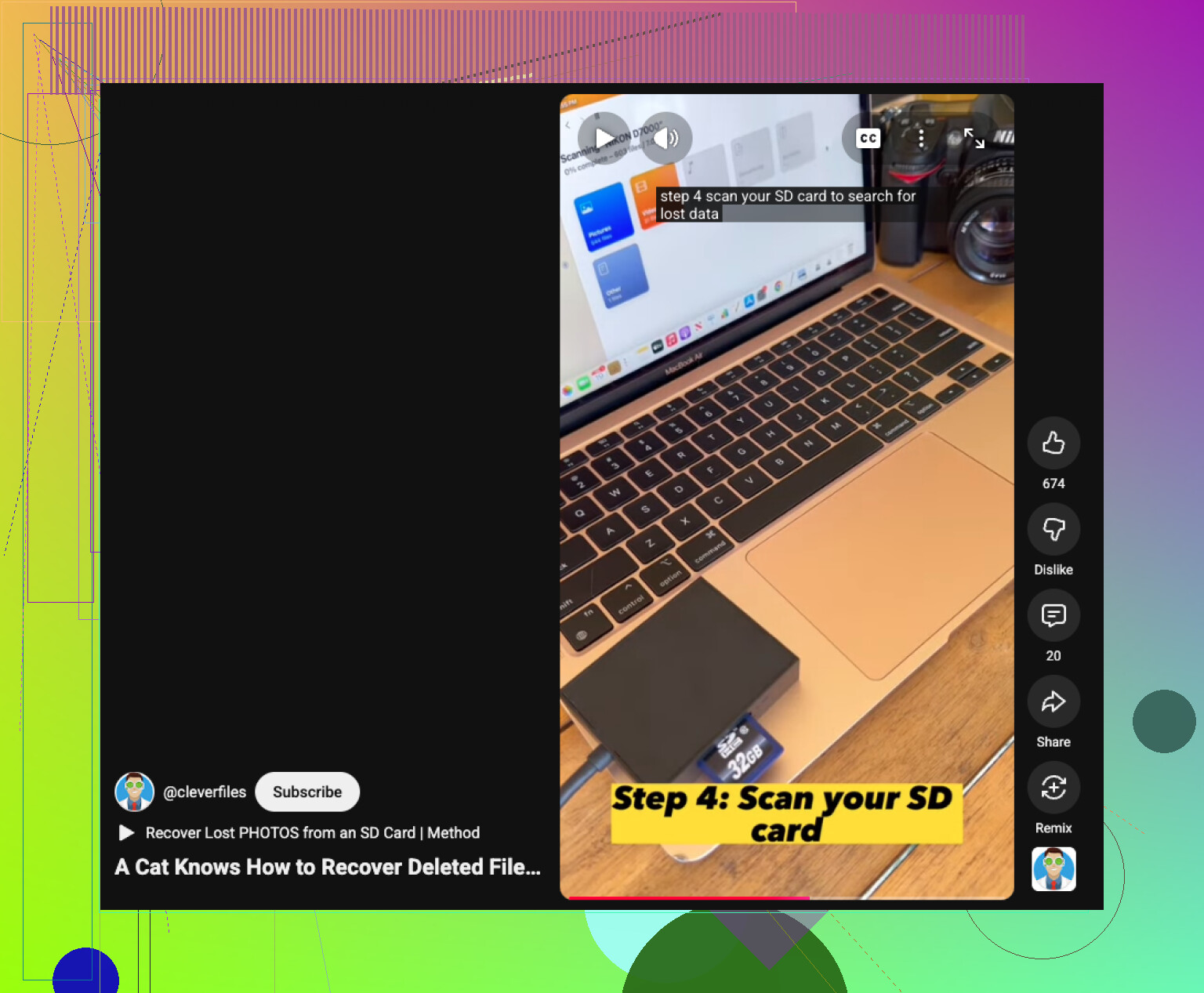
Also, if you want a simple SD card recovery on Mac walkthrough for photos and videos, that’s a decent quick watch.
Biggest mistake people make is letting macOS “initialize” the card. Don’t. Seriously, dont.