My iPhone Photos app is cluttered with duplicates, screenshots, blurry shots, and old images I don’t need anymore. I’m trying to find an efficient iPhone photo cleanup workflow that helps me sort, delete, organize albums, and free up storage without accidentally losing important pictures.
I had the same thing happen last year. I kept ignoring my camera roll because it felt like a huge chore, and by the time I finally dealt with it, I had more than 20,000 photos and videos sitting there. It took up most of a Saturday.
What helped was realizing that you can’t really clean an iPhone photo library with one single approach. Screenshots, duplicates, old videos, Live Photos, and random blurry shots all need slightly different handling.
I’d start with the Photos app first, just to get rid of the easy stuff. Don’t scroll through the whole library from the top. Go into albums instead. Screenshots are usually the easiest win, especially if the album lets you Select All. The swipe-to-select gesture also saves a lot of tapping when you’re clearing out batches of photos.
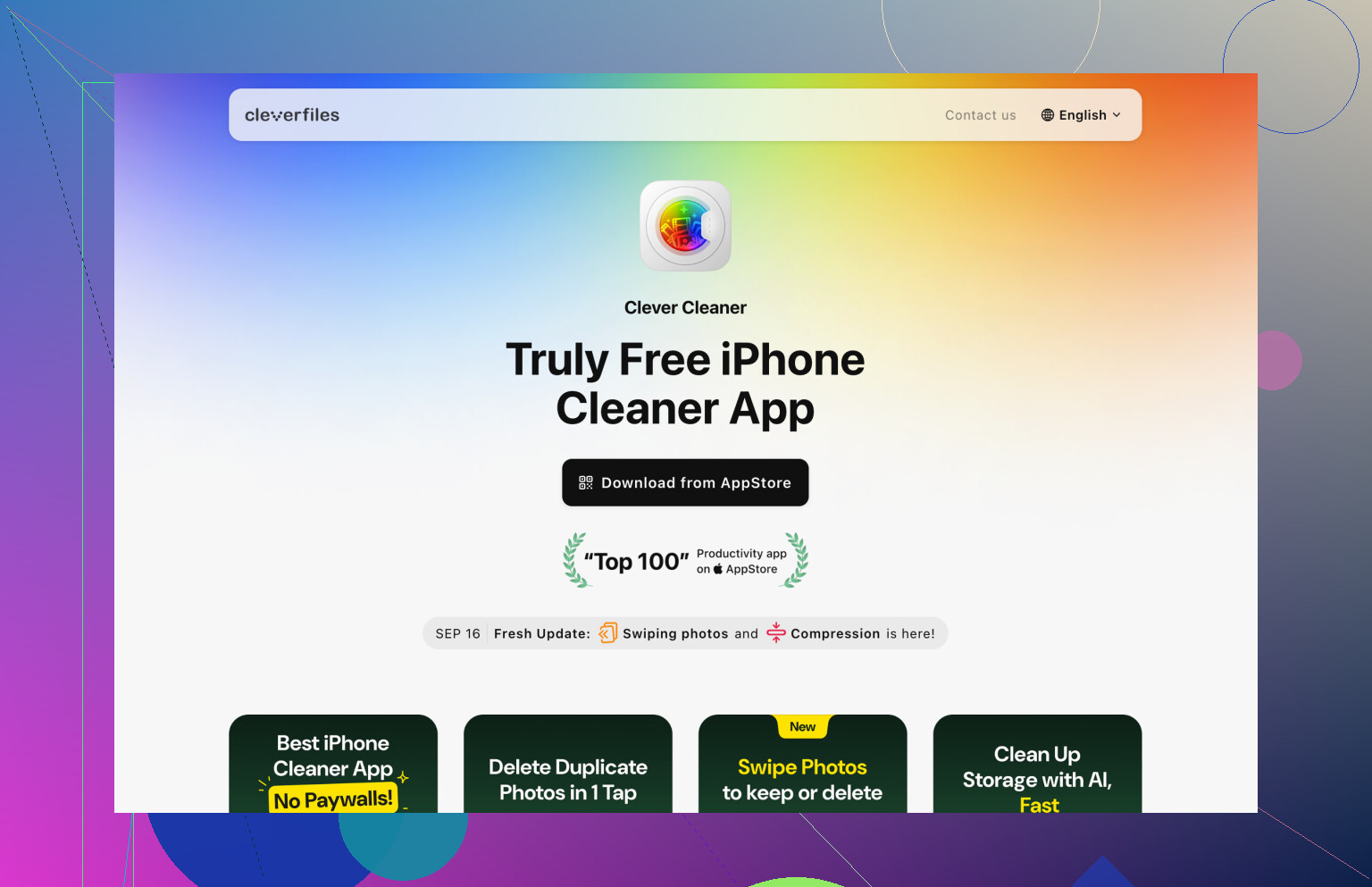
That works fine for obvious junk, but it gets annoying fast once you’re dealing with similar shots. After the first manual pass, I used Clever Cleaner, and that was the part that saved the most time.
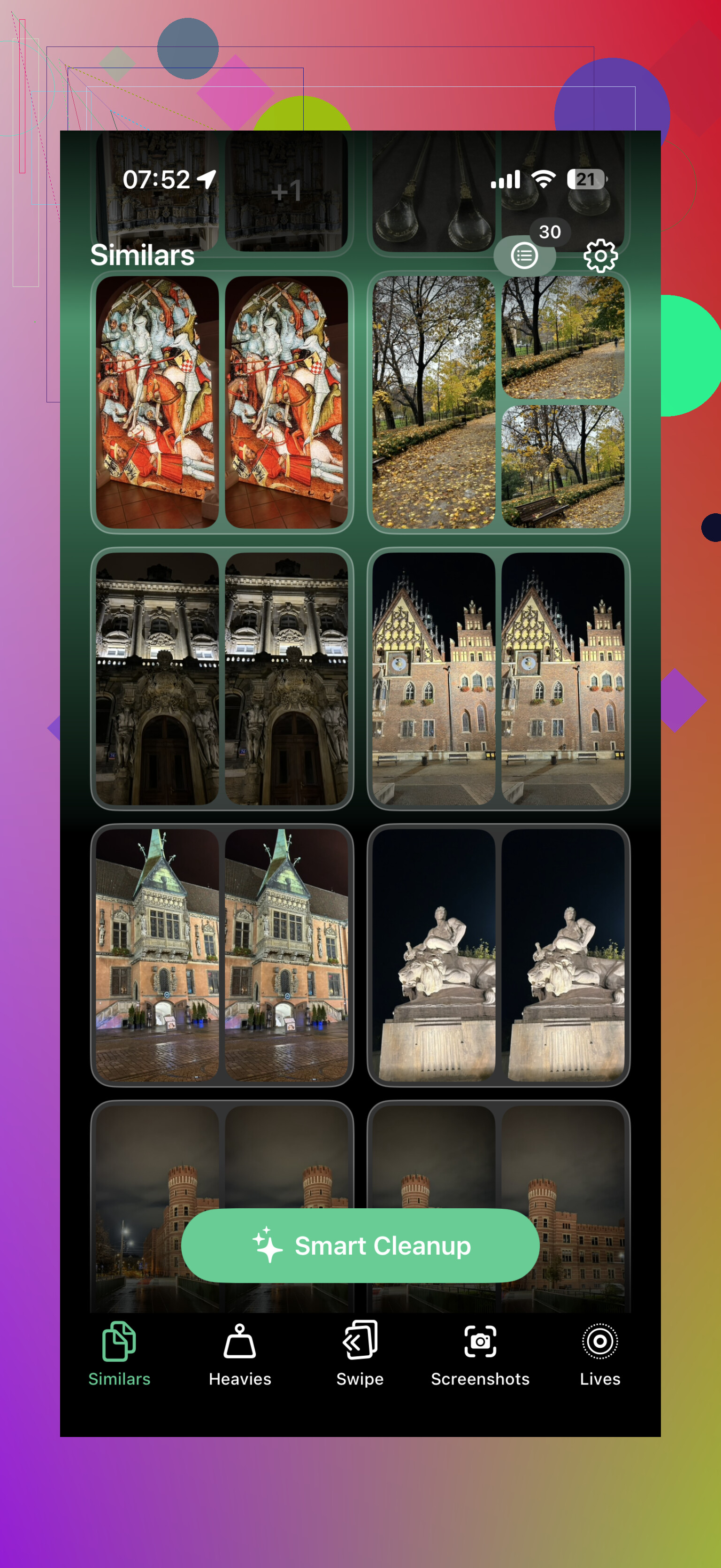
The useful thing is that it sorts the mess into categories first. So instead of judging thousands of individual photos one by one, you can review groups of similar images, duplicates, screenshots, Live Photos, and large videos. I used it to remove duplicate and near-identical shots, clear old screenshots, delete big videos I didn’t care about anymore, and turn some Live Photos into still images where the motion part didn’t matter.
Also, don’t forget Recently Deleted. A lot of people miss that part. Deleted photos can still sit there for a while, so if you’re trying to actually free up space, open Recently Deleted, check it once, and empty it.
If this is mainly because your iCloud storage is full, be careful with one thing: iCloud Photos is a synced library. If you delete photos from your iPhone, they also get removed from iCloud and from other Apple devices using the same Apple Account. That may be what you want, but it’s not something you want to realize after deleting a massive batch.
After doing the big cleanup, I stopped letting it pile up as much. Now it’s more like ten minutes here and there deleting new screenshots, blurry photos, and repeat shots. That’s way easier than saving it all for one giant cleanup later.
Honestly, if your library is already in the tens of thousands, I wouldn’t try to do the whole thing manually. The Photos app is fine for the obvious stuff, but for duplicates, similar photos, screenshots, Live Photos, and large videos, using Clever Cleaner makes the job a lot less painful.
1 Like
Back up before you start deleting anything. The fastest workflow is useless if you realize later that a “bad” photo was the only copy of a receipt, document, or old message screenshot. I’d do a quick export to a Mac, external drive, or Google Photos first, then clean by category on the phone. For me the order would be: huge videos first, screenshots second, duplicates/similar shots third, then albums last. Albums are just organization, not cleanup, so don’t waste time making perfect folders while the library is still full of junk. Clever Cleaner can help with the duplicate/similar-photo pass, but I would still review before approving big batches. The real win is deleting fewer things more confidently, not trying to make the camera roll spotless in one sitting.
Don’t start by making a bunch of albums and then deleting from inside them unless you understand what Photos is doing. Albums on iPhone are basically labels, not separate folders. “Remove from Album” only tidies that album. “Delete from Library” deletes the actual photo everywhere. That trips people up when they think they are cleaning storage but are really just rearranging the mess.
A workflow that makes more sense is to work from biggest impact to smallest decision fatigue. Go to Settings > General > iPhone Storage > Photos first and see what is actually taking space. If videos are the problem, handle videos. If iCloud is the problem, think twice before mass deleting, like @mikeappsreviewer said, because sync can make your “phone cleanup” a cloud cleanup too.
For the actual sorting, I’d do quick passes, not one huge perfection session: screenshots, screen recordings, downloads/saved memes, then videos, then duplicates/similar shots. Use the built-in Duplicates album if it shows up, and use a cleaner app like Clever Cleaner for similar photos only after that, because “similar” is where apps can make weird judgment calls. I’d never let any app auto-delete without reviewing the keepers, especially for things like receipts, whiteboards, documents, or photos that look bad but are the only copy of some information.
Stop trying to clean the whole camera roll.
The easiest way to burn out is opening Recents and making 8,000 tiny decisions in date order. I’d treat it more like triage. First remove stuff you know has no long-term value, then only later deal with “is this a good photo?” decisions. Those are slower and more annoying.
I slightly disagree with the “Select All screenshots” idea unless you already know what’s in there. Screenshots are junk most of the time, but they’re also where people keep confirmation numbers, addresses, receipts, recipes, serial numbers, event tickets, and weird little notes they never saved anywhere else. My rule would be: search or skim screenshots by year/month, delete obvious memes and app screens, but move any important info somewhere better before deleting it. A screenshot of a receipt should become a PDF, note, file, or email attachment, not live forever in Photos.
A workflow I like is based on simple categories:
- Delete giant garbage first: long videos, screen recordings, accidental clips, failed downloads.
- Clear app junk next: screenshots, saved social media images, memes, random images from Messages.
- Handle duplicates and burst-style photos after that.
- Only then organize albums for things you actually want to find later.
That order matters because albums don’t fix the mess, like @mikeappsreviewer said. They just make parts of the mess easier to see. If you spend two hours making albums before deleting anything, your storage problem is basically unchanged.
For similar photos, I’d use the built-in Duplicates section first, then something like Clever Cleaner if you have a lot of near-identical shots. But I’d use it as a sorting assistant, not a judge. Keep the photo where people’s eyes are open, where the document is readable, or where the kid/pet/person you care about is actually in frame. The technically “best” image is not always the one you’ll want later.
The missing habit is maintenance. After the big cleanup, set a dumb recurring routine: once a week, open Photos while watching TV and delete that week’s screenshots and bad repeats. Don’t aim for a perfect library. Aim for a library where the trash never gets six months old.