My iPhone photo library is full of duplicate pictures after syncing and restoring from backup, and it’s taking up a lot of storage. I need help figuring out the easiest way to merge duplicate photos on iPhone without losing important images or metadata.
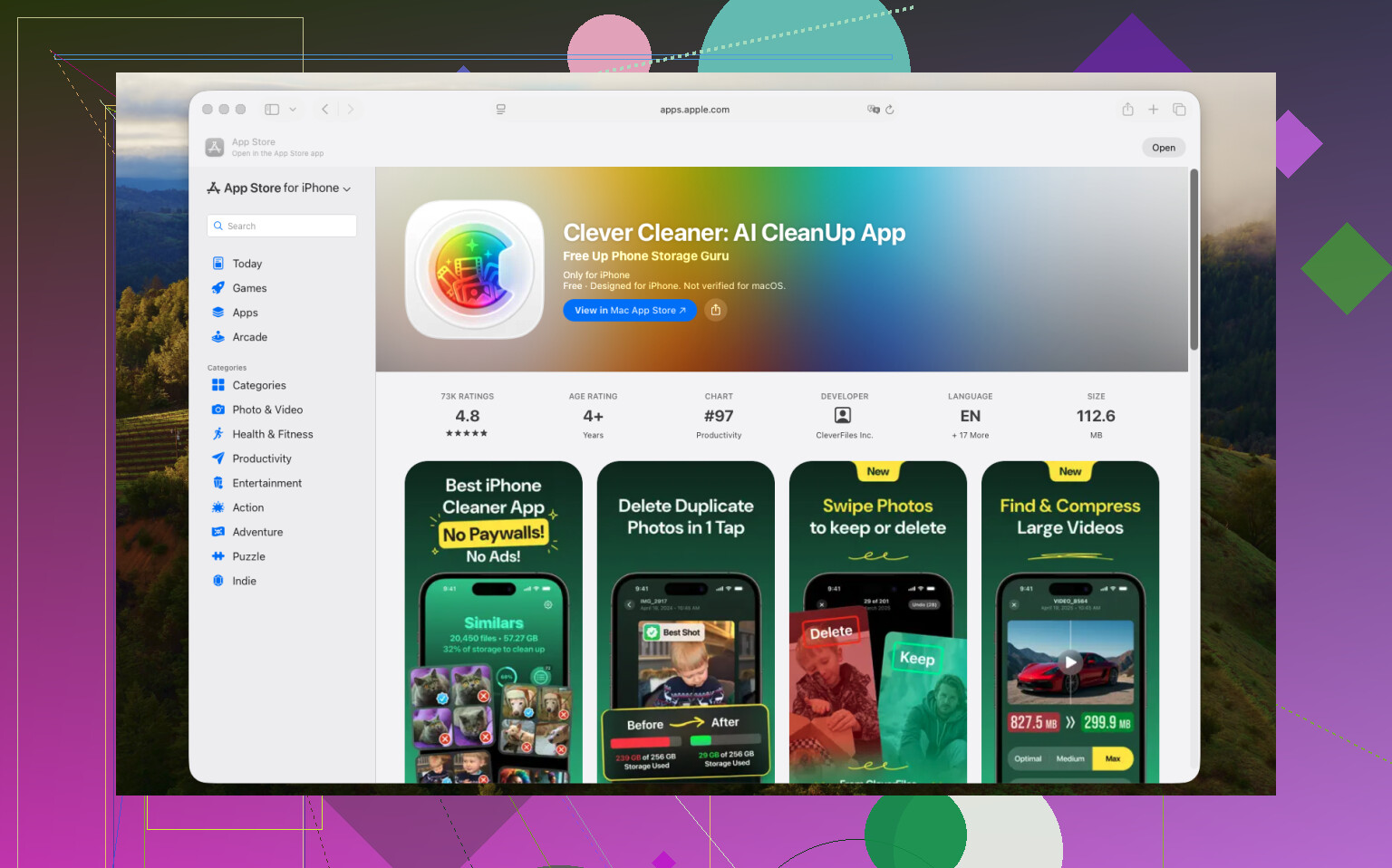
I went through a bunch of iPhone photo cleanup apps over the past year after my library turned into chaos. The one I kept using was Clever Cleaner.
At first, I stuck with Apple Photos and the built in Duplicates album. It does its job. If you have exact copies of the same file, it merges them fine. My issue was different. Most of my wasted space came from near-matches, not true duplicates. Stuff like six photos of the same dog because he moved every second, three selfies with tiny expression changes, or a stack of sunset shots where one was a little sharper than the rest. Apple Photos ignores most of that, so the clutter stays put.
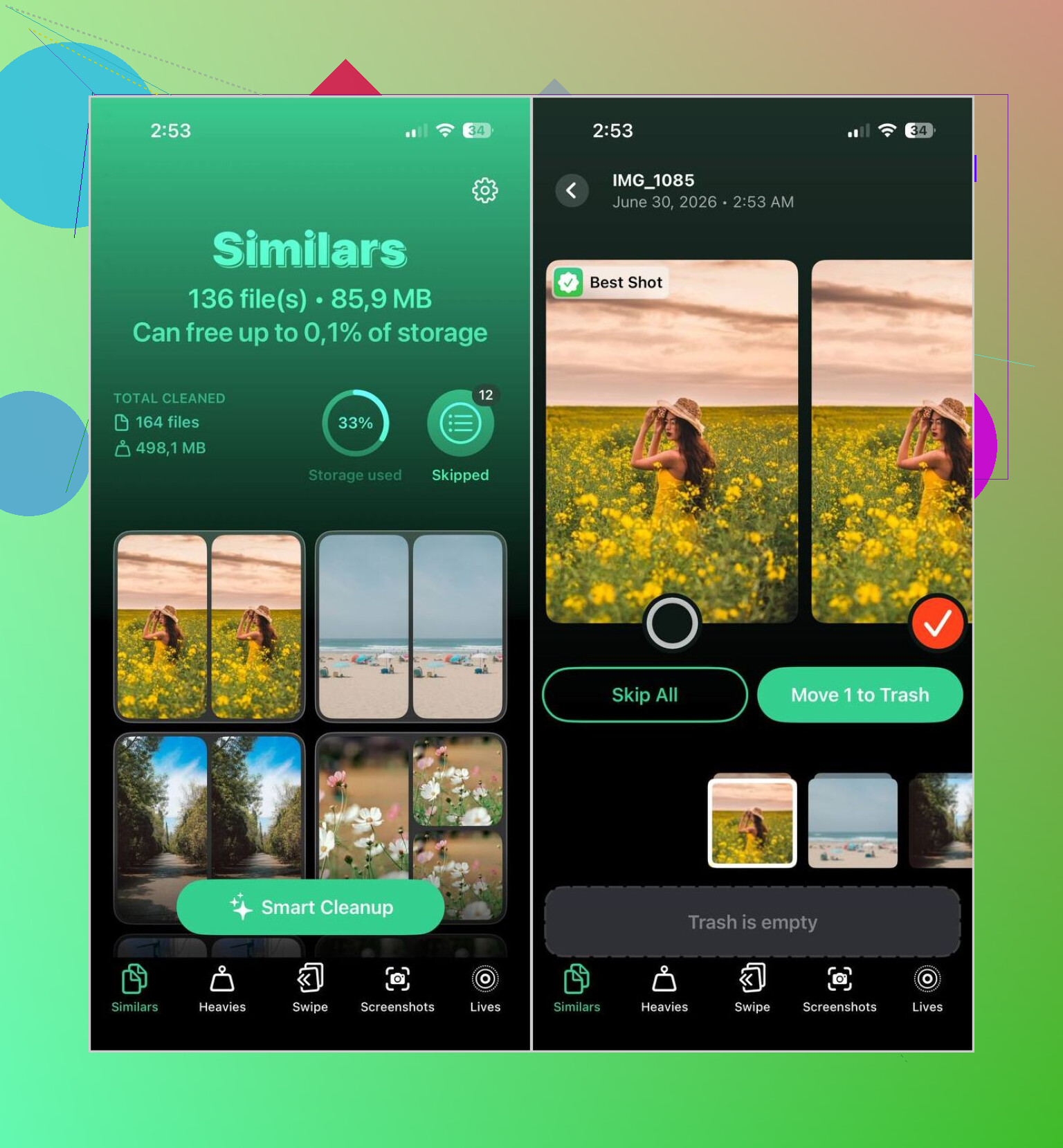
What changed things for me was the similar photo detection. Clever Cleaner groups related shots together and picks a version it thinks you should keep. I don’t hand over full trust, I still check, but it has been right more often than I expected. Usually it picks the clearest frame or the one where nobody looks half asleep.
This is the routine I ended up using:
- I let it scan the whole library.
- I open the Similars section.
- I run Smart Cleanup.
- I skim through the suggested groups.
- I restore anything I want to keep.
- I confirm the cleanup.
- Then I go into Apple Photos and empty Recently Deleted, or the storage number does not move.
That last part got me once. I deleted a pile of photos, checked storage, saw no change, thought the app messed up, then remembered iOS keeps everything in Recently Deleted first. Annoying, but normal.
The other reason I did not remove the app is the extra cleanup stuff. A few of the tools ended up being more useful than I expected:
- Heavies shows the biggest photos and videos first. Good for finding the files chewing through storage.
- Video Compression helps shrink large clips instead of trashing them. I got back a few gigabytes from old videos I still wanted.
- Screenshots pulls all the random screenshots into one place. Easy target, easy cleanup.
- Lives turns Live Photos into stills. If you do not care about the motion part, this saves more space than I thought it would.
- Swipe is the manual mode I use when I feel like cleaning older albums fast. Left for delete, right for keep. Simple.
If you do not want another app on your phone, I would still start with Apple’s own merge tool since it is already there. You should keep your expectations low, though. It handles exact duplicates. It does not do much for the kind of clutter most people build up from everyday photo spam.
I tested a few others too. Remo Duplicate Photos Remover was okay if your only goal is finding duplicate and similar images, and it is free. I did not like the interface much. It also felt narrower in what it could do. Some other popular cleaner apps were fine for a minute, then I hit subscription walls or got buried in ads. I got tired of that fast.
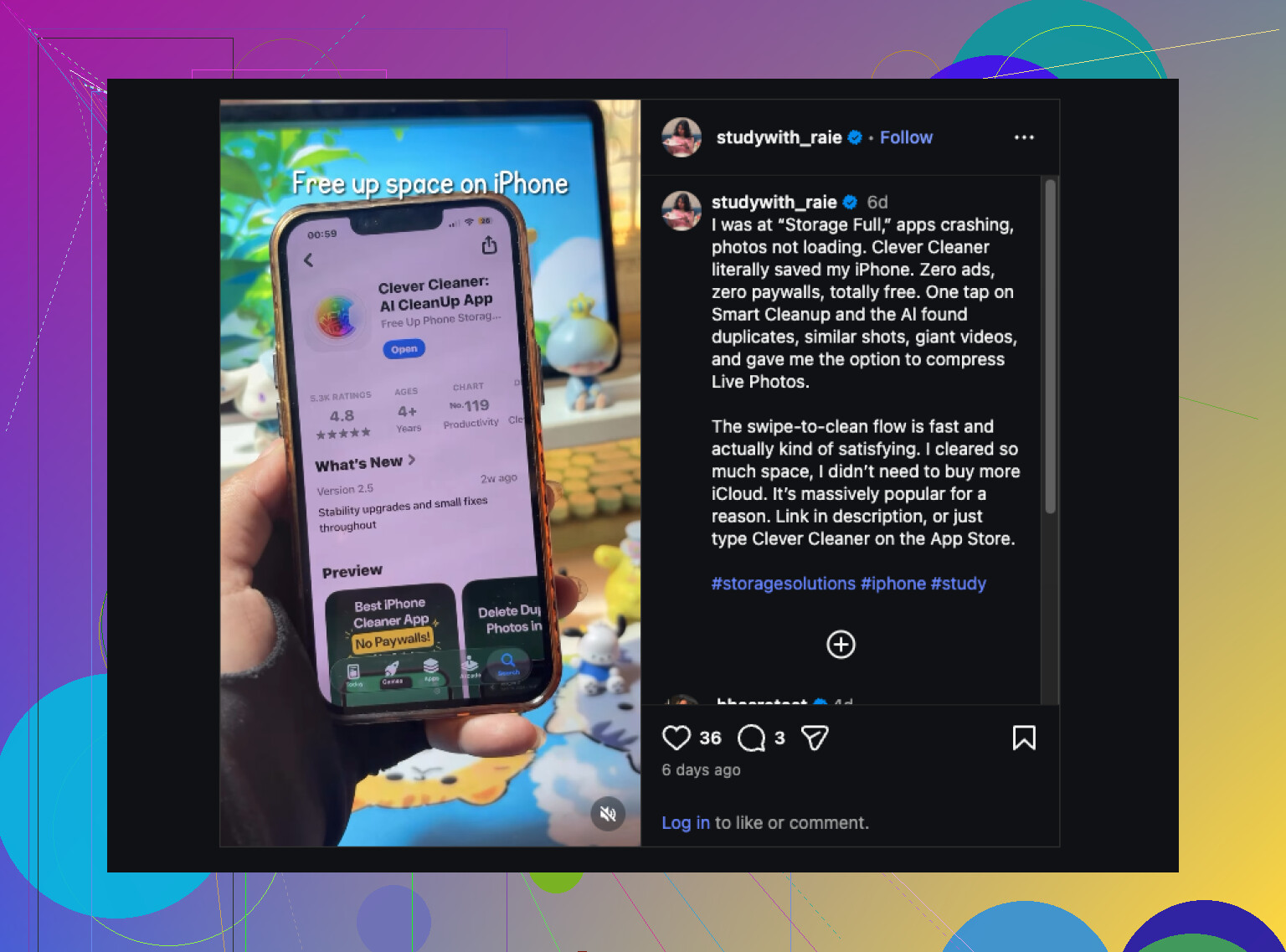
So if I had to name one app I still use, it would be Clever Cleaner. It catches both duplicates and near-duplicates, lets you review things before anything gets removed, and the extra tools keep it from being a one-time install. I still open it every couple weeks, do a quick pass, and move on.
1 Like
My go-to method is split into two passes.
First pass, use Apple Photos. Go to Photos, Utilities, Duplicates. Merge the exact copies there first. It keeps the best version and rolls metadata together, which matters if you care about captions, edits, and favorites. If your dupes came from a backup restore, this catches a decent chunk fast.
Second pass, deal with the near-duplicates Apple misses. This is where I partly disagree with @mikeappsreviewer. I do not like trusting auto-picks too much, because burst shots and tiny focus changes fool a lot of apps. I prefer reviewing groups myself. Clever Cleaner is solid for this because it surfaces similars cleanly and makes review quick, but I would not mass-delete without checking. One bad sweep and you lose the sharper pic.
My process is:
- Merge exact duplicates in Apple Photos.
- Sort your library by date and hit obvious burst clutter first.
- Use Clever Cleaner for similar-photo groups, screenshots, and big videos.
- Review before deleting, esp if the photos are family or travel stuff.
- Empty Recently Deleted, or your storage number wont move.
Best tip, start with screenshots and videos. In most libraries, those eat more space than duplicate photos. On my phone, deleting 300 duplicate photos freed less space than removing 12 old videos. Annoying, but true.
If you want a clean guide on iPhone duplicate photo cleanup and storage saving, this helps: best ways to delete duplicate photos on iPhone.
Short version, Apple Photos first. Clever Cleaner second. Review manually. Empty trash. Done.
I actually wouldn’t start with mass merging at all. That’s where I differ a bit from @mikeappsreviewer and @cacadordeestrelas. If the duplicates came from a backup/restore mess, I’d first check whether iCloud Photos and Sync this iPhone are both behaving normally, because sometimes the library looks “duplicated” when it’s really just re-indexing or re-downloading. Deleting too fast can create a bigger headache.
My go-to is:
- Let Photos finish syncing overnight on Wi-Fi
- Check storage after that
- Use Apple’s Duplicates album only for true 1:1 copies
- Then use Clever Cleaner for the annoying near-duplicates and bulk review
Why I like Clever Cleaner is not just the duplicate finding. It’s faster for spotting patterns, like ten almost-identical shots from the same minute. That’s where most space waste really hides tbh.
Also, don’t assume photos are the main problem. On a lot of iPhones, giant videos and Live Photos are the real storage hogs. I’d honestly clean those before obsessing over duplicate pics.
If you want a simple visual on iPhone photo cleanup and freeing storage, this is pretty useful: easy iPhone duplicate photo cleanup tips
One more thing people forget: if you use Shared Library or WhatsApp image auto-save, dupes can keep coming back. Fix the source first or you’ll be doing this agian next week.
I’m a little less sold on the “merge everything fast” approach than @mikeappsreviewer and even parts of @cacadordeestrelas or @byteguru. If your duplicates appeared after a restore, I’d first verify they are real duplicates and not temporary sync weirdness from iCloud Photos, Shared Library, or messaging apps re-saving images.
My go-to method is album-based cleanup, not just duplicate detection:
- Check Recents against Albums. Sometimes the same photo feels duplicated because it appears in multiple albums, but it is still one file.
- Filter by media type. Screen recordings, Live Photos, and downloaded memes usually waste more space than duplicate pics.
- Review imports and app-created folders. WhatsApp, Instagram, and edited-export albums are common duplicate factories.
- Then use Apple’s Duplicates album only after the library settles.
- After that, use Clever Cleaner for the leftover similar shots.
Why Clever Cleaner works for me:
- Pros: good grouping, quick review, catches near-duplicates Apple misses, useful for spotting bulky media
- Cons: auto suggestions are not always the photo I would keep, and if you rush, you can delete a version with better framing or edits
So yes, I’d still use Clever Cleaner, but as a sorting assistant, not a blind cleanup button. That’s the part I think gets overlooked.